
Yes, you can screenshot a QR code and still use it later, as long as the full code is sharp, uncropped, and opened large enough for another device or app to read it.
A QR code is just an image with data inside it. If your screenshot keeps that image clear, the code usually works the same way as the original on a screen, paper ticket, or sign.
Can you screenshot a QR code and still use it later?#

Yes, in most cases a QR screenshot works fine later. The key is that the whole square, including the white space around it, needs to stay visible and clear.
That means you can save a code from a ticket, boarding pass, menu, event page, or message thread and pull it up when you need it. You can also send that image to someone else, and they can usually scan it from their phone, tablet, or computer screen.
Resolution matters less than people think. Modern phone screenshots are usually more than sharp enough. What breaks the scan is usually cropping too tight, shrinking the image too small, or saving a code that was already blurry.
A simple rule: if you can zoom in and the edges still look crisp, the screenshot is probably usable.
When does a QR code screenshot stop working?#
A QR code screenshot stops working when the problem is not the screenshot itself, but the code, the app, or the link behind it. A clear saved image cannot fix an expired ticket, a dead link, or a code that only works inside one app.
Here are the big exceptions.
First, some codes are time sensitive. A boarding pass, concert entry pass, or login code may change every few seconds or expire after a short window. A screenshot of those might scan, but still get rejected.
Second, some apps use their own code format or check for live app data. Spotify Codes are a good example, which is why a normal camera may ignore them. If that is your situation, see How to scan a Spotify Code, and why your camera won't.
Third, the linked content might be gone. A screenshot preserves the square, not the webpage behind it. If the link changes or the page is deleted, the code will still scan but lead nowhere useful.
That is where dynamic codes help. If you made the code with QRFLOW.codes, your first dynamic code is free, so you can change where it points after sharing or printing. If you need every code to stay editable, that is on pricing.
How to scan a QR code from a screenshot#

To scan a QR code from a screenshot, open the saved image in your Photos or Gallery app and use the built-in scan action, such as a link pop-up, Google Lens, or Live Text. Most iPhones and Android phones can do this without a separate QR app.
On iPhone, open the screenshot in Photos, then press and hold on the code or look for the small scan or link icon. On many Android phones, open the image in Google Photos and tap Lens.
If you are trying to scan a code saved on the same phone, you usually cannot point your camera at your own screen and expect it to work. You need the photo-based scanner built into the gallery app, or you need to show the screenshot on another device.
If you want the exact device-by-device methods, use How to scan a QR code from a screenshot on iPhone or Android. If the code is on paper or another screen, How to scan a QR code without a dedicated app covers the normal camera method.
Midway through this, you might realize the real job is making a clean code you can save and share without fuss. The free QR code generator lets you make one, download it, and keep the image handy for messages, tickets, or handoffs.
Sharing the screenshot with other people#
Sending a QR screenshot to someone else usually works best when you send the original image file, not a compressed screenshot pasted into a chat bubble or slide. Messaging apps sometimes shrink images, and that can soften the edges.
If the other person will scan it from a second device, have them open the image full screen first. A code shown at 1 inch (2.5 cm) wide on a phone can still scan at close range, but tiny previews inside chat apps are where failures start.
If you are sharing a code for print, send a PNG or SVG export instead of a screenshot when you can. A screenshot is fine for quick person-to-person use. It is not the best master file for a poster, label, or table card. If print is next, QR code for a link is the cleaner route.
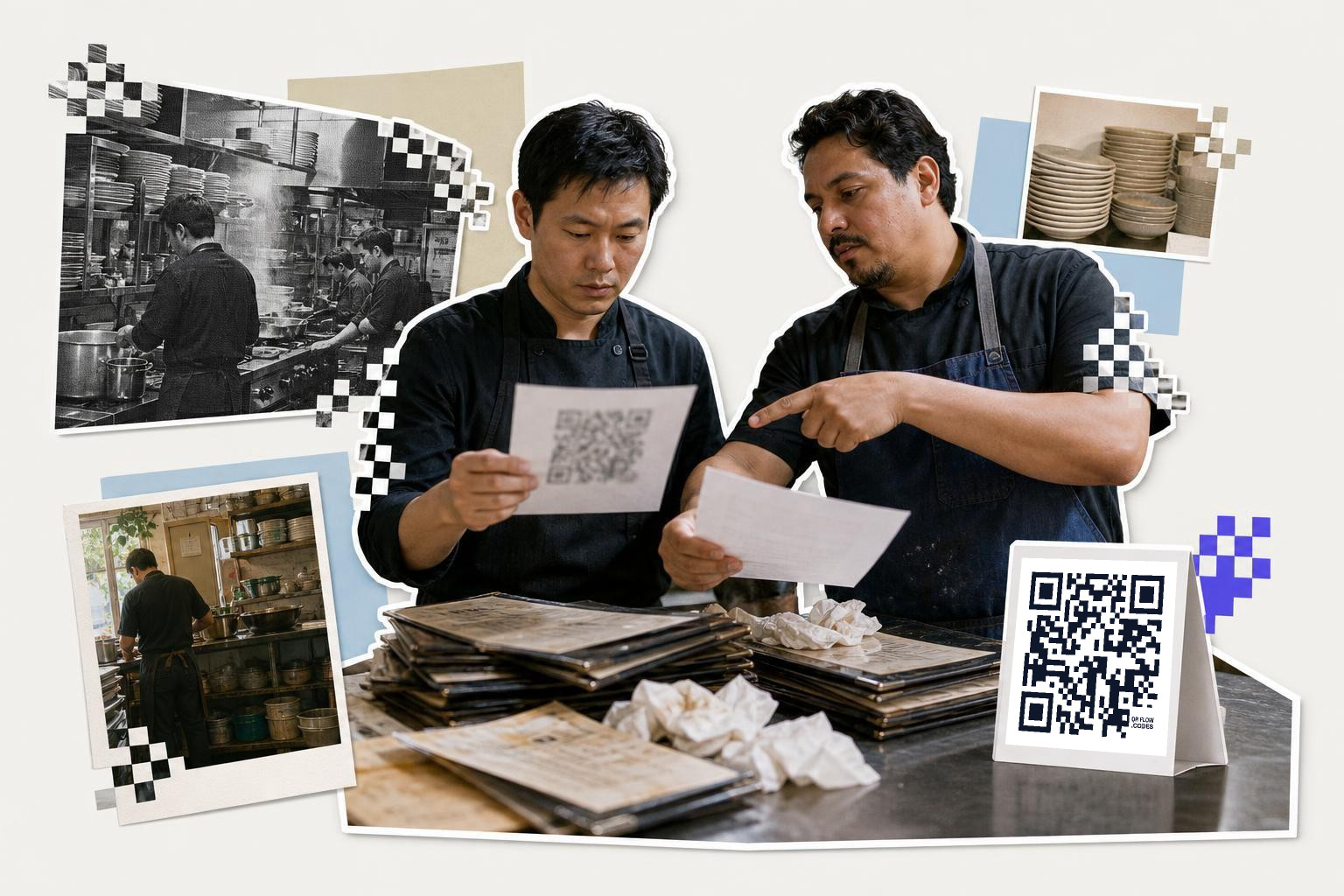
A good example is a dinner party host texting the Wi-Fi code to guests before they arrive. A screenshot is perfect there. A restaurant printing table tents should use the original file instead, especially if the sign will be used for months.
A screenshot of a QR code is usually enough for later use, personal sharing, and quick saves. Just remember that a saved image keeps the code itself, not any timing rules, app restrictions, or broken link behind it.
Understanding QR code types#
Not all QR codes are the same. There are static and dynamic QR codes, and each serves different purposes. Static QR codes hold fixed information. Once created, the data cannot be changed. These are suitable for simple tasks like sharing contact details or a URL. On the other hand, dynamic QR codes allow you to update the information even after printing or sharing. They are useful for marketing campaigns or event promotions where the target URL might change. Knowing the type of QR code you are dealing with can help you decide whether a screenshot will be effective or if you need to create a new code.
Common issues with QR screenshots#
While screenshots of QR codes are generally reliable, there are common issues that can arise. One problem is glare or reflections on the screen, making it hard for scanners to read the code. Another issue is screen brightness. If your screen is too dim, the contrast might not be sufficient for scanning. Also, if the device scanning the code has a low-quality camera, it might struggle to read the screenshot. It's important to ensure that the screen displaying the QR code is clean, bright, and free of reflections to improve scanning success.
Using QR codes in presentations#
QR codes can be a great tool in presentations, allowing the audience to quickly access additional resources. When using a screenshot of a QR code in a presentation, make sure it is large enough for everyone to scan from their seats. A QR code that is at least 4 inches (10 cm) wide is usually adequate for a small to medium-sized room. If presenting to a larger audience, consider providing the QR code as a handout or on a shared screen. This ensures everyone can access the information without crowding around a single screen.
Questions people ask about can you screenshot a QR code#
Can a QR code be scanned from a photo?#
Yes, a QR code can be scanned from a photo as long as the image is clear and the code is not cropped. Use your phone's gallery app to open the photo and use a built-in scanning feature or app to read the code.
Does a QR code lose quality when screenshotted?#
A QR code does not lose quality when screenshotted if the image remains clear and uncropped. Modern phones capture high-resolution images, so the quality is usually sufficient for scanning.
Can a QR code be scanned from a computer screen?#
Yes, a QR code can be scanned from a computer screen. Ensure the code is displayed clearly and large enough for the scanning device to read it. Avoid glare or reflections on the screen for better results.
Why won't my phone scan a QR code screenshot?#
If your phone won't scan a QR code screenshot, the image might be too small, blurry, or cropped. Ensure the code is clear and the screen is bright. Use a photo-based scanner in your gallery app if scanning directly from the same device.
If you want to make a code you can save now and still control later, start with QRFLOW.codes.
When you are ready to try it, make a free QR code and see how it looks before you print anything.