
Yes, you can usually scan a QR code with your phone's built-in camera app, and on most iPhones and Android phones it takes less than 10 seconds with no QR code scanner app needed.
If you are staring at a code and wondering whether you need to download something, the short answer is probably no. Most phones already have a QR code camera feature built-in. It is safer and faster than grabbing a random third-party app.
How to scan a QR code without a dedicated app#

You can scan a QR code without a dedicated app by using your phone's Camera app. Hold your phone 5 to 10 inches (13 to 25 cm) from the code and wait for a banner or link to appear. Tap it to access the content.
- Open your phone's Camera app first. On most iPhones and Android phones, this is the default way to scan a code.
- Hold the phone 5 to 10 inches (13 to 25 cm) from the code. Keep the whole square inside the frame and stay still for a second.
- Wait for a banner, pop-up, or highlighted link to appear. You usually do not need to press the shutter button.
- Tap the banner to open the website, menu, form, Wi-Fi prompt, or contact card. If the code asks to join Wi-Fi or save a contact, your phone will show a built-in prompt.
- If nothing happens on iPhone, go to Settings, Camera, then turn on Scan QR Codes. That switch is on by default on most current iPhones.
- If nothing happens on Android, look in the Camera app for Google Lens, Scan, or a small QR icon. Many Android phones scan right in Camera. Some route the scan through Lens.
- Try brighter light and a plain angle, if the code is glossy or far away. Reflections on screens and laminated signs can stop the phone from reading it.
- Avoid installing a random scanner unless your phone is very old. Built-in tools are usually quicker, and they ask for fewer permissions.
If you want a practice code to test with, make one in the free QR code generator and point your camera at it from another screen or a printed page.
Does your phone already have a scanner built-in?#
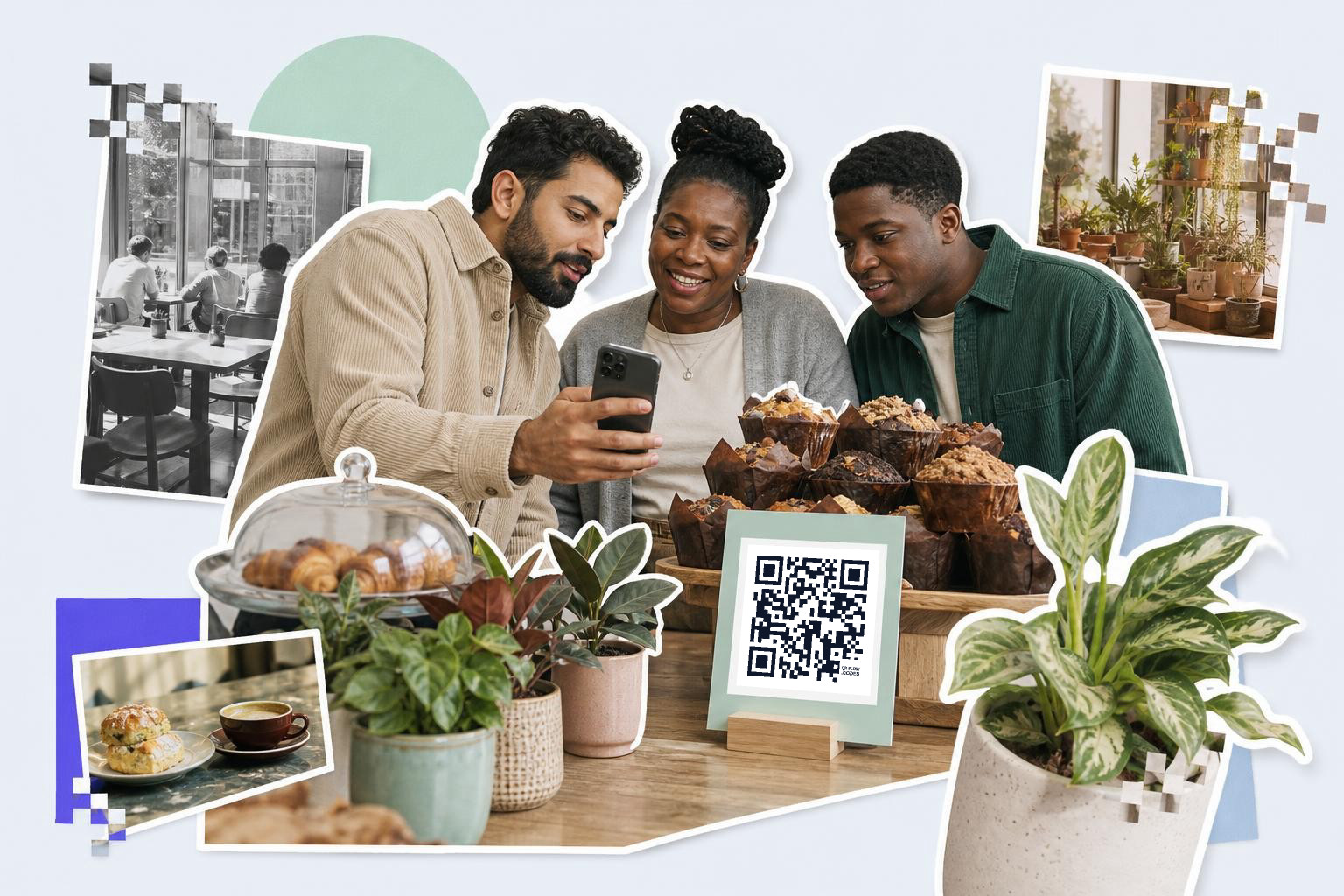
Most phones sold in the last several years can scan a code with the native camera. iPhone uses the Camera app, and many Android phones use either Camera or Google Lens built into the camera view.
That means you usually do not need a separate scanner app at all. Built-in scanning is simpler, and it cuts the risk of downloading an app loaded with ads or extra permissions.
On iPhone, open Camera and point it at the code. A link banner should appear near the top or bottom of the screen.
On Android, the result depends on the phone brand and camera app. Some phones show the link right away. Others show a Lens button, a Scan option, or a small square icon you tap once.
If your phone opens the camera but never reacts to the code, the problem is usually a setting, not the code itself. Our guide on how to scan a QR code on any device covers tablets and computers too.
iPhone and Android steps that usually fix it#

iPhone fixes are short: turn on Scan QR Codes, update iOS if your phone is very old, and use the built in Camera app instead of a social app camera. Android fixes are usually Camera permissions, Lens, or the phone maker's Scan setting.
Here is the fast checklist.
For iPhone:
- Open Settings, then Camera.
- Turn on Scan QR Codes.
- Go back to Camera and point at the code.
- If Control Center has a Code Scanner tile, you can use that too.
For Android:
- Open the Camera app.
- Look for Lens, Scan, or Bixby Vision on some Samsung phones.
- Allow camera permissions if the app asks.
- If the regular camera does not react, open the Google app and tap Lens.
A few phones also scan from a saved image. In Google Photos, opening a screenshot and tapping Lens often works. On iPhone, a code in a photo may be recognized when you long press it or open text detection features. This depends on your iOS version.
If you are making your own code after this, QRFLOW.codes lets you generate one without signing in. If you want to change the destination after printing, your first dynamic code is free. That is handy for menus, forms, and event links that may move later.
What happens after you scan it?#

A scan usually opens one clear action, like a website, Wi-Fi join prompt, contact card, text message, or phone call. Your phone should show where the code wants to send you before you fully open it.
That preview matters. Built-in scanning is handy, but you should still tap with common sense. If the link looks strange, misspelled, or unrelated to the sign in front of you, do not open it.
Different code types behave differently:
- A website code opens a browser link.
- A Wi-Fi code opens a join network prompt.
- A contact code offers to save a person to Contacts.
- A phone code can start a call prompt.
- An SMS code fills in a text draft.
If you are curious how those are made, you can browse code types in the QR code to call or text guide or jump straight to a Wi-Fi QR code if that is what you need next.
Still stuck?#
If your camera app does not show a banner, enable the scan setting, increase lighting, and hold your phone 5 to 10 inches (13 to 25 cm) away. Make sure the code fits in the frame. On Android, try Google Lens if the main camera still does nothing.
Why is my camera seeing the code but not opening anything?#
Camera apps often recognize the code but wait for you to tap the banner. If no banner appears, turn on the scan setting, add more light, and hold the phone 5 to 10 inches (13 to 25 cm) away so the square fits cleanly in frame.
Do I need a QR code scanner app on Android?#
Android usually does not need an extra scanner app. Many phones scan in the Camera app, and others use Google Lens, which is often already installed or built into the camera.
Can iPhone scan a code from the Camera app?#
iPhone can scan directly from the Camera app as long as Scan QR Codes is turned on in Settings, Camera. You do not need to take a photo first, and you usually do not need a separate app.
Is it safer to use the built-in scanner?#
Built in scanning is usually the safer choice because it uses the phone tools you already trust and avoids sketchy app permissions. You still need to check the link preview before opening any site you do not recognize.
Can I scan a code from a screenshot?#
Screenshots sometimes work. Android users can often open the image in Google Photos and tap Lens, while iPhone support depends on your iOS version and whether the code is detected inside Photos.
Reading codes with older phones#
If you have an older phone, your built-in camera app might not support scanning. In this case, you can still read codes without downloading a third-party app by using alternative methods. One option is to use Google Lens through the Google app, if your phone supports it. Open the Google app, tap the Lens icon, and point your camera at the code.
If your phone does not support Google Lens, you can try using a web-based scanner. Search for one in your browser, and follow the instructions to upload a photo of the code. These methods can take a bit longer than using a built-in feature. They still work well for older devices that lack native scanning.
Improving code scanning success#
Improving your scanning experience can be as simple as adjusting a few factors. Start by making sure your phone's camera lens is clean. Smudges or dirt can interfere with the camera's ability to focus on the code.
Next, check the lighting conditions. A well-lit environment helps the camera detect the code more easily. If you are outdoors, avoid direct sunlight because it can cause glare. Hold your phone steady and keep the code within the camera frame. If the code is on a curved surface, try to flatten it as much as possible.
Lastly, make sure the code is not damaged or obscured. A clear and complete code will scan more reliably. If you are designing one for print, this guide on a QR code with logo in middle can help you avoid scan issues.
Contactless payments with codes are increasingly used for contactless transactions, making payments and exchanges faster and more secure. To use one for payment, open your phone's camera or a payment app that supports scanning. Align the code within the camera frame.#
Once scanned, the app will usually prompt you to confirm the transaction. This method is common in retail and dining, where customers can pay without touching cash or cards. Some payment apps also have built-in code features for sending and receiving money.
Make sure to verify the transaction details before confirming. Codes can be used for phishing if not carefully checked. This approach simplifies transactions, reduces physical contact, and speeds up the process.
If you also need to make a code for your own link, menu, Wi-Fi, or contact card, try QRFLOW.codes. You can generate one in seconds, download it, and print it once you know it opens the right thing.
Compare plans on the QRFLOW.codes pricing page to pick the tier that fits your workflow.
Frequently asked questions on scanning codes#
How do I enable QR code scanning on my phone?#
On iPhone, go to Settings, then Camera, and turn on Scan QR Codes. On Android, open the Camera app and look for options like Lens or Scan. Make sure camera permissions are allowed.
Why won't my phone scan a QR code?#
Ensure the code is well-lit and within 5 to 10 inches (13 to 25 cm) of the camera. Check that your phone's scan settings are enabled. If it still does not work, try using Google Lens or updating your phone's software.
Can I scan a QR code without internet?#
You can scan a QR code without internet, but accessing the content often requires a connection. The camera can read the code, but if it leads to a website or online service, you will need to be connected.
What should I do if the QR code link looks suspicious?#
If a code link looks suspicious, do not tap it. Check for misspellings or unrelated content. It is safer to avoid opening links that do not match the context of the code's location.
When you are ready to try it, make a free QR code and see how it looks before you print anything.