A dynamic code carries a short link (qrflow.codes/q/xxxx) instead of the destination itself. Change the destination and every printed copy follows within seconds. No reprint, no new file.
Edit the destination
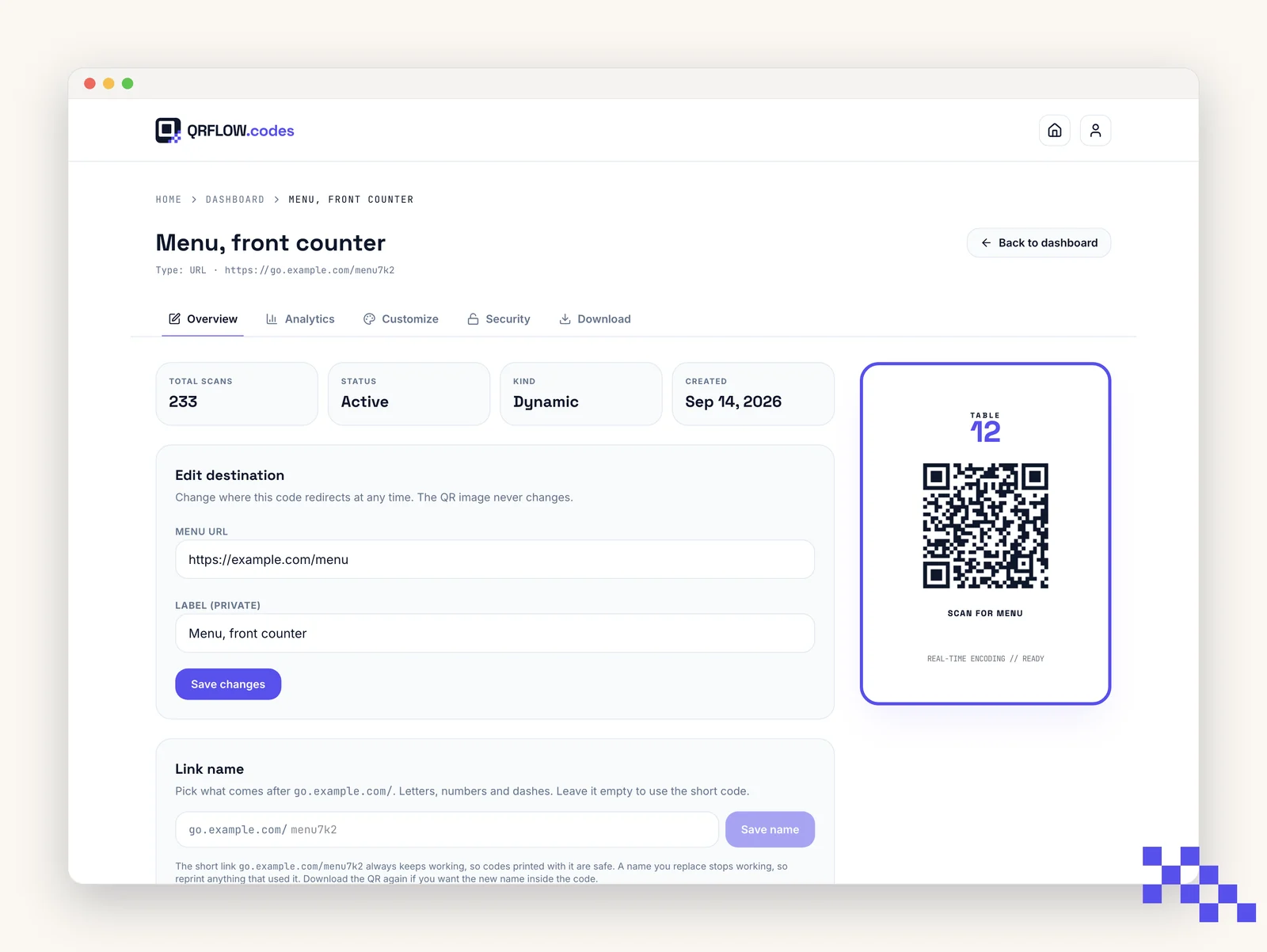
- 1Open the code
Dashboard, then click the card. You land on the Overview tab.
- 2Find Edit destination
It is the first panel on Overview. The fields match the code's type: a URL field for links, name and phone for a vCard, network and password for Wi-Fi.
- 3Change the value and save
Click Save changes. The redirect updates immediately; scans in progress finish on the old destination, the next scan gets the new one.
- 4Scan to confirm
Point your phone at any printed copy. If it opens the new destination, you are done.
Only dynamic codes can be edited. A static code has the content baked into the picture, so changing the text here changes future downloads but not copies you already printed. See Static vs dynamic.
Can I change the type?
No. A URL code stays a URL code. If a menu code should become a Wi-Fi code, create a new one and print it. Changing the destination URL to a different page, a different PDF or a different form is fine and is the whole point.
Tip. Point event and seasonal codes at a landing page you control rather than at a third-party page. When the third party changes their URL, you edit one field here instead of chasing prints.
Put this to work on your codes
Save a code to your dashboard and you can re-point it after printing, lock it, and watch every scan. Premium is $4 a month.
Still stuck? Search the help center, or contact support and a person will answer.