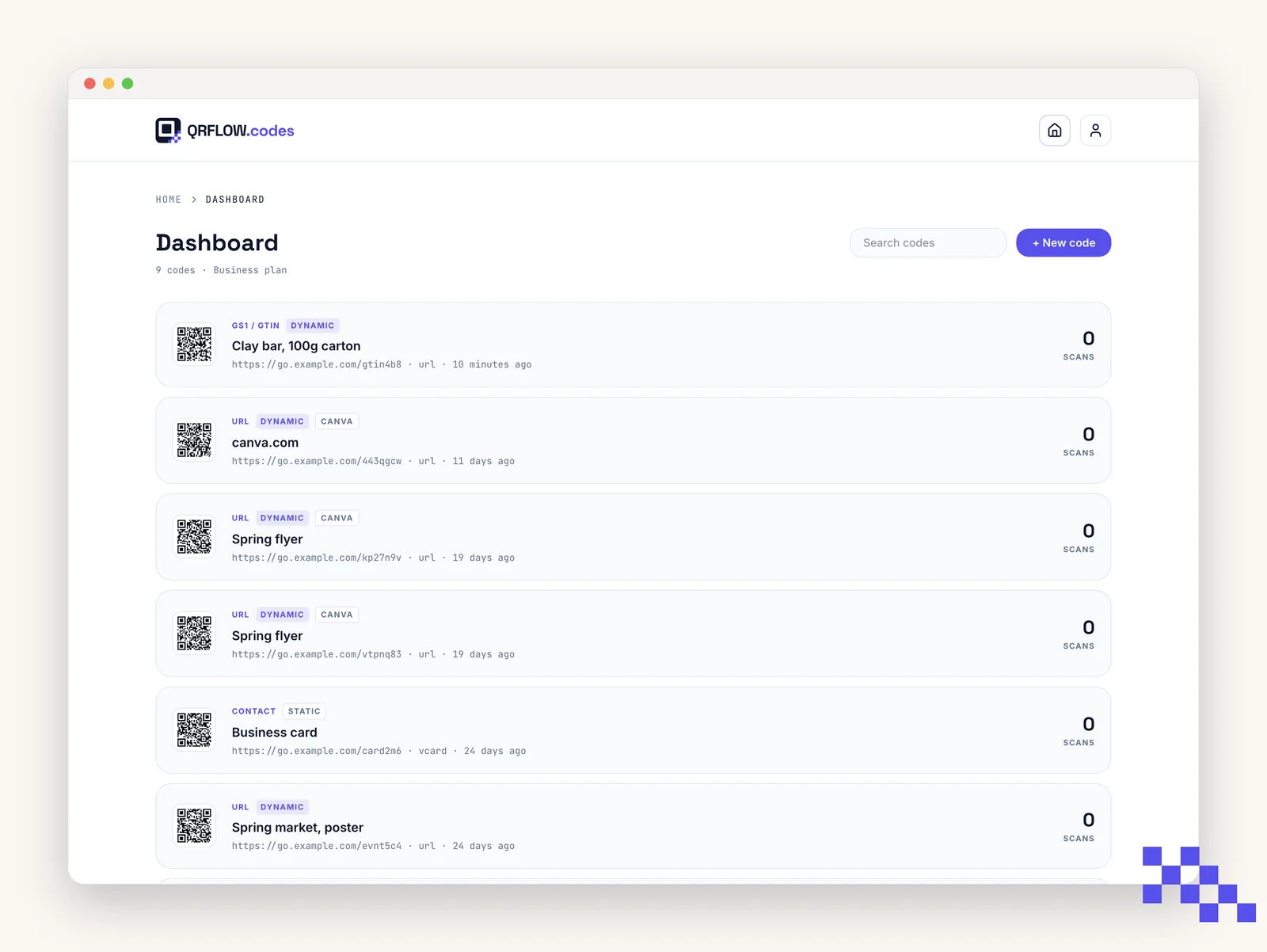
The Dashboard is where every saved code lives. Each card shows the code, its type, scan count, and last edit. Click any card to open it.
Save a code
- 1Sign in
Signing up is free. Use email or Google.
- 2Fill the generator
Pick a type, fill the fields.
- 3Click Save & make editable
The button sits under the live preview. QRFLOW.codes creates a short redirect link and stores the code.
- 4Land on the Dashboard
You are redirected to the code's detail page. Every saved code is listed on the Dashboard.
Rename a code
Two ways, both instant, both save automatically.
- In the detail header: click the title (Untitled code by default) and type a new one. Press Enter to save, Esc to cancel.
- In Overview: click the Label field and type. Blur to save.
Tip. Titles are private. They never appear to scanners, so name them for your own sorting (Summer menu 2026, Booth C flyer, WiFi guest lounge).
Find a code
- 1Search
Type in the Dashboard search box. It matches title, label, and destination URL.
- 2Filter by type
Use the All types dropdown to show only URL, Wi-Fi, vCard, and so on.
- 3Sort
Cards are sorted by most recently edited. Rename or update a code to bump it to the top.
Delete a code
Open a code, then the three-dot menu in the top right, then Delete. Confirm to remove. This is permanent.
Heads up. Deleting a dynamic code kills its redirect immediately. Anyone who scans the old print will get an error page. Only delete codes you have retired from the field.
Put this to work on your codes
Save a code to your dashboard and you can re-point it after printing, lock it, and watch every scan. Premium is $4 a month.
Still stuck? Search the help center, or contact support and a person will answer.