How it works
1. Install the add-on
Open QRFLOW for Google Sheets™ on the Google Workspace Marketplace and click Install. It only sees the spreadsheet it is opened in.
2. Put your web addresses in a column
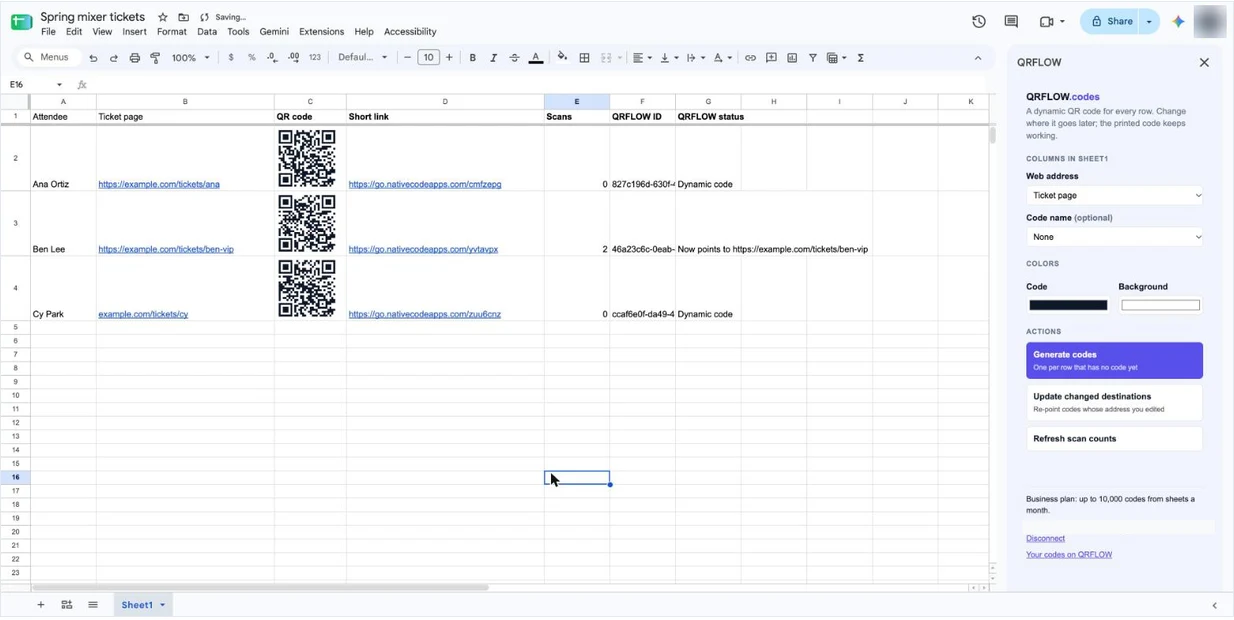
A header in row 1, for example Ticket page, and one address per row under it. A name column is optional.
3. Connect your QRFLOW account and pick the column
Extensions, then QRFLOW for Google Sheets™, then Open QRFLOW. Sign in once and choose the address column.
4. Click Generate codes
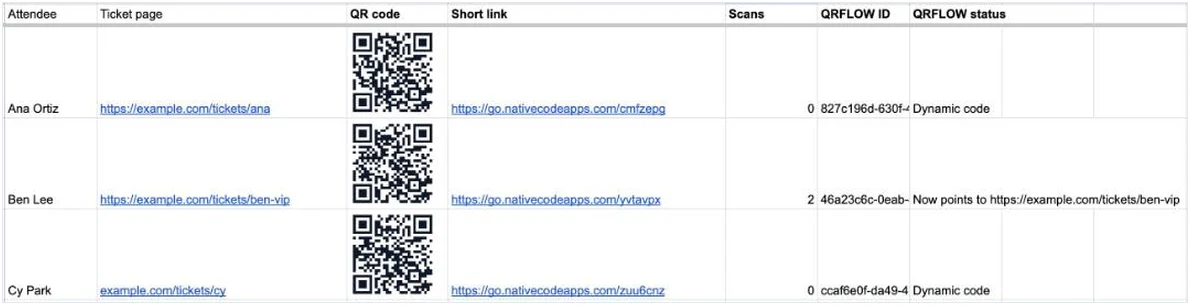
Each row gets its QR code inside the cell, its short link and a scan count. Rows that already have a code are skipped.
Install it from the Google Workspace Marketplace. Every click, with troubleshooting, is in the help article.
Change where a printed code goes
Most QR add-ons draw a picture of a link, so the code is fixed the moment it is printed. These are dynamic codes: edit the address in the row, click Update changed destinations, and the ticket, badge or box you already printed opens the new page. Refresh scan counts pulls each code's total into the sheet.
What people use it for
| Job | How the sheet does it |
|---|---|
| Event tickets and check-in | One code per attendee, merged into the ticket like any other column. |
| Asset and inventory tags | A code per item that opens its record, and still works when the record moves. |
| Name badges | Each badge opens that person's profile or contact page. |
| Mail merge and printed letters | A personal link per recipient, with a scan count that tells you who opened it. |
| Product labels and packaging | One code per SKU, re-pointed to next season's page without new labels. |
Tracking stock or equipment? See QR codes for inventory.
Plans
| Plan | In the add-on |
|---|---|
| Free | Install and connect. Generating codes asks you to upgrade. |
| Premium, $4/mo | Up to 500 codes a month from sheets. |
| Business, $29/mo | Up to 10,000 codes a month from sheets. |
No API key needed: the add-on signs in to your account directly, and it shares its monthly allowance with the Bulk generator. Same numbers as the pricing page.
Questions people ask
How do I make a QR code for each row in Google Sheets?
Install QRFLOW for Google Sheets™, put the web addresses in one column with a header in row 1, open the add-on from the Extensions menu, pick that column and click Generate codes. Every row gets its own QR code image in the cell, plus its short link and scan count.
Can I change where a QR code goes after it is printed?
Yes. The codes are dynamic: each one is a short link you control. Edit the address in the sheet and click Update changed destinations. The printed code stays the same and opens the new page.
Is it free?
Installing the add-on and connecting a free QRFLOW account is free. Generating codes from a sheet is part of the Premium plan ($4 a month, up to 500 codes a month) and Business (up to 10,000). It does not need an API key.
Does it work for mail merge, tickets and badges?
Yes. Because the code sits in its own cell next to the row's data, it can be merged into a letter, a ticket or a badge template the same way as a name or a date. Each attendee, product or asset gets a code of its own, and each one counts its own scans.
What can the add-on see in my Google account?
Only the spreadsheet it is opened in, and only while you use it. It sends the addresses and names you choose to QRFLOW to make your codes, and nothing else.
What about Excel or a CSV?
Use the Bulk generator in your QRFLOW account: upload a CSV with a destination column and you get back a ZIP of PNGs and a CSV of short links. It shares the same monthly allowance as the add-on.
A code for every row
Install it free, connect your QRFLOW account, and generate codes for the whole sheet on Premium.