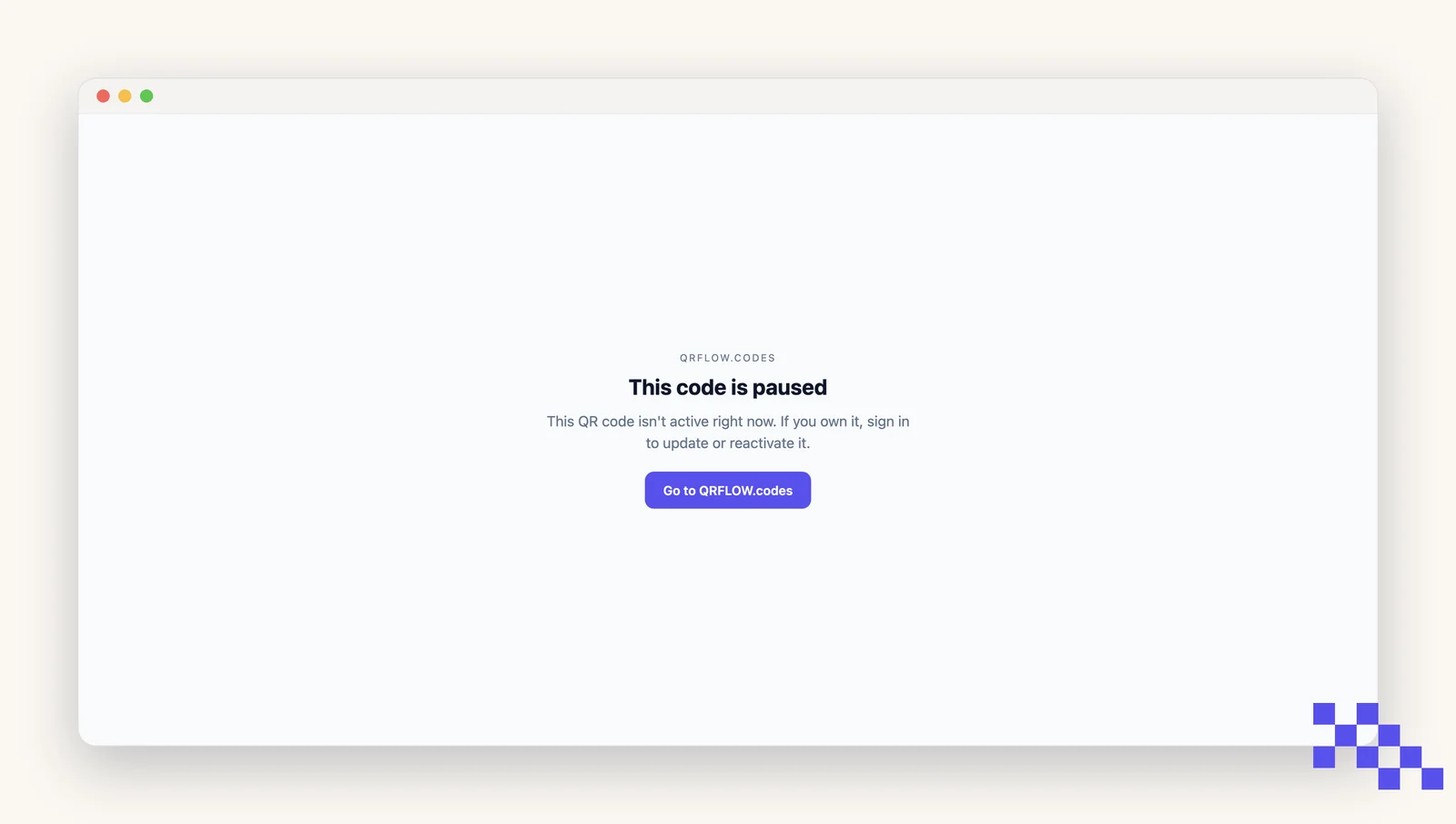
Pausing keeps the code, its link and its analytics, and stops the redirect. Scanners see a friendly This code is paused page. Resume whenever you like; the printed copies never knew.
Pause or resume
- 1Open Security
Dashboard, click the code, then the Security tab.
- 2Click Pause code
The badge on the Dashboard card turns to Paused. The button becomes Resume code.
- 3Resume when ready
Click Resume code. Redirects work again on the next scan.
When to pause instead of delete
- A page behind the code is broken and you need an hour to fix it.
- A menu or price list is changing and you do not want people to see the old one.
- A code was printed somewhere it should not have been.
Heads up. Deleting a code is permanent. Its short link stops working forever and cannot be recreated. If there is any chance you will want it back, pause it.
What pausing does not touch
- The printed code. Pausing changes nothing about the pattern, the short link, the link name or your domain, so every printed copy still works the moment you resume.
- Your scan history. Everything counted before the pause stays exactly as it was.
- Scans during the pause are not counted. Someone who scans while it is paused sees the paused page, and no scan is recorded, so the week shows as a gap rather than as traffic.
- An expiry date is the same thing on a timer. Set one in Security and the code pauses itself on that date; clear the date to bring it back.
Put this to work on your codes
Save a code to your dashboard and you can re-point it after printing, lock it, and watch every scan. Premium is $4 a month.
Still stuck? Search the help center, or contact support and a person will answer.