A password-protected code shows a small unlock page before it redirects. Set it on a code that is already printed and every copy starts asking on the next scan. Use it for staff documents, a private event page or a price list you only want customers to open.
Before you start
- The code has to be dynamic. A static code carries the destination inside the pattern, so the phone never passes through us and there is no moment to ask for anything. No tool can password-protect a static code.
- Password protection is Premium. On Free the Security panel shows the upgrade note instead of the field.
- Nothing needs reprinting. The pattern does not change when you add, change or remove a password.
Set a password
- 1Open the code's Security tab
Dashboard, click the card, then Security.
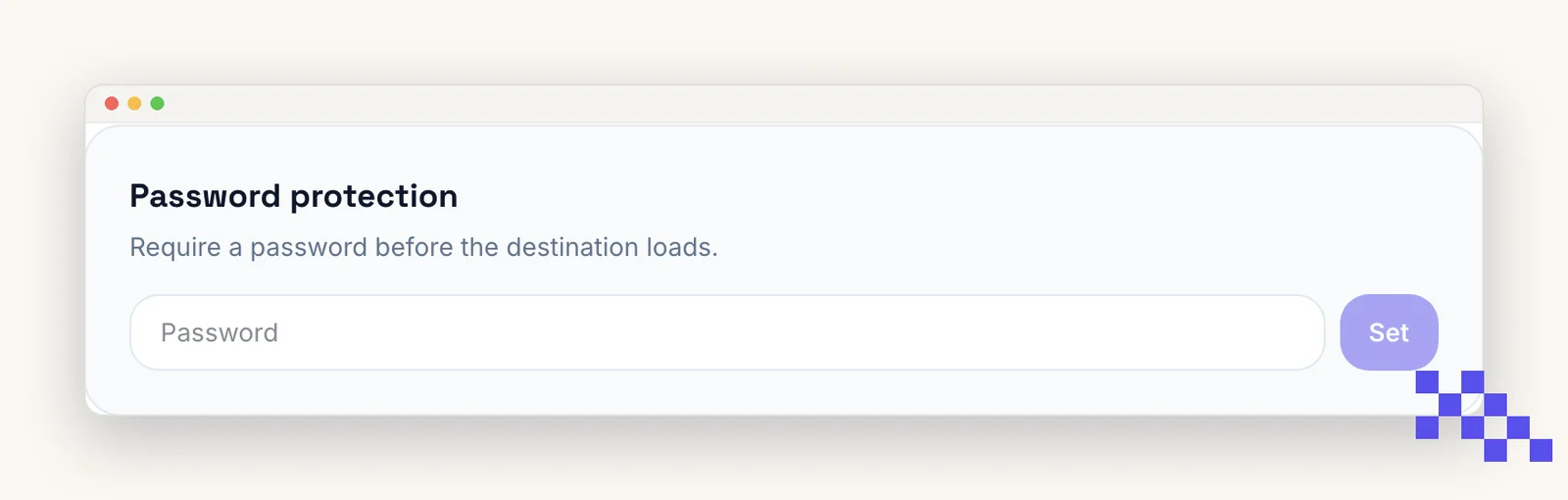
- 2Type a password and click Set
Up to 72 characters. It is stored hashed, so we cannot show it back to you. Write it down before you leave the page.
- 3Scan to test
You get the unlock page. Enter the password; the destination opens and that phone stays unlocked for that code for an hour.
Tip. Test it on a phone that has never scanned the code, not the one you just unlocked. An unlocked phone goes straight through for an hour and makes a working lock look broken.
Choosing a password people can actually type
This one gets typed on a phone, often standing up, sometimes by someone wearing gloves. That is a different job from a password you keep in a manager.
- Two or three plain words beat a short random string. They are quicker to type and far easier to read off a noticeboard.
- Avoid characters that move on a phone keyboard, which means most punctuation and anything needing a third keyboard layer.
- Case matters. If the password is going on a printed card, write it exactly as it must be typed.
- One password per audience, not per person. There is no per-scanner account, so the password is the whole of who gets in.
Change or remove it
Type a new password and click Update, or click Remove. Either one invalidates every phone that was unlocked, so people are asked again on their next scan. Both take effect immediately on every copy already printed.
- Change it when someone leaves, or when a printed sheet has travelled further than you meant it to.
- Remove it when a document stops being private, and the code keeps working untouched.
- Retire the content instead by pointing the code somewhere else on the Overview tab. The old page is then unreachable from that code whatever anyone remembers.
What the person scanning sees
- A plain page on your own domain if you use one, asking for the password, with nothing about where the link goes. No title, no preview, no hint in the address.
- The unlock lasts an hour, per phone and per code. The same person scanning a different protected code is asked again.
- There is no password reset for a scanner, because the password is yours, not theirs. Put it where the right people already are: on the staff noticeboard, in the booking email, on the back of the card.
After eight wrong attempts in a minute we pause that phone for a minute. The page shows Too many attempts. Nothing is locked permanently and the code is fine for everyone else.
If you forget the password
Heads up. It cannot be read back, because it is stored hashed. That is the same reason nobody else can read it either.
Set a new one on the Security tab. It takes a second, the code and its scan history are untouched, and everyone is asked for the new password on their next scan.
What it protects, and what it does not
It protects the redirect, not the destination. Someone who has already unlocked the code can copy the final web address and send it to anyone, and that address opens with no password, because the lock was on the route rather than the room.
For a rota or a trade price list that is the right amount of protection: it stops the passing customer, which is who you were worried about. For anything genuinely confidential, put a login on the destination page as well and let the code password be the outer door.
Put this to work on your codes
Save a code to your dashboard and you can re-point it after printing, lock it, and watch every scan. Premium is $4 a month.
Still stuck? Search the help center, or contact support and a person will answer.