An expiring code redirects normally until the moment you set, then shows a This code has expired page. Perfect for promotions, event check-ins and anything with an end date.
Set it
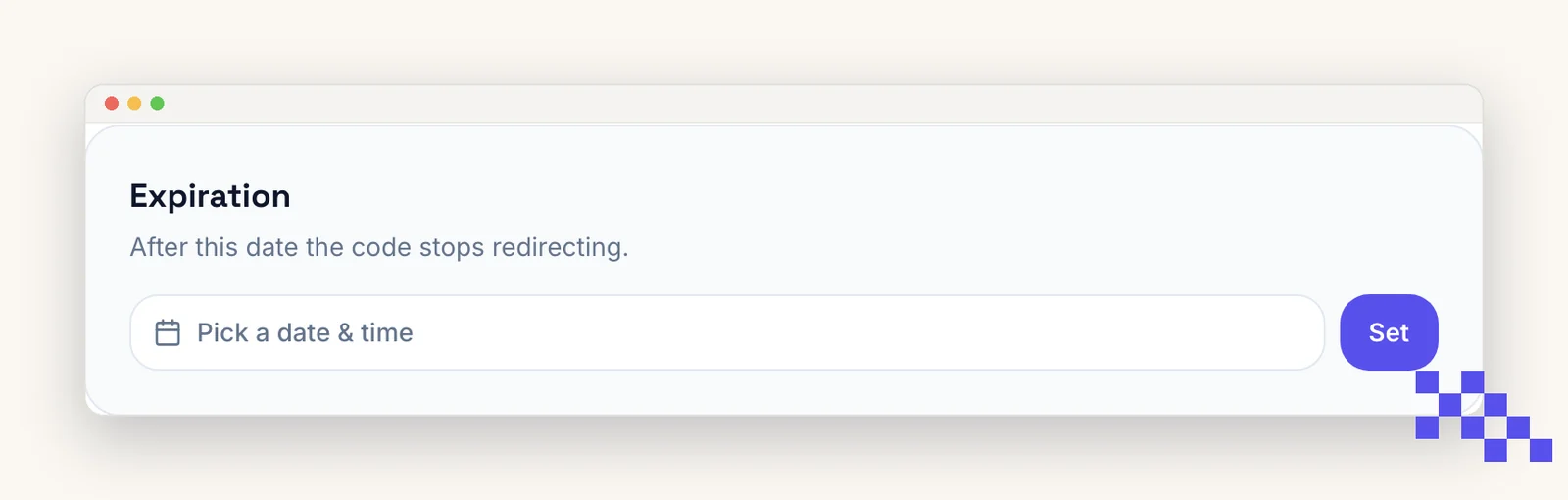
- 1Open Security
Dashboard, click the code, then the Security tab.
- 2Pick a date and time
The picker uses your local time zone. The panel shows the exact expiry once saved.
- 3Click Set
Change it later with Update, or click Remove to make the code permanent again. Extending a date revives an already-expired code instantly.
After it expires
- Scanners see a plain page: This code has expired, with a link back to your site (or to your own domain if you use one).
- The code stays in your Dashboard with its analytics. Nothing is deleted.
- Scans of the expired page are not counted as scans, so an expired month reads as a gap rather than as traffic.
- The printed code does not change. The pattern, the short link and your link name all stay exactly as they are, which is why extending the date brings it straight back.
- The date is set in your own time zone. If the audience is on the other side of the world, set it a day late rather than cutting someone off at what is still yesterday for them.
Tip. Rather than letting a promo code die, point it at a we're back page or your main site when the promotion ends. You keep the scans and the goodwill.
Put this to work on your codes
Save a code to your dashboard and you can re-point it after printing, lock it, and watch every scan. Premium is $4 a month.
Still stuck? Search the help center, or contact support and a person will answer.