Every saved code has an Analytics tab. Scans are counted on the QRFLOW.codes redirect, so analytics work no matter where the code is printed or displayed.
Open the Analytics tab
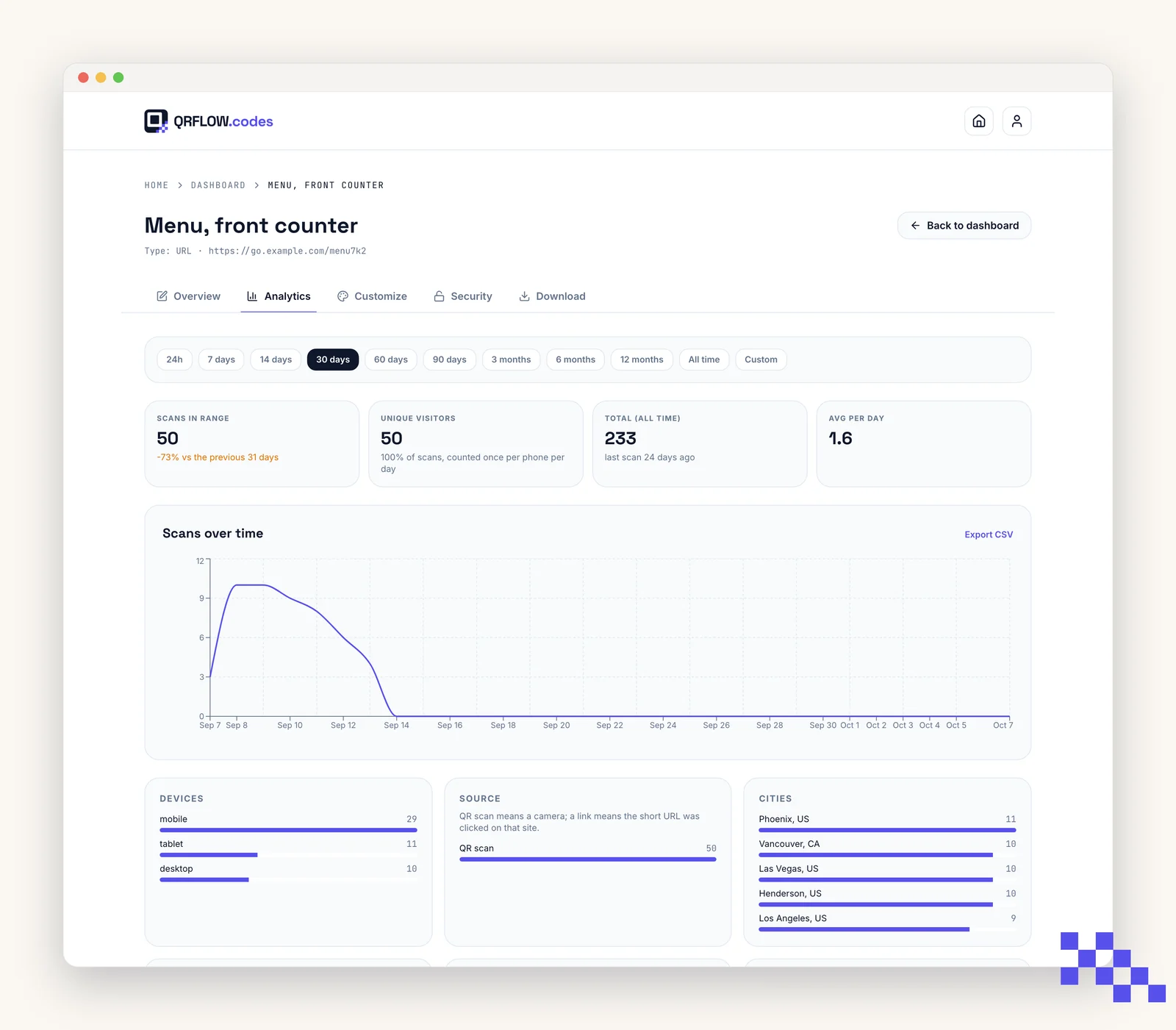
- 1Open a saved code
Dashboard, then click any card.
- 2Click Analytics
It is the third tab in the code detail header.
- 3Pick a range
Use the date range picker in the top right. Defaults to Last 30 days.
What you see
- Top row: scans in the range with the change against the previous period, unique visitors (counted once per phone per day), all-time total with the time of the last scan, and the average per day.
- Scans over time: one point per day, or per hour when the range is two days or less.
- Devices: mobile, tablet, desktop.
- Source: QR scan means a phone camera read the printed code; Link from a site means someone clicked the short link there (a chat app, an email, a web page).
- Cities and countries: from the network address at scan time, city-level at best.
- Operating systems, browsers, languages: what the phone reported.
- Hour of day and day of week, in your own time zone, so a lunch rush shows at 12h.
- Recent scans: the latest scans with device, location and source.
Static codes never appear here. Their content is inside the image, so a scan never reaches us and cannot be counted. Make the code dynamic to get analytics.
Add UTM for deeper analytics
If you already use Google Analytics, GA4, or another tool, use the Website + UTM type. QRFLOW.codes will pass utm_source, utm_medium, and utm_campaign through the redirect so your tool of choice can attribute the traffic.
Put this to work on your codes
Save a code to your dashboard and you can re-point it after printing, lock it, and watch every scan. Premium is $4 a month.
Still stuck? Search the help center, or contact support and a person will answer.