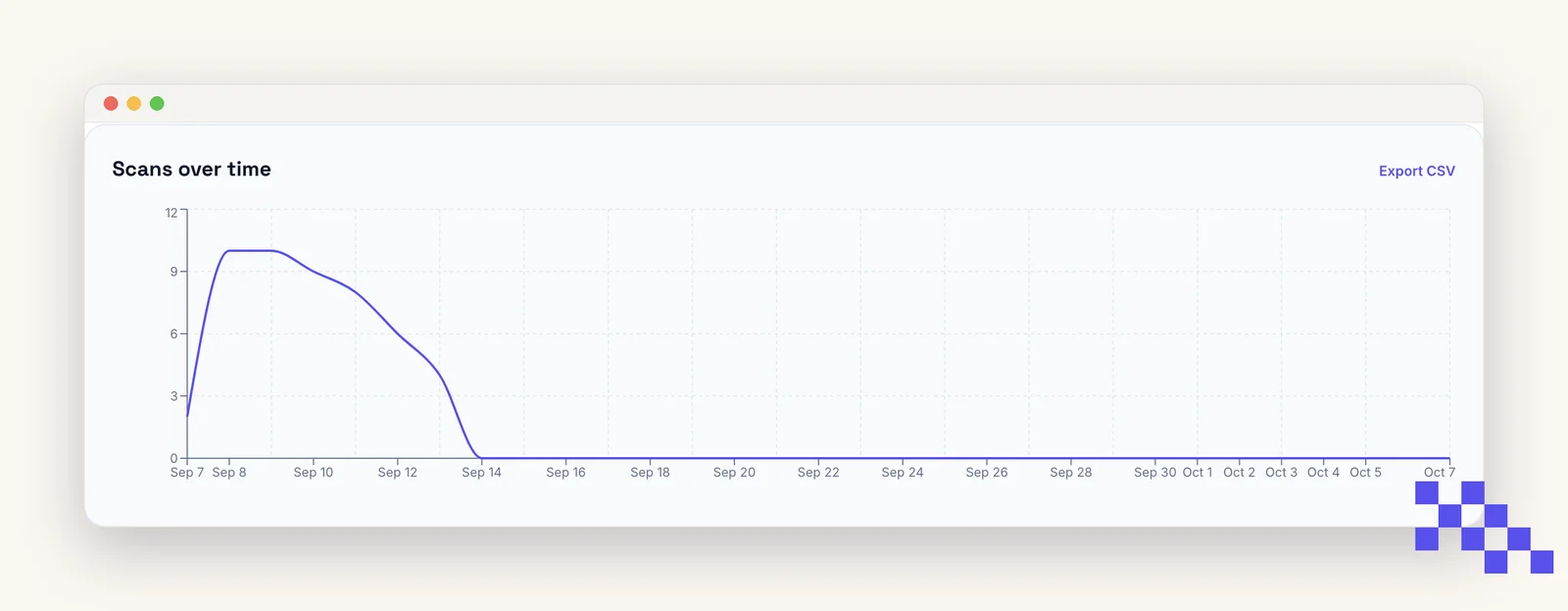
Analytics on the page show the summary. When you need the raw rows, for a report, a client or a pivot table, export the scan history as CSV.
Export
- 1Open the code's Analytics tab
Dashboard, click the card, then Analytics.
- 2Click Export CSV
Top right of the Recent scans panel. The file downloads immediately; it is the full history for that code, not just the selected date range.
- 3Open it in a spreadsheet
Excel, Numbers and Google Sheets open CSV directly. Use File, Import in Sheets to keep the timestamps as dates.
Columns
- scanned_at: timestamp in UTC. Convert to your time zone in the spreadsheet.
- device_type, browser, os: what the phone reported.
- country, city: from the IP address at scan time, city-level at best.
- referrer: empty for a camera scan; the page address when the short link was clicked somewhere (the Source card in Analytics is built from this).
- language: the phone's language setting.
We do not store IP addresses in the export or the analytics; the visitor hash used for unique counts is not reversible. See Unique visitors and bots.
When a download is not enough
- The export is per code, taken from that code's Analytics tab. For a campaign across twenty codes, export each and stack them in one sheet; the columns are identical, so they paste together.
- For numbers that keep arriving rather than a file you fetch, Business webhooks push each batch of scans to your own system within a few minutes.
- For a live dashboard, the API reads the same rows on demand.
Put this to work on your codes
Save a code to your dashboard and you can re-point it after printing, lock it, and watch every scan. Premium is $4 a month.
Still stuck? Search the help center, or contact support and a person will answer.