
To share a Zoom meeting link safely, copy the invite for a one-off or recurring meeting, check whether the passcode is built into the URL, and never print your Personal Meeting ID link.
You can do this in a couple of minutes. The main choice is not the app button, it's which kind of Zoom room you are handing out and whether that link might outlive today's meeting.
How to share a Zoom meeting link#

-
Open Zoom and choose the meeting you actually mean to share, not your Personal Meeting Room. Personal Meeting Room links are meant to stay the same, which is exactly why they are the wrong link to print or post widely.
-
Copy the invite from the meeting details page. In Zoom, look for the meeting's invitation text or join link, then copy it from there so you get the full meeting URL.
-
Check whether the passcode is already baked into the link. Many Zoom join links include an encrypted token, so people can tap once and join without typing a separate code.
-
Send the link in the right place for the size of the audience. A direct message or email is fine for a private call, but a shared calendar, intranet page, or event page is better for a group.
-
Use a recurring meeting if the same group meets again and again. A recurring link cuts down on confusion, but it should still be treated like a room key.
-
Avoid sharing the link in places that can spread beyond your list. A public social post, an open web page, or a reused slide deck can keep leaking access long after the meeting ends.
-
Turn the link into a QR code only if scanning makes joining easier. A room sign, printed program, or conference badge can work well when people are already in front of the code.
-
Make the code dynamic if the meeting can change after printing. With QRFLOW.codes, your first dynamic code is free, so you can repoint the destination instead of reprinting the badge or sign.
Zoom links are not all equal. A one time meeting link is usually safest for a single session, a recurring meeting fits repeat sessions, and a Personal Meeting Room link is the one to keep off printed materials.
If you need the exact Zoom menus, Zoom's own meeting invite page is the right reference point: how to make a QR code for a link is useful once you have the URL, but first make sure you copied the right meeting.
Which Zoom link should you share?#

The safest Zoom link to share is usually a scheduled one-off meeting or a recurring meeting link. A Personal Meeting Room link is persistent by design, so it is the one most likely to end up reused, forwarded, or printed somewhere it should not be.
Here is the simple rule.
Use a one-off meeting when the meeting happens once. If that link gets forwarded later, the damage is limited because the meeting itself is over.
Use a recurring meeting when the same people need the same room again. That works for weekly office hours, standing team calls, or a training series.
Do not print or widely post your Personal Meeting Room link. That room is your always available door, and printed things tend to travel farther than you planned.
This matters most for events. A QR code on a badge, program, or door sign can easily be photographed and shared. If the destination might need to change on the morning of the event, use a dynamic code and keep the printed piece the same. Our static vs dynamic QR code guide covers the tradeoff in plain English.
Need a code for a handout or sign? The free QR code generator is the fastest next step once your Zoom URL is final.
What happens to the passcode in a Zoom link?#
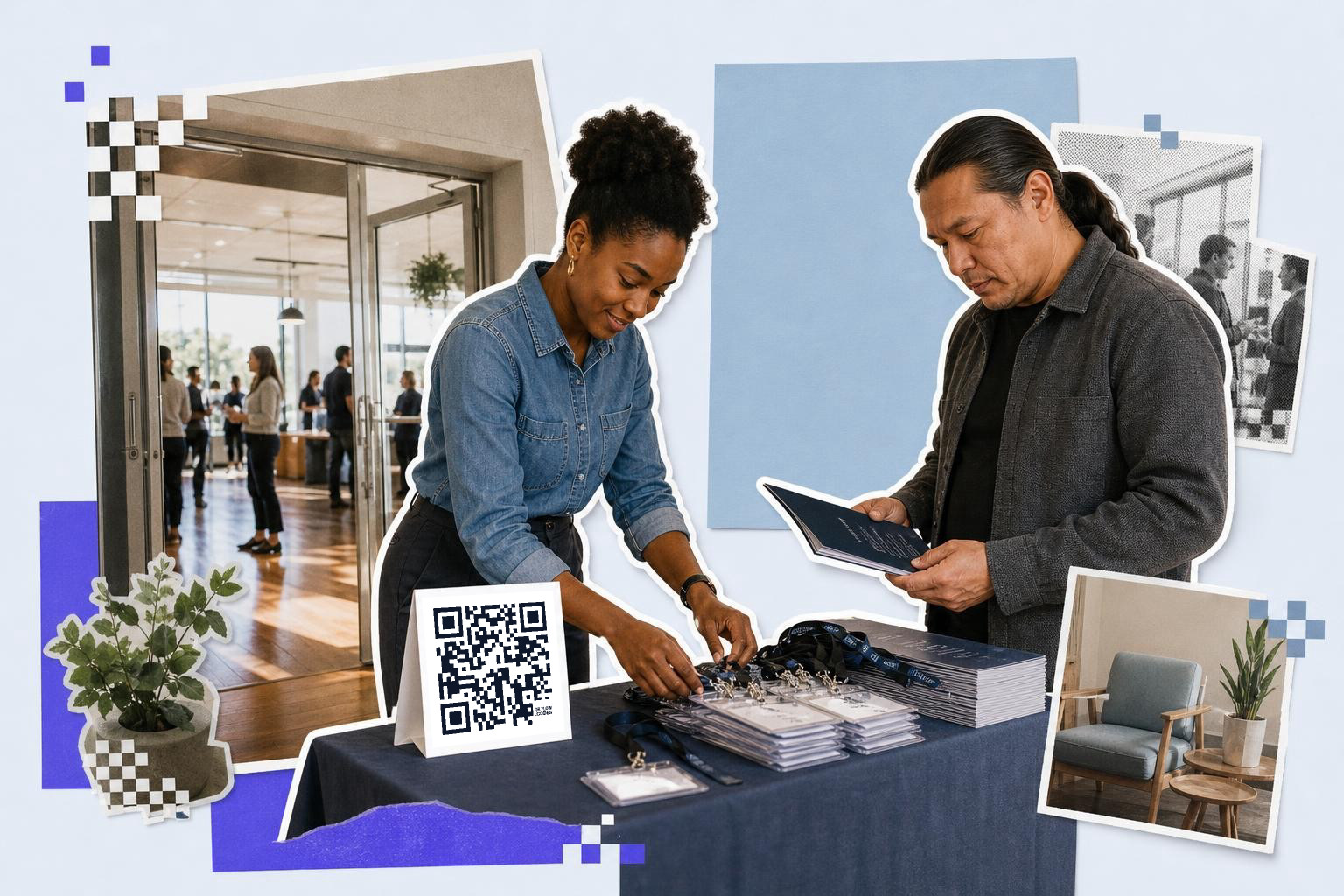
Zoom passcodes are often built into the join link, but not always in a way you can spot by eye. If you copy the full invite link from Zoom, people can usually join without typing the passcode separately.
That is convenient, but it also means the link itself is sensitive. Anyone who has the full URL may have everything they need to get in.
If you send the link by email or direct message, that is usually fine. If you put it on a printed badge, hallway sign, or slide shown to a big room, assume it can be photographed in seconds.
For a conference or office with multiple sessions, the safer print setup is one code per room or time slot, each pointing to today's correct meeting. If a speaker changes rooms at 8 a.m., a dynamic code lets you update the destination after printing. Full scan analytics are a paid feature on pricing, which can help if you need to see whether people actually used the printed code.
If you want more basics before printing, How to make a QR code free without an account walks through the plain setup.
Can you print a Zoom meeting link on a sign or badge?#
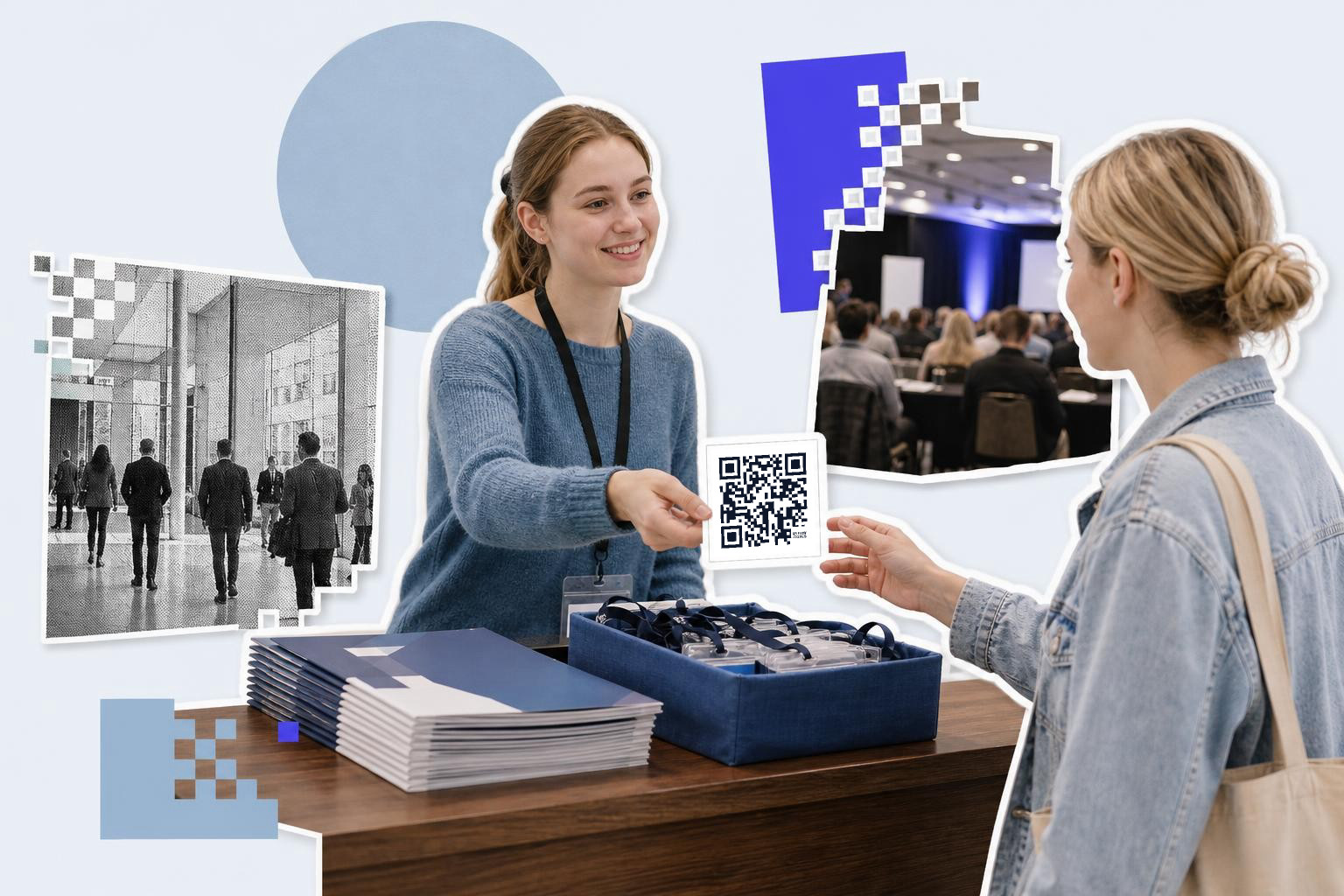
Yes, but only for a meeting that might reasonably be scanned by the people holding that sign or badge. Printed Zoom access works best for a room entrance, check-in desk, event program, or staff badge for the current session.
A printed code should open today's meeting, not your permanent room. That is the whole point.
For a small desk sign, 1 inch (2.5 cm) square is usually the minimum. For a room sign people scan while walking up, start at 2 inches (5 cm) wide. If you are printing for a hallway or registration table, test the real setup from 3 to 6 feet (1 to 2 m) away.
There is one more catch. If the meeting might be replaced, delayed, or merged with another session, a static code will lock you into the old link. A dynamic one lets you keep the paper and change the destination later. If you are deciding between them, understanding QR codes that don't expire explains what actually lasts.
Best practices for email sharing#
When sharing a Zoom meeting link via email, take a few precautions to ensure it reaches the right audience securely. First, double-check the recipient list before sending. This helps prevent accidental sharing with unintended parties. Use the BCC field for large groups to protect email addresses from being visible to all recipients.
Consider adding a brief note explaining the meeting's purpose and any necessary instructions for joining. This can reduce confusion and ensure everyone is prepared. If the meeting is sensitive, remind participants not to forward the link.
Finally, use email encryption if available. This adds an extra layer of security, especially for confidential meetings. By following these steps, you can safely distribute your Zoom link through email.
Using secure messaging apps#
Secure messaging apps can offer a safer alternative for sharing Zoom meeting links, especially for private or sensitive meetings. Apps like Signal, WhatsApp, or Telegram provide end-to-end encryption, ensuring that only the intended recipient can read the message.
Before sending the link, verify that the recipient uses the app and is expecting the message. This helps prevent the link from being overlooked or shared with others.
Include a brief message about the meeting's details and any necessary instructions. This ensures participants are informed and ready to join.
Creating a password-protected meeting#
Setting up a password-protected Zoom meeting adds an extra layer of security. This ensures that only those with both the link and the password can join. When scheduling your meeting, enable the password option in the Zoom settings. Choose a strong, unique password that is not easily guessed.
Share the password separately from the meeting link. This can be done via a different communication channel, such as a text message or phone call. By separating the link and password, you reduce the risk of unauthorized access if one of them is intercepted.
This approach is particularly useful for meetings with sensitive content or limited participants. It provides peace of mind, knowing that only invited attendees can join.
Questions people ask about how to share a Zoom meeting link#
How do I create a Zoom link for a meeting?#
To create a Zoom link, schedule a meeting in the Zoom app or website. Once scheduled, you'll find the link in the meeting details. Copy it to share with participants.
Can I share a Zoom link without a passcode?#
You can share a Zoom link without a passcode if the link includes an encrypted token. This allows participants to join without entering a separate passcode.
How do I share a Zoom meeting link on social media?#
Sharing a Zoom link on social media is risky. If necessary, ensure it's a one-off meeting link and not your Personal Meeting Room link. Consider using a private group or message instead.
What happens if a Zoom link is shared publicly?#
If a Zoom link is shared publicly, anyone with the link can join the meeting. This can lead to uninvited guests or disruptions, so it's best to share links privately.
If you already know the meeting URL and just need the code, use QRFLOW.codes to make one, download it, and print it where people will actually stop long enough to scan.
For a Zoom link, the safe habit is simple: share the scheduled meeting, not your personal room, and make any printed code editable before the schedule starts moving.