
Adobe QR code generator can make a static QR code fast, but if the link might change after printing, use a different option that gives you a dynamic code before the file goes to print. Adobe Expres is handy when you're already inside a design and just need a square that opens a link. That part is real, and for a one-off poster or simple handout, it may be all you need. The limit is also simple. Adobe's QR tool is mostly about dropping a code into a layout, not managing what happens after people scan it. If you need to change the destination later, track scans, or keep a clean downloadable file in your dashboard, a dedicated generator makes more sense.
Is Adobe Express enough for this job?#

Adobe Express is sufficient if your link is final and you only need a basic code inside a design. It is less helpful if the code belongs to a menu, event page, PDF, or campaign that may change after printing.
That is the real fork in the road. A static code points straight at one destination. If that page changes URL later, the printed code still points to the old place. For a restaurant menu, a product insert, or a trade show flyer, that can mean a reprint.
If your next step is a simple handout, Adobe can work. If your next step is sending 200 cards to print, or placing the code on packaging, use a tool built to manage the code itself, not just place it on the page.
Make QR code in Adobe Express?#

Adobe Express lets you create a QR code from a URL and place it in your design. The steps are short, and the main thing to check is that you're using the final link before you export.
Typical flow in Adobe Express:
- Open your design in Adobe Express.
- Find the QR code tool or add-on in the editor.
- Paste the URL you want people to open.
- Generate the code and place it on your canvas.
- Resize it inside the layout and export your design.
That works well for a brochure, poster, or table sign where the destination will stay put. If you are linking to a PDF, use the final hosted file URL, not a draft link that may move later. If your real need is just the code itself, not the full poster, a dedicated guide on create a QR code is a better starting point.
A small but important note: Adobe is a design app first. So if you later need to rename, organize, or update the code itself, that part usually happens somewhere else.
How to do it for free with QRFLOW.codes#

QRFLOW.codes lets you generate the code first, then place it into Adobe, Canva, Word or anything else. That is often the cleaner route when the code needs its own settings, file type, or future edits.
Here is the simple path:
- Open the free QR code generator.
- Choose the destination type, usually a link, PDF, menu, Wi-Fi, or contact card.
- Paste your destination and generate the code.
- Pick PNG or SVG then download it.
- Drop that file into your Adobe Express design.
Anyone can generate and download without signing in. That download has a small mark in the corner. If you want a file with no QRFLOW mark, or you want to save the code to your dashboard, use a free account.
Your first dynamic code is free, which is the useful bit if the link may change after printing. You can also ask Claude, ChatGPT or Claude Code to make the code for you in plain words, which is genuinely handy if you already work there.
If your destination is just a plain URL, the dedicated QR code for a link page is the shortest route.
Need a code now, then a design file after? Make the QR first in the free QR code generator, then place it into Adobe once the destination is locked.
What changes when you switch from the Adobe QR code generator?#

The big difference is not how the square looks. The big difference is what you can still do after the file is printed.
Here are the parts that matter most:
| Need | Adobe Express QR inside the design | Dedicated generator |
|---|---|---|
| Basic static code | Yes | Yes |
| Change destination later | Usually no | Yes, with a dynamic code |
| Save codes in a dashboard | Limited | Yes |
| Scan analytics | Limited or separate | Yes on paid plans |
| SVG or PNG for reuse | Usually yes | Yes |
| Use in other tools | Export from design | Download once, place anywhere |
If the code is going on a menu, event flyer, property sign, packaging insert, or paid ad, dynamic editing is the feature that saves real money. One changed URL can mean one full reprint if your code is static. If you want the plain version of that choice, read How to create a QR code that doesn't expire or the help page on static vs dynamic QR codes.
Analytics can matter too, but only for some jobs. A wedding sign does not need hourly scan data. A campaign poster in three stores might. On paid plans, QRFLOW also adds scan analytics, plus options like password protection and expiration if the code opens something private or time limited. Those details live on the pricing page.
Which option should you pick?#

Adobe Express is the better pick if you already have the design open, the link is final, and you just need a static code placed on the page today. A dedicated generator is the better pick if the code may outlive the design file.
That sounds small, but it is the whole decision. Design tools help you place the code. QR tools help you control what happens after the scan.
Understanding dynamic QR codes#
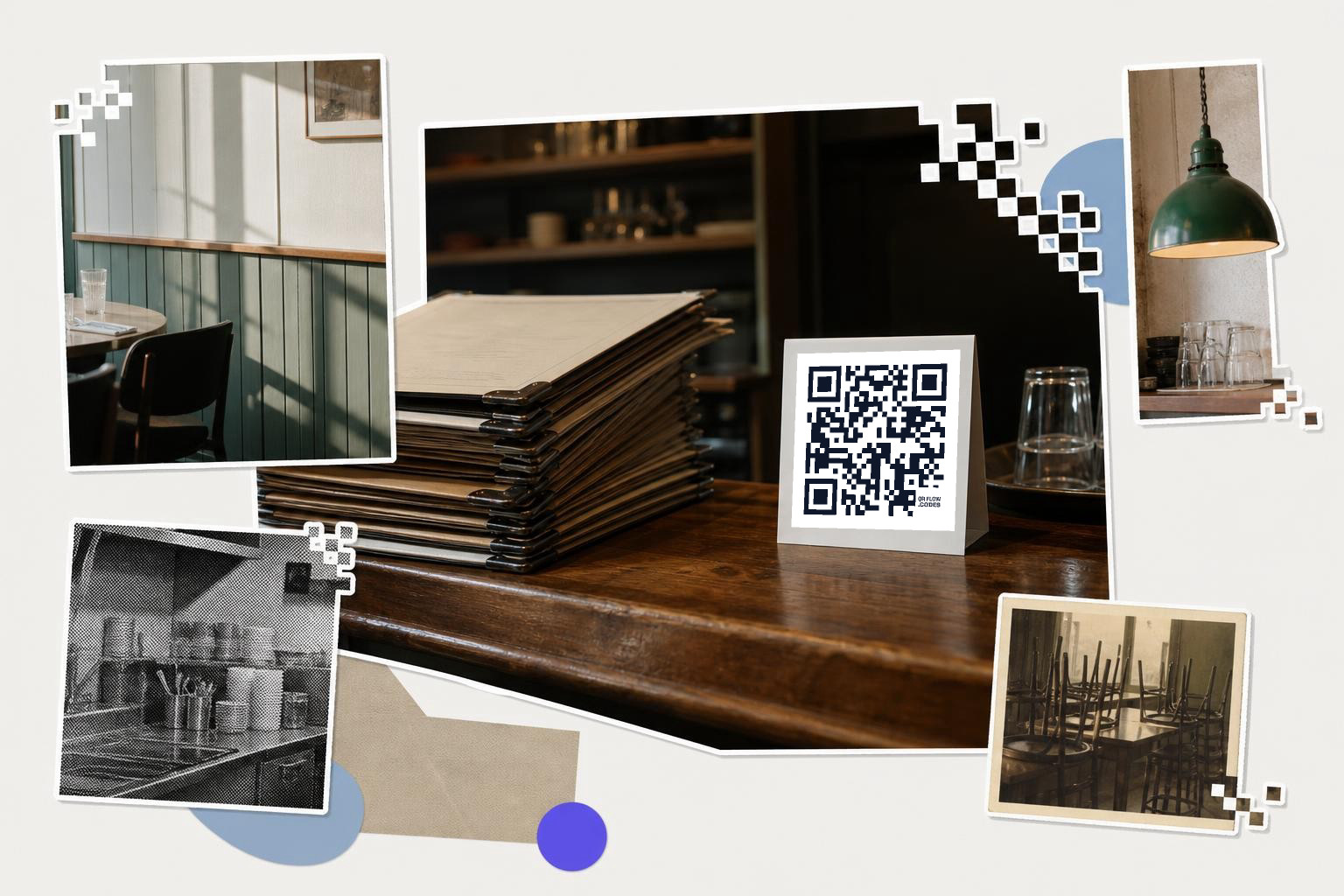
Dynamic QR codes offer flexibility that static codes cannot match. With a dynamic code, the destination URL can be changed even after the code is printed. Dynamic codes also allow for tracking and analytics, giving insights into how often and where your codes are being scanned. This data can inform marketing strategies and improve customer engagement. To create a dynamic QR code, you typically need a service that supports this feature, as Adobe Express focuses on static codes. Dynamic codes are ideal for campaigns where adaptability and data tracking are important.
Integrating QR codes in marketing#
Choosing the right file format#
When generating a QR code, selecting the right file format is important for quality and compatibility. PNG files are great for most uses, offering high-quality images that work well in digital and print media. SVG files provide scalability without losing quality, making them ideal for large prints or when resizing is necessary. Adobe Express typically exports in formats suitable for design integration, but if you need a standalone file for various applications, a dedicated QR code generator can offer more options. Consider your specific needs, such as the size and medium of your final product, when choosing the file format for your QR code.
For a one-time poster, Adobe is fine. For menus, changing PDFs, rotating promos, event pages, and anything printed in batches, start with QRFLOW.codes so the code stays under your control even after the ink is dry.