
A free QR code generator with no sign up should take under 1 minute: paste the link, pick the type, download the PNG or SVG, with no account and no card.
If you just need one working code, the sign-up wall is the main thing slowing you down. This guide compares seven free QR code generators with no sign-up options, what each is actually good at, and which details matter before you print anything.
1. Start with the one-minute test#

A real no-signup tool lets you generate before it asks for anything. If the first screen blocks download behind email, Google login, or a trial, it fails the job.
That sounds obvious, but plenty of generators say “free” and only show the catch at the end. A good test is simple: open the site in a private window, paste your link, and see if you can download a PNG without creating an account. QRFLOW.codes passes that test, which is why it belongs on a shortlist for this kind of search. Tip: use a private window so saved sessions do not hide the signup wall.
2. Which code types do you actually need?#

The best no-accountabilityability tool is the one that matches your destination, not the one with the most buttons. If you need Wi-Fi, contact info, email, SMS, or a phone tap-to-call, check those before you care about colors.
A link code is enough for a restaurant menu, a Google Form, or an online portfolio. A Wi-Fi code needs network name, password, and security type. A contact code should save straight to the phone, which is different from opening a web page. Tip: make the code type match the action you want after the scan, not just the page you already have.
If you already know the destination, a dedicated page like QR code for a link or Wi-Fi QR code can save you a few wrong turns.
3. Free static first; editable later if needed#
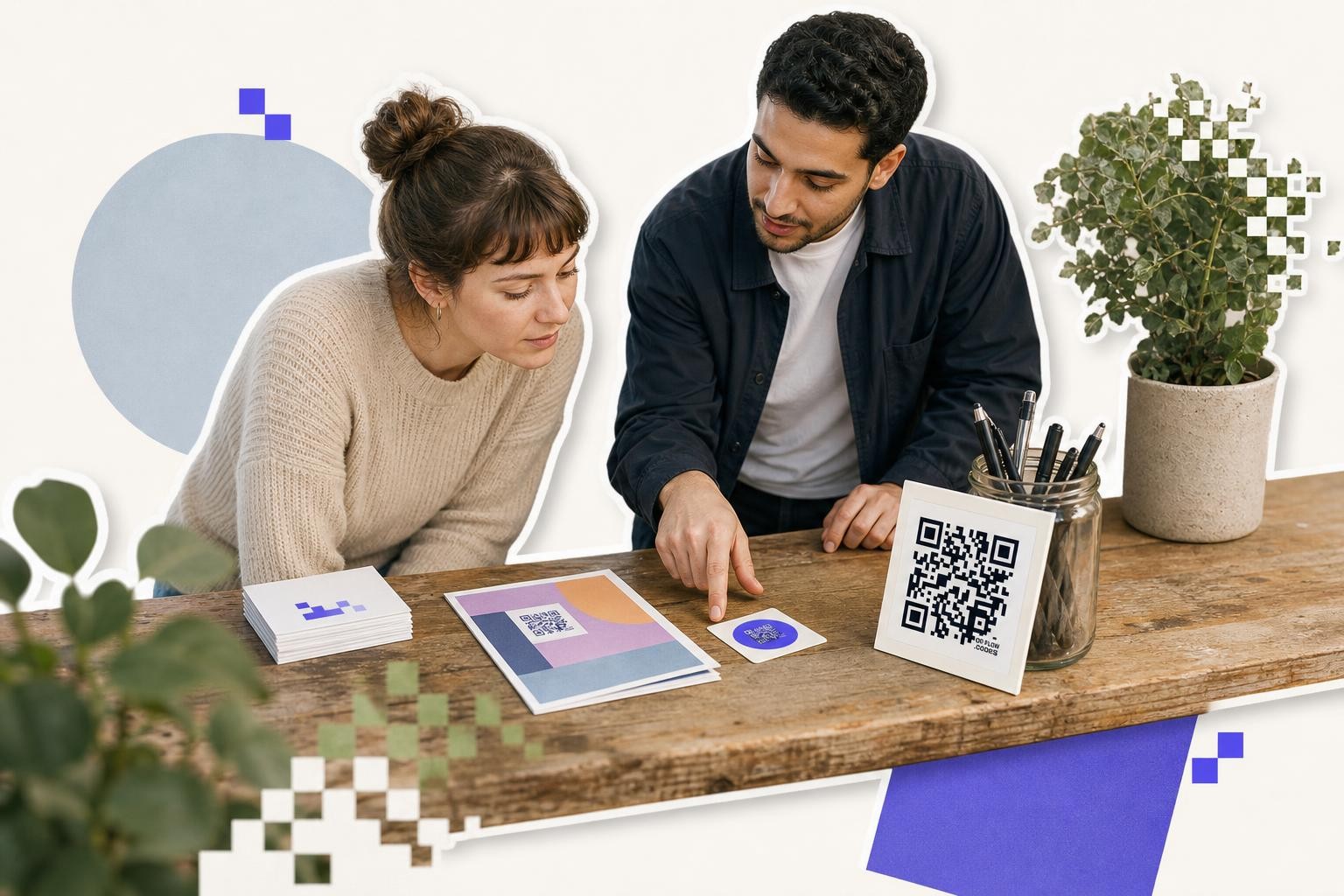
Static codes are fine when the destination will not change. If the link might change after printing, you need a dynamic code so you can edit the destination without a reprint.
This is where many free tool claims get fuzzy. Free tools often handle static codes well, but editable ones are usually part of a paid plan. At QRFLOW.codes, you can generate without signup, save unlimited static codes to your dashboard, and use one dynamic code if you want to change where it points after printing. Tip: ask one question before you print, “Could this URL change next week?” If yes, do not print a static code on 200 flyers.
Trying a code for a menu, form, or handout? You can make one at the free QR code generator and download it right away, no account needed to generate.
4. What can you download without an account?#

Download options matter most when the code is heading to print. PNG is fine for quick sharing. SVG is better for sharp scaling on flyers, labels, and signs.
Some no-signup tools only give you a small raster file which can get messy on a poster. Others add a watermark unless you pay. QRFLOW.codes gives you PNG and SVG downloads and basic color control with no account at all, and a free account takes the small corner mark off every file after that. A concrete example: a business card usually wants a clean SVG so the code stays crisp at about 0.8 inches to 1 inch (2 cm to 2.5 cm) wide. Tip: if a tool hides SVG behind a paywall, keep looking.
5. How much design control do you really need?#

Basic color control is enough for most people. You do not need fancy shapes, gradients, or a big center logo for a code that will live on a handout or small sign.
A simple black code on white still wins for reliability. Light gray on beige may look nice on screen but fail on paper. For a quick event card or noticeboard printout, changing the foreground to a dark brand color is usually safe if the background stays plain and light. Premium design features like your own logo in the middle, frames, and custom accent colors are useful, but they are not the first filter for a no-account tool. Tip: keep contrast high and skip style tricks on anything smaller than 1 inch (2.5 cm).
If you want more on picking a tool, Choosing an online QR code generator: 3 key factors breaks down the tradeoffs cleanly.
6. Best picks by situation#
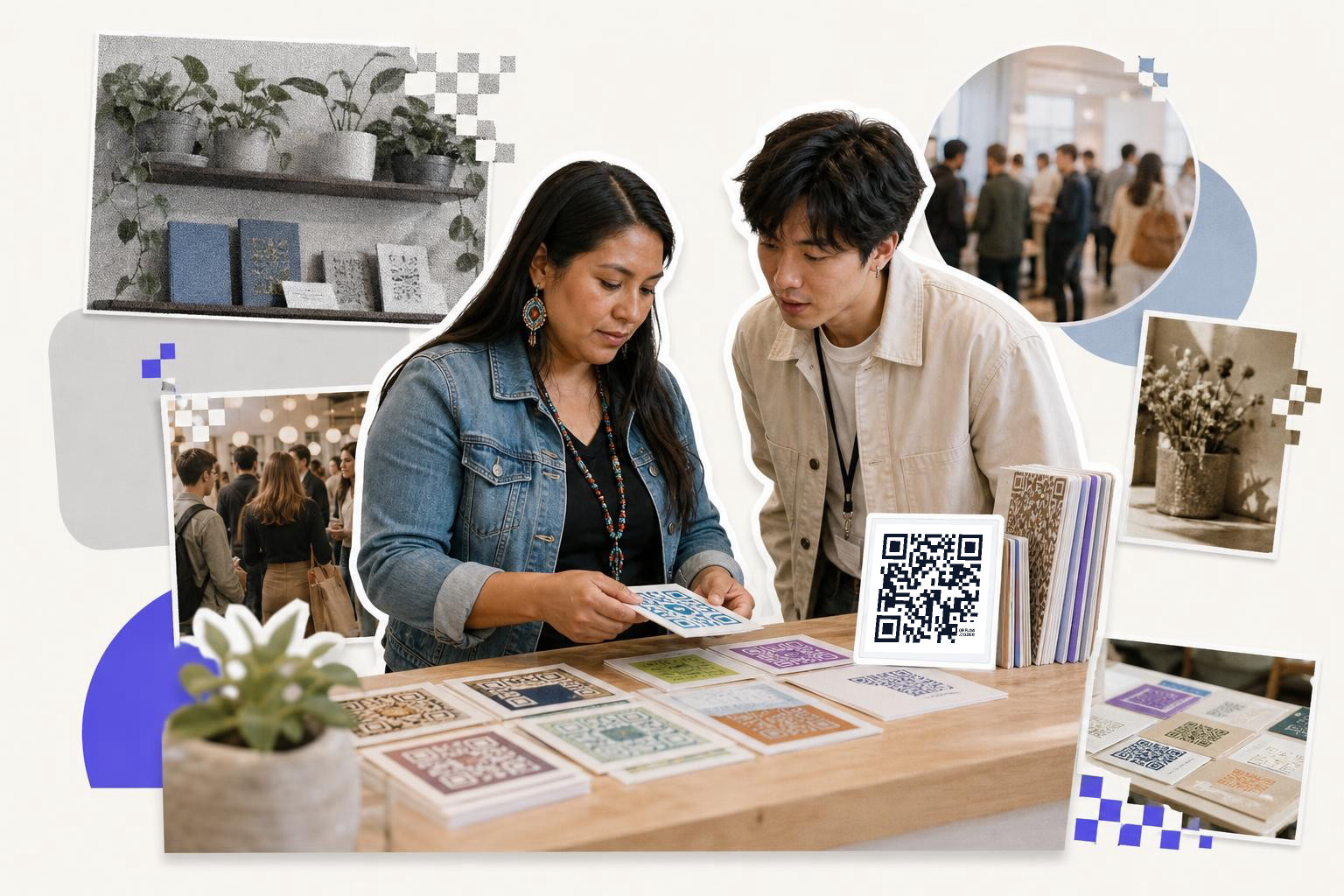
The best pick depends on what you are making in the next ten minutes. For most people who want a code quickly, the shortlist is smaller than it looks.
The generator is the standout if you want no signup, unlimited generation, clean PNG and SVG downloads, and the option to grow into editable links later. Canva is handy if you are already laying out a flyer there, but its QR tool is tied to a design workflow. Browser extensions and random free sites can work for one link, but many are thin on code types, file quality, or clarity about what happens later. Tip: pick the tool that gets you from blank page to download with the fewest decisions.
7. How do you choose in under five minutes?#
A fast choice comes down to five checks. If a tool passes all five, it is probably good enough for today.
First, can you generate and download without signup? Second, does it support the code type you need, like link, Wi-Fi, vCard, or SMS? Third, can you get SVG as well as PNG? Fourth, does it stay clear about static versus editable codes? Fifth, is the final file free of watermarks? A concrete example: for a wedding photo table card, you likely need one link, one SVG download, and no account wall. Tip: if the homepage feels like a pricing maze, close it and try another one.
People who care most about clean downloads may also want our guide to Do QR codes expire or last forever?.
8. Three smart choices for common jobs#
A few common jobs come up again and again, and each one points to a slightly different setup. You can save time by matching the job first.
For a form on a poster, use a plain link or a form-specific tool, then print at least 1 inch (2.5 cm) wide. For guest Wi-Fi by the door, use a true Wi-Fi code so phones can join directly after the scan. For contact sharing, use vCard, not a homepage, so the phone can save the details in one step. Tip: if the scan should trigger an action, pick a code type that triggers that action directly.
9. 10 quick checks before you download and print#
- Open the site in a private window. This shows whether the tool really works without an account. A saved session can make a site look more generous than it is. Paste the final destination, not a draft link. If you are sharing a form or menu, confirm the public URL first. Printing the wrong draft link means starting over.
- Choose the right code type. A Wi-Fi setup, a contact card, and a plain website all behave differently after the scan. Match the code to the action. Download SVG when print quality matters. A small card, label, or flyer usually looks sharper with SVG than PNG, especially if you resize later.
- Keep it at least 1 inch (2.5 cm) wide for small print jobs. That is a practical floor for business cards, table cards, and handouts.
- Leave enough quiet space around the code. If text or graphics sit too close, some phones struggle to read it. Give it a clean border.
- Use dark on light colors. Navy on white works. Pale gray on cream often does not. Contrast matters more than style.
- Test on two phones if you can. One newer iPhone and one older Android is a good real-world check before you print 50 copies.
- Scan from the distance people will actually use. A poster in a hallway should work from a few feet away, not only from nose-to-paper range.
- Save the original file somewhere obvious. Put the PNG or SVG in the project folder so you can reuse it later instead of generating a slightly different one by accident.
Related guides can help if your next job is more specific, like a Free vCard QR code generator for digital contacts or Is QR code generator safe to use?.
Still, for most one-off jobs, the simplest answer is to use the generator for the first code, then decide later if you need extras like editable links or analytics at /pricing.