
A free vCard QR code generator lets you turn your contact details into a scannable code in about 2 minutes, and most people can save the contact straight into their phone in one scan.
If you want to share your number, email, company, and title without typing it out, a vCard code is the cleanest way to do it. It works well on business cards, event badges, flyers, and front desks.
A free setup is enough for most people if your details are not likely to change soon. If all you need is a contact code people can scan and save, you can make that right away.
How to use a free vCard QR code generator#
To use a free vCard QR code generator, open the generator and select the vCard type. Enter essential contact fields like name, phone, and email, then generate and download the code. Ensure it scans correctly before printing.

- Open the free QR code generator and choose the vCard or contact info type. If you are new, the quickstart for your first QR code in 30 seconds shows the same screen flow.
- Enter the contact fields you want people to save, starting with name, phone, and email. Add company, job title, website, and address only if they help.
- Check your phone number and email character by character. One wrong digit makes the saved contact useless.
- Keep the contact short enough to be practical on a small print piece. One mobile number, one email, and one website are usually better than stuffing every field.
- Pick basic colors if you want the code to match your card or flyer. Dark code on a light background is the safe choice.
- Generate the code and download a PNG for quick use or an SVG for sharp print. QRFLOW.codes gives you both without a mark on the file.
- Scan the code with an iPhone and an Android phone before you print a batch. The phone should offer to add a contact, not just show a wall of text.
- Put the code where someone can pause and scan it, like the back of a business card or the bottom corner of a one-page handout. A code printed at 0.8 inches (2 cm) wide is a practical minimum for a card.
A vCard QR code free setup works best when the contact details are stable. If you expect your phone, website, or role to change, that decision matters a bit more, which we will get to below.
Want to make the code first and fine-tune later? You can do the whole thing in the browser with QRFLOW.codes, no signup wall just to generate.
What should you put in the vCard?#
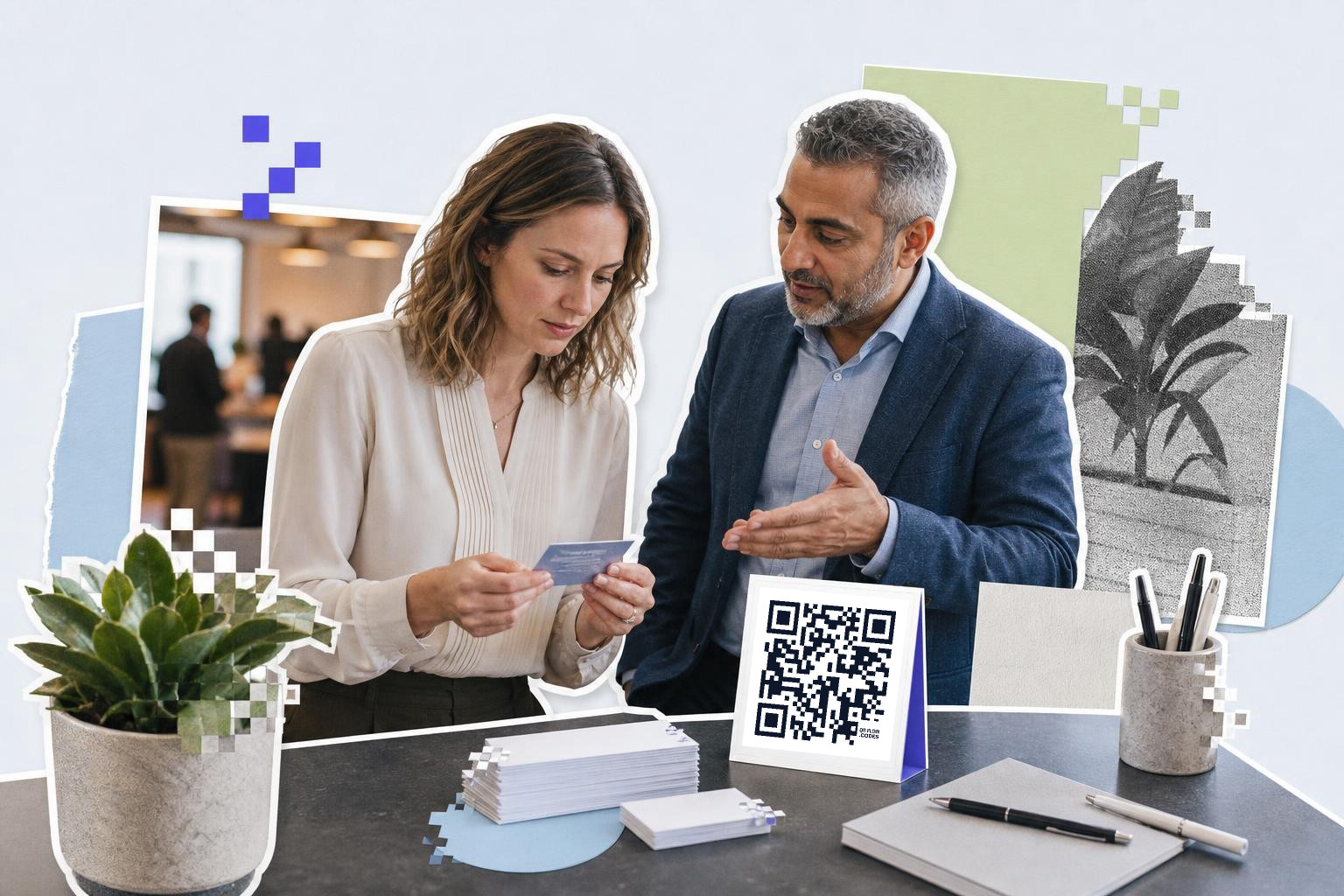
A good vCard includes only the fields a person might really use in the next week. Name, mobile number, email, and company are enough for most business cards.
The mistake people make is treating the code like a full profile page. A packed contact can be saved oddly formatted on some phones, especially if you add long notes, several phone numbers, or too many URLs.
Use this simple order:
- Full name
- Job title
- Company name
- Mobile number
- Email address
- Website
- Address, only if visits matter
A free digital contact QR code is most useful when the saved contact feels clean. If someone scans it at a booth or after a meeting, they should not need to edit the contact before tapping Save.
If you want the code on a business card, our guide to a business card QR code covers the layout side. If you want a wider overview, QR code for contact info compares vCard with simpler phone and email codes.
Will it save as a contact on every phone?#

Most modern phones will recognize a vCard QR code and prompt the user to add the contact. iPhone and Android both support this, but the exact save screen looks different on each device.
That is why a real scan test matters more than a perfect-looking preview. The code can be valid, but one field might display in an odd place, or the phone may open the data in a contacts app instead of a pop-up sheet.
Test these three things:
- The camera opens the contact action right away.
- The saved name, number, and email land in the right fields.
- The contact looks normal after saving.
If your code does not behave right, trim fields before you redesign the whole piece. Long addresses, note fields, and extra links are common troublemakers.
If you want phone-specific behavior, the help page on what shows up on iPhone and Android is a useful next stop. And if the issue is the scan itself, my QR code will not scan covers the usual fixes.
What if your contact details change later?#
A static vCard code keeps the exact details you entered on day one. If you change jobs, phone numbers, or your site URL, the printed code will still hand out the old contact.
That is the main limit of any generated vCard QR code free workflow. Free generation is great for a stable contact card, but it is not the right fit if the destination needs updates after printing.
If you need to change where a printed code points later, use a dynamic QR code instead. On QRFLOW.codes, free accounts can save unlimited static codes and get one dynamic code, while Premium makes every code dynamic and adds extras like full scan analytics and your own link domain on the pricing page.
For this specific job, dynamic helps in one case: when you would rather link the code to a contact page, profile, or mini site that you can update. That is different from a pure vCard, but it saves reprints if your details change often. If you are weighing that choice, static vs dynamic QR code lays it out simply, and choosing an online QR code generator: 3 key factors helps if you are still comparing tools.
Benefits of using vCard QR codes#
vCard QR codes offer several advantages for both personal and professional use. They simplify the process of sharing contact information, saving time and reducing errors. Instead of manually typing in details, a simple scan can transfer all necessary information directly to a phone's contact list. This is especially useful in networking situations where time is limited.
Using vCard QR codes also minimizes the risk of data entry mistakes. A single typo in a phone number or email address can lead to missed opportunities. By scanning a QR code, you ensure that the information is transferred accurately every time. Additionally, these codes can be printed on various materials, such as business cards, flyers, or promotional items, making them versatile for different contexts.
They show that a company is tech-savvy and committed to making interactions as smooth as possible. This can leave a positive impression on potential clients or partners. Moreover, the ability to customize the appearance of the QR code allows it to align with brand aesthetics, further reinforcing brand identity.
Common mistakes with vCard QR codes#
When creating a vCard QR code, it's easy to make some common mistakes that can affect its effectiveness. One frequent issue is overloading the vCard with too much information. While it might be tempting to include every detail, a cluttered contact can lead to formatting problems on some devices. Stick to essential fields like name, phone number, and email for the best results.
Another mistake is not testing the QR code across different devices. While most modern phones can read vCard QR codes, the way they display the information can vary. Always test your code on both iPhone and Android devices to ensure compatibility and proper functionality.
Additionally, choosing the wrong color scheme can make the QR code difficult to scan. Avoid light colors on light backgrounds or overly complex designs. A high contrast between the code and its background ensures that scanners can read it without issues. Finally, placing the QR code in a location that's hard to scan, such as a corner that's often covered, can reduce its usability.
Use vCard QR codes in marketing#
Consider using vCard QR codes at events and trade shows. They allow attendees to quickly save your details without juggling physical business cards. This not only makes networking more efficient but also reduces the chance of losing important contact information.
Incorporating vCard QR codes into email signatures is another effective strategy. It provides recipients with an easy option to save your contact details directly from their email client. This can be particularly useful for professionals who frequently communicate with new contacts.
If you just need a clean contact code today, make the vCard, scan it once on two phones, and print it. Start with the free QR code generator and you can have a saved contact ready before your next meeting.
Questions people ask about free vCard QR code generator#
How do I test if my vCard QR code works?#
To test your vCard QR code, scan it with both an iPhone and an Android phone. Ensure the phone prompts you to add a contact and that the saved details appear correctly in the right fields. Adjust if any issues arise.
Can I update a vCard QR code after printing?#
No, a static vCard QR code cannot be updated after printing. If your contact details change, you would need to create a new code. Consider using a dynamic QR code if you anticipate frequent updates.
What size should a vCard QR code be on a business card?#
A vCard QR code should be at least 0.8 inches (2 cm) wide on a business card. This size ensures it is easily scannable while fitting well within the card's layout.
What fields should I include in a vCard QR code?#
Include only essential fields like full name, mobile number, email, and company. Additional details like job title and website can be added if they are useful. Avoid overcrowding to ensure the contact saves cleanly.
When you are ready to try it, make a free QR code and see how it looks before you print anything.