
QR code vCards let someone save your name, phone, email, and company details in one scan, which makes them one of the simplest tools for fast contact sharing.
If you hand out cards, attend events, or meet clients in person, a vCard code can do the job faster than typing. The code opens a contact card on the other person's phone, and they can save it straight into their address book.
What do QR code vCards actually do?#

QR code vCards open a contact file, usually in VCF format, that a phone can import in a tap or two. Instead of landing on a website, the scan opens your contact details with fields the phone already understands.
That usually includes your full name, mobile number, work number, email, company, title, and website. Some setups also include your address and social links, but less is often better here. If the card feels crowded on screen, people are less likely to save it.
This is why vCard codes are popular for digital business cards. They skip the step where someone reads your card, opens Contacts, and types everything by hand.
If you want the contact to save cleanly on both iPhone and Android, stick to the basics first. Name, phone, email, company, and website are the core fields.
How do QR code vCards work on phones?#
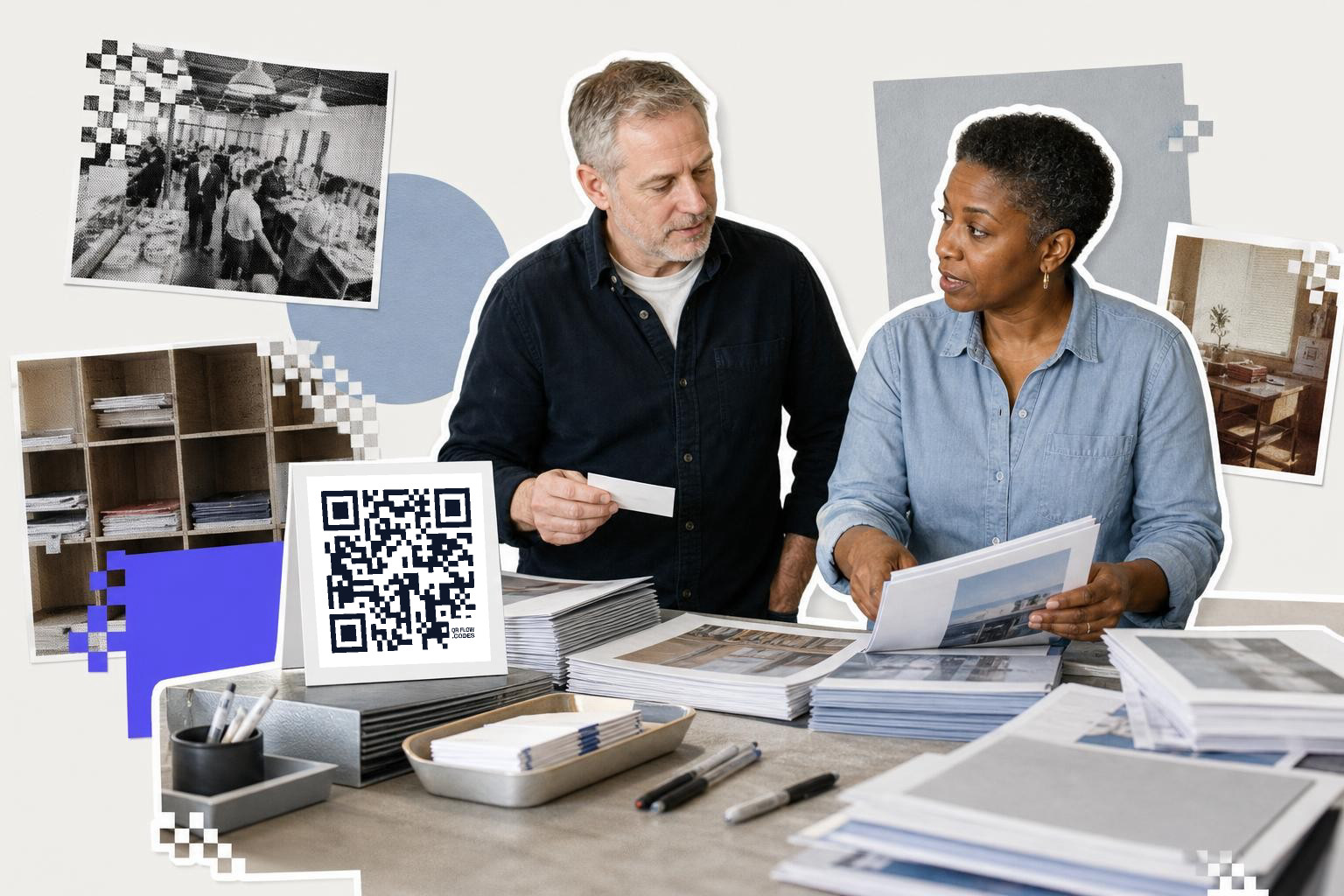
QR code vCards work because the square contains contact data or points to a hosted contact card. After the scan, the phone shows a contact preview and offers to save it.
There are two common setups. A static code contains the contact details directly. A dynamic code points to a contact card you can update later. If you change jobs, phone numbers, or your title often, dynamic is the safer choice because it saves a reprint. If you need a plain primer on that choice, see static vs dynamic QR codes.
On iPhone and Android, the save flow looks a little different, but the idea is the same. The phone reads the vCard format, shows the fields, and asks whether to create a new contact or update an existing one.
A useful rule is this: if the details might change within 6 to 12 months, do not bake them into a static code you plan to print on 500 cards.
Need one for a card, badge, or email footer? You can make a working contact code with the free QR code generator, then choose vCard as the destination type.
What should you put in a vCard QR code?#

A good vCard QR code includes only the details you want strangers to keep. Most people should start with 5 fields, not 15.
The best set for business networking is usually full name, job title, company, mobile number, and work email. Add your website or LinkedIn if that helps the next step. Leave out anything you would not want copied into a hundred phones.
This is where people overdo it. Three phone numbers, two addresses, five social profiles, and a long note field make the contact harder to scan and harder to trust. Keep the saved card tidy.
For printed networking pieces, pair the code with one short line of context, like “Save my contact” or “Scan to add me.” That tiny cue helps more than a paragraph ever will.
If your code is going on a paper card, you may also want to read how to create a QR code for a business card or how to add a QR code to a business card.
Best places to share digital contact codes#
QR code vCards work best anywhere people meet you briefly and may not have time to type. Business cards, conference badges, booth counters, table tents, one-page handouts, and presentation slides all make sense.
A code on a business card should not fight with the card's main text. A code around 0.8 inches (2 cm) to 1 inch (2.5 cm) wide is a common starting point for cards, as long as the layout stays clean. For more on contact-first setups, see digital business card with QR code.
For event use, put the code where someone can scan it while still talking to you. A badge, brochure back, or small countertop sign often works better than the bottom corner of a packed flyer. If networking is part of your event setup, QR codes for events is a useful next stop.
With QRFLOW.codes, your first dynamic code is free, which is genuinely handy if you are testing one contact card before a show. If you later need every code to be editable, custom branding, or analytics on scans, those live on the paid plans at pricing.
When is a vCard code better than a link?#
A business card QR code is better than a normal link when the main goal is saving your contact, not browsing your site. If you want one tap into someone's phone book, use the contact card.
A regular website link is better when you need context first, like services, case studies, booking options, or a portfolio. In that case, a landing page or digital profile may do more work than a raw contact save.
Some people use both. One code saves contact details, and another opens a fuller profile. That split works well at trade shows, sales meetings, and recruiting events where one person wants your phone number and another wants your portfolio.
If you are printing tomorrow, keep the job simple. Use a vCard code when the next action is “save me,” and use a link when the next action is “read more about me.”
Creating a memorable QR code design#
Designing a QR code that stands out can make a big difference in how often it gets scanned. Start by choosing a color scheme that matches your brand. While black and white are classic, adding a splash of color can make your QR code more appealing. Just ensure there’s enough contrast for easy scanning.
Incorporate your logo into the center of the QR code. Many QR code generators allow you to add a small image or logo without affecting scanability. This reinforces brand recognition and makes the code look more professional.
Consider the shape and size of the code. While the standard square is common, some tools offer rounded corners or custom shapes. Keep in mind that the code should remain at least 0.8 inches (2 cm) wide for reliable scanning.
Lastly, test your design on different devices before printing. Make sure it scans quickly and leads to the correct contact details. A visually appealing QR code is more likely to be scanned, increasing the chances of your contact information being saved.
Remote networking with digital contact codes#
QR code vCards are not just for in-person events. They can also be valuable tools for remote networking. When attending virtual conferences or webinars, include your QR code vCard in your digital background or presentation slides. This allows attendees to scan your code directly from their screens.
Email signatures are another great place to use QR code vCards. Add the code at the bottom of your emails with a short prompt like "Scan to save my contact." This provides a quick way for recipients to add you to their contacts without manually entering details.
For social media, consider sharing your QR code vCard in posts or stories. Platforms like Instagram and LinkedIn allow for creative ways to display your code, reaching a broader audience. Just be sure to include a brief explanation of what the code does to encourage scans.
By integrating QR code vCards into your digital interactions, you can expand your network even when face-to-face meetings are not possible.
Troubleshooting common QR code issues#
Sometimes QR codes do not work as expected. If your QR code vCard is not scanning properly, start by checking the print quality. A blurry or pixelated code can be hard for phones to read. Ensure your printer settings are high resolution, especially for small codes.
Next, verify the contrast between the code and its background. If the colors are too similar, the scanner may struggle to detect the code. Stick to high-contrast combinations, like dark codes on light backgrounds.
If the code scans but does not save the contact correctly, double-check the vCard data. Ensure all fields are filled out properly and that the format is compatible with both iPhone and Android devices.
Finally, test your QR code in various lighting conditions. Bright sunlight or dim indoor lighting can affect scanning. If possible, provide a shaded or well-lit area for scanning at events.
By troubleshooting these common issues, you can ensure your QR code vCards work smoothly and effectively.
Common questions about digital contact codes#
Can QR code vCards be used on all smartphones?#
Yes, QR code vCards work on both iPhone and Android devices. Most modern smartphones have built-in QR code scanners in their camera apps, allowing users to scan and save contact information easily.
Contact change after QR print#
If the contact information changes after printing a static QR code, you will need to create and print new codes. Static codes cannot be updated. For frequently changing details, consider using a dynamic QR code instead.
Are there privacy concerns with using QR code vCards?#
Privacy concerns can arise if you include too much personal information. It's best to limit the details to essential contact information like name, phone, email, and company. Avoid including sensitive data that you wouldn't want widely shared.
How can I make my QR code vCard more engaging?#
To make your QR code vCard more engaging, customize the design with your brand colors and logo. Ensure the code is visually appealing and easy to scan. Testing the code on various devices before finalizing the design can also help improve engagement.
Make your first contact code with QRFLOW.codes. If you want a deeper setup later, including editable destinations and scan data, the paid options are on the plans page.