
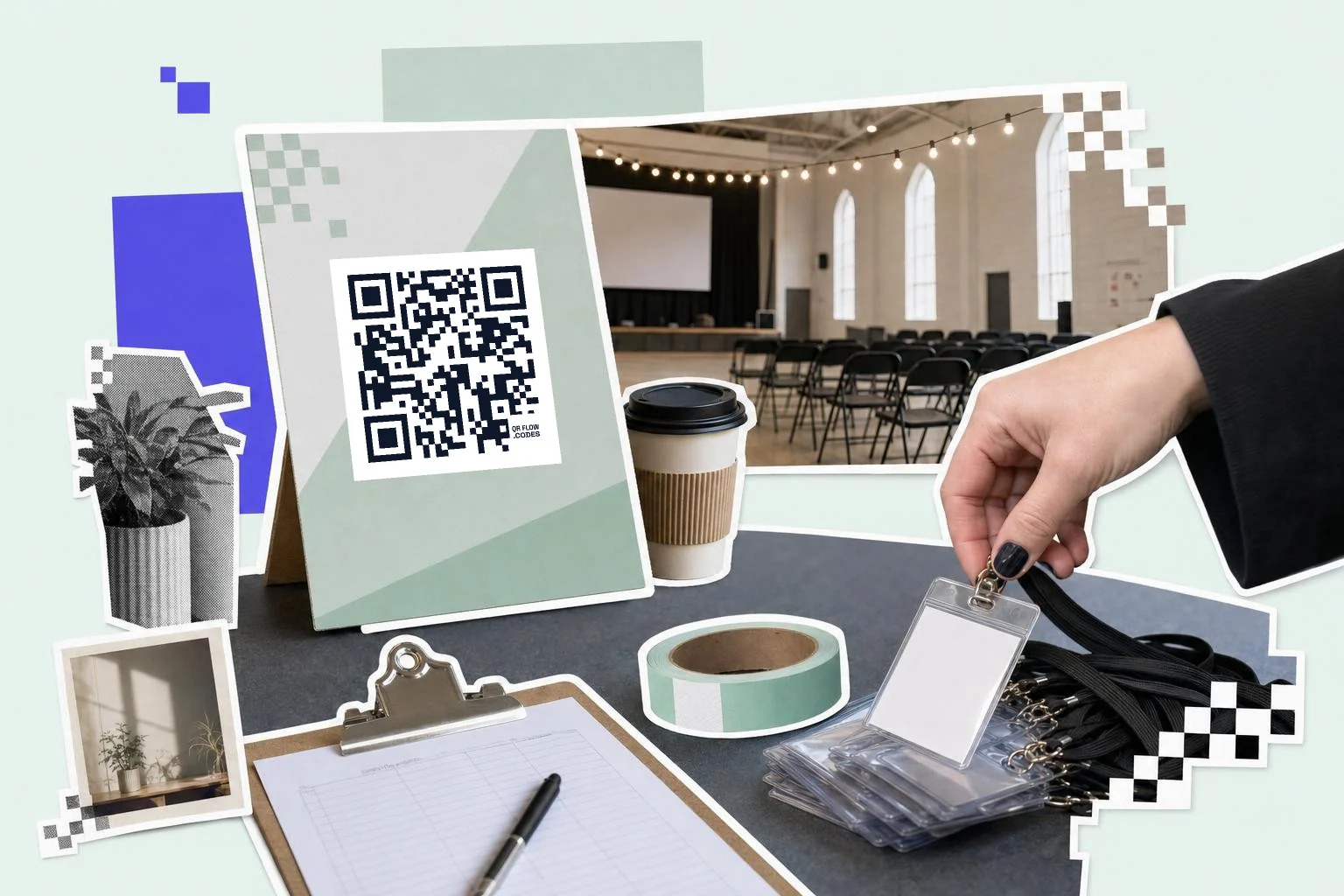
One code per job, not one code for everything
The mistake is one code that opens a homepage and makes people hunt. Give each printed surface the one link it exists for: the poster sells the ticket, the badge shows the schedule, the door sign checks people in, the exit banner asks for feedback. Each code gets its own scan count, so on Monday you know how many scanned the poster and how many actually checked in.
Name each code by surface and location in your dashboard ("Poster, coffee shop window", "Badge, day 2") so the numbers mean something later. Event check-in QR codes works through the same split across lines, schedules and booths.
- Registration or tickets: the poster, the flyer, the email footer.
- Check-in: a sign at the door or a code on the confirmation email that staff scan.
- Live schedule: printed on the badge or the lanyard insert; the page changes, the badge doesn't.
- Wi-Fi and venue map: one code at reception.
- Feedback survey: exit banner and the last slide of every talk.
Badges and lanyards
A badge is scanned at arm's length by someone who is walking, so a 0.8 in (2 cm) code is enough but 1 in (2.5 cm) is kinder. Put it on the back of the badge with a two-word caption ("Schedule", "Map") so it isn't competing with the name. If badges are printed in bulk from a spreadsheet, the Bulk page turns a CSV of names and links into a ZIP of codes in one go.
For check-in, print the attendee's unique ticket code on the badge or email and let staff scan it with any phone; the code can point to your ticketing platform's check-in URL for that ticket.
Posters, banners and slides
Posters get scanned from 3 to 6 feet (1 to 2 m): 3 in (8 cm) minimum, 4 in (10 cm) if it hangs above eye level. Pull-up banners and stage screens are scanned from further away; on a slide, make the code at least a quarter of the screen height and leave it up for a full 20 seconds, because nobody gets their camera out in five.
Always print a short URL under the code too. Some people won't scan; give them a way to type it.
How big to print it
Rule of thumb: the code should be at least one tenth of the distance it is scanned from. These are the sizes that work in practice for this job.
| Where | Scan distance | Minimum width |
|---|---|---|
| Badge or lanyard insert | 8-12 in (20-30 cm) | 0.8 in (2 cm) |
| Table sign or program | 16-24 in (40-60 cm) | 1.2 in (3 cm) |
| Poster on a wall | 3-7 ft (1-2 m) | 3 in (8 cm) |
| Pull-up banner | 7-10 ft (2-3 m) | 5 in (12 cm) |
| Stage screen slide | 16-49 ft (5-15 m) | 25% of screen height |
Why make it dynamic
Events are the strongest case for editable codes there is. Posters go up six weeks out, badges are printed the night before, and something always changes in between: the ticket platform, the keynote room, the after-party address. With a dynamic code the poster still points at whatever is true today, and after the event you can send the same code to the photo gallery or next year's registration instead of letting it die.
Dynamic codes are part of Premium, $4 a month. Static vs dynamic, explained.
Step by step
- 1
Paste the registration or schedule link
Ticket page, sign-up form, the schedule page: whatever that surface is for.
- 2
Frame it
The Poster frame carries a headline and a small line; the Ticket and Badge frames fit lanyards.
- 3
Download at the right size
SVG for the print shop, PNG for slides and email. See the size table below.
- 4
Save it so it can change
On Premium, when the room, the platform or the date changes, edit the link; the print is untouched.
Questions people ask
- Can one QR code work for tickets and check-in?
- It can point at either, but not both at once. Use separate codes: one on the poster for buying tickets, one on the confirmation or badge for check-in. You'll also get separate scan counts, which tells you where people drop off.
- What if the venue or schedule changes after the posters are printed?
- With a dynamic code, change the link in your dashboard and the printed posters follow within a second. Static codes bake the link into the pattern and would need a reprint.
- How big should a QR code be on a poster?
- At least 3 in (8 cm) wide for a poster scanned from 3 to 6 feet (1 to 2 m), 5 in (12 cm) on a banner, and about a quarter of the screen height on a slide. The rule of thumb is one tenth of the scanning distance.
- Can I generate a QR code for every attendee?
- Yes. On Premium and Business the Bulk page takes a CSV (name, link) and returns a ZIP of codes plus a CSV of the links, up to 500 codes a month on Premium and 10,000 on Business.
- Can I see how many people scanned the poster versus the badge?
- On Premium every saved code counts scans by day, device and city, and the dashboard shows them side by side. That is the point of one code per surface.
- What happens to the code after the event?
- Nothing bad: point it at the photo gallery, the recordings, or next year's registration. A dynamic code is reusable for as long as you keep it.
Make the code now, change the link later
Free to make and print. Premium ($4/mo) keeps it editable and counts every scan.