To learn how to create a QR code in Canva, open your design, add the QR Code app, paste a link, and print the code at least 1 inch (2.5 cm) wide. Canva is handy when you already design flyers, cards, or signs there. It can generate a simple code without leaving the editor. The catch is that Canva’s built-in tool is basic. It works best for one fixed link, not for codes you may need to edit after printing.
How to make a QR code in Canva#

Canva lets you make a QR code inside a design in a few clicks. The code is tied to the URL you paste, so check the link before you download anything.
Here’s the short path:
- Open Canva and start a design.
- In the side panel, open Apps.
- Search for QR Code.
- Paste your full link.
- Click Generate code.
- Resize it, but keep it square.
- Download your design and test the code on your phone.
Canva is fine for a website link, a menu, or a portfolio page. If your link might change later you want a dynamic code, and both tools make those. The difference shows up when you want to know whether anyone scanned it: Canva's scan data starts on their Business plan at $250 a year per person, and Canva's own logo sits in the middle of the code until then. A dynamic code from QRFLOW.codes lets you edit the destination after printing, and the scan numbers come with it.
If you need the code outside Canva too, read how to create a QR code for a link. That setup is better when the code will live on more than one design.
How to create a QR code in Canva without scan problems#

Canva QR codes usually fail for simple reasons: small size, low contrast, or a bad link. A printed code should be at least 1 inch (2.5 cm) wide for close scans, and 2 inches (5 cm) is safer for posters or table signs.
Keep the code black on white if you can. Dark on light works. Light gray on beige does not. If you place it over a photo, add a solid white box behind it.
Leave some empty space around the edges. That border helps phones read the code fast. Cropping too close can make a good code fail.
Test from the real scanning distance. A handout might be scanned from 12 inches (30 cm) away. A wall sign might be scanned from 3 to 6 feet (1 to 2 m) away.
Need a code for a plain website URL first, then want to place it in a design? How to create a QR code for a website covers that route.
Use our free QR code generator if you want a quick PNG without a signup wall, then drop that image into Canva and keep designing there.
Can you edit a Canva QR code after printing?#
Canva gives you two apps. Static QR codes bakes the destination into the pattern, so it is fixed once the code is made: if the page URL changes after you print 200 cards, you replace the code and reprint. Dynamic QR codes lets you change the destination later, on any Canva plan.
That is the big difference that matters. A static code is fine for a link that will stay the same, like your homepage. A dynamic code is better for a menu, event page, signup form, or anything you may update later.
With QRFLOW.codes, static QR codes are free to generate and download, with no signup, and they do not expire. Your first dynamic code is free. Making every code dynamic, plus scan analytics, logo tools, frames and bulk CSV, is Premium at $4 per month.
Analytics matter only for some jobs, but they can be genuinely useful. If you put the code on posters in two locations, scan stats can show which spot gets attention.
Better route if Canva feels too limited#
A dedicated QR generator gives you more control than Canva if you care about tracking scans, file type, or keeping anyone else's logo off the code. Canva is a design app first, and that shows.
Here’s the simple alternative:
- Generate the code in a QR tool.
- Download the image.
- Upload it into Canva.
- Place it in your flyer, card, menu, or poster.
- Print a sample and test it.
This route is often cleaner because the code and the design stay separate. You can swap the image later without rebuilding the whole layout.
If you only need a basic static code, QRFLOW.codes does that free, with no sign-up. If you need to change the destination later, choose dynamic before you print.
Still stuck?#
If your Canva QR code isn't scanning, check the link, ensure the code is at least 1 inch (2.5 cm) wide, and test it on two phones. For special formats, use a dedicated QR generator.
Why is my Canva QR code not working?#
Canva QR codes usually stop scanning because the link is wrong, the code is too small, or the contrast is weak. Start by opening the URL yourself, then print the code at least 1 inch (2.5 cm) wide and test it on two different phones.
Can I create QR codes in Canva?#
Canva’s built-in generator is mostly meant for a link you paste in. If you need Wi-Fi, contact details, or other special formats, a dedicated QR generator is easier because it builds the right data type for you.
Does a Canva QR code expire?#
A static QR code does not expire on its own. It stops working only if the destination page is removed, changed, or blocked. The code image itself can keep scanning for years.
Can I add a logo to a Canva QR code?#
Canva can help you place graphics around a code, but heavy decoration can hurt scanning. Keep the center clear unless you know the code still scans after testing. For printed pieces, plain and high contrast is the safer move.
Choosing the right QR code size#
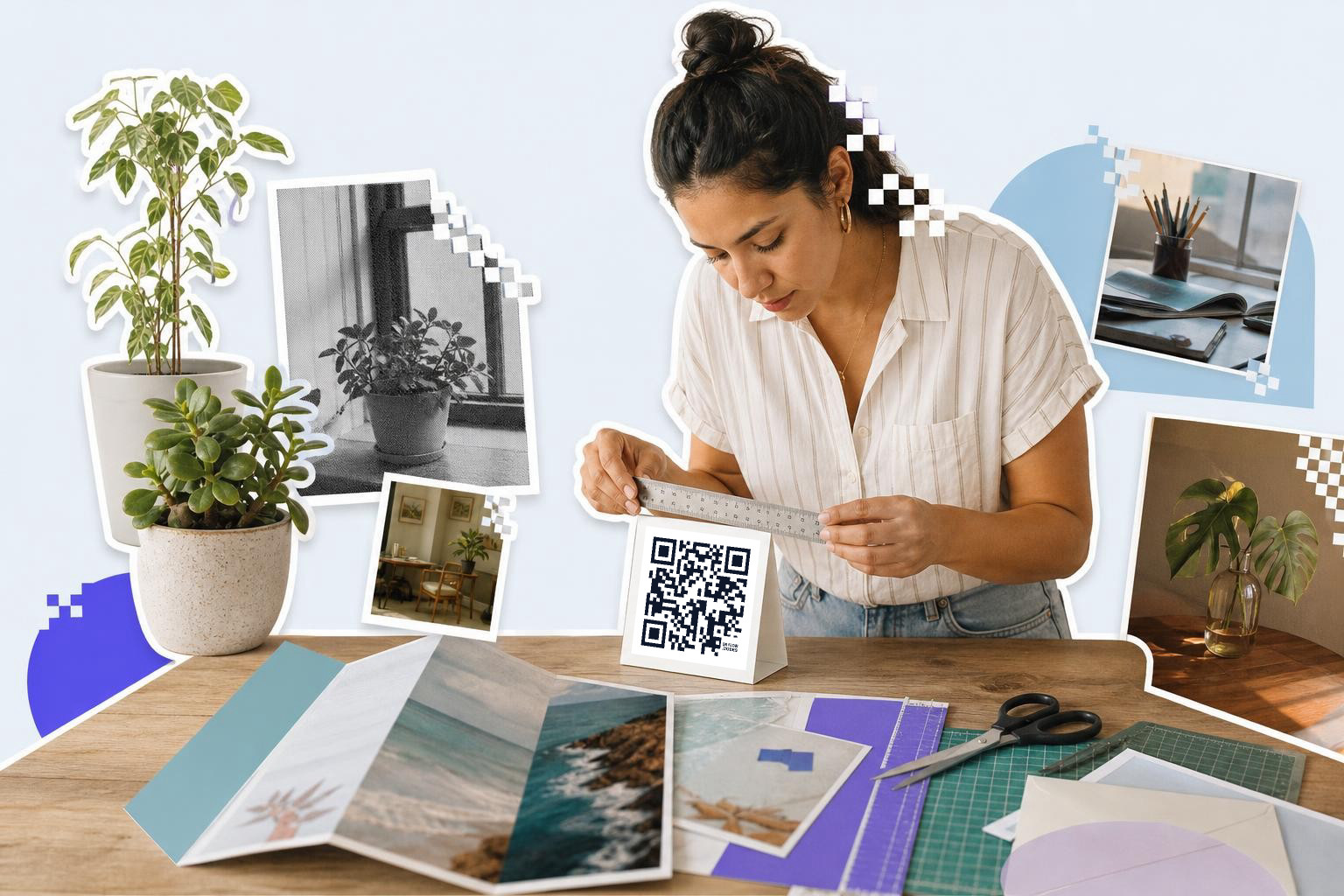
When creating a QR code in Canva, size matters for effective scanning. A code should be at least 1 inch (2.5 cm) wide for close-range scanning, like on business cards or brochures. For larger displays, such as posters or banners, consider making the code 2 inches (5 cm) or wider. This ensures it can be scanned easily from a distance.
Consider the placement and expected scanning distance. If the code is on a wall sign, it might be scanned from 3 to 6 feet (1 to 2 m) away. For items like table tents or flyers, a smaller size might suffice. Always test the code from the intended distance to ensure it works smoothly.
Remember, a larger QR code can accommodate more complex designs or embedded information without compromising scan reliability. Adjust your design accordingly to maintain both aesthetics and functionality.
Ensure high contrast for readability#
If your design requires placing the QR code over a busy background, consider adding a solid white or light-colored box behind it. This helps maintain the necessary contrast and ensures the code is easily scannable.
Testing is key. Print a sample of your design and check the QR code's functionality under various lighting conditions. This step can prevent potential scanning problems and ensure the code works as intended in real-world situations.
Testing QR codes before printing#
Before finalizing your design and sending it to print, testing the QR code is essential. This step ensures that the code scans correctly and leads to the intended destination. Use multiple devices to test the code, as different phones and apps may have varying scanning capabilities.
First, scan the code with your own phone to verify that it directs you to the correct link. Then, ask a few colleagues or friends to test it on their devices. This can help identify any potential issues that might not be apparent on a single device.
Check the code's performance in different environments, such as indoors and outdoors, to ensure it functions well under various lighting conditions. If the code fails to scan or leads to the wrong link, revisit your design to adjust the size, contrast, or link accuracy before printing.
Canva is good for making a quick QR code inside a design, especially if the link is final and the layout is simple. If you want more control over edits, downloads, or scan tracking, make the code first, then bring it into Canva. You can start with the generator and keep the rest of your design flow exactly the same.