
To scan a real-world code on an iPhone, open Camera, point it at the square from about 6 to 12 inches (15 to 30 cm) away, and tap the banner that appears, no app needed on iOS 11 or later.
That is the whole job for most people. If nothing pops up, the fix is usually one of four things: the QR code setting is off, the code is too small or shiny, the lens is dirty, or you need the Control Center reader instead.
How to scan QR code on iPhone#

To scan a QR code on an iPhone, open the Camera app and point it at the code from 6 to 12 inches away. Keep the code centered until a banner appears, then tap it to open the link. Ensure the Scan QR Codes setting is on.
- Open the Camera app on your iPhone. You do not need a separate scanner app on any iPhone running iOS 11 or later.
- Hold the phone so the QR code is fully visible on screen. Start about 6 to 12 inches (15 to 30 cm) away instead of pressing the phone right up to it.
- Keep the code centered for a second or two. You do not need to tap the shutter button.
- Tap the banner that appears at the top of the screen. That banner opens the website, menu, payment page, or other destination behind the code.
- Move closer if the code is tiny, or step back if it fills the whole screen. A code smaller than about 0.8 inches (2 cm) across can be harder to catch quickly.
- Tilt the phone or the item if the code is behind glass or printed on a shiny menu. Glare can hide the pattern even when the code itself is fine.
- Clean the camera lens if the view looks hazy or smeared. A thumbprint on the lens is enough to stop a scan.
- Turn on the scan setting if no banner ever appears in Camera. Go to Settings, then Camera, then switch on Scan QR Codes.
Saved image instead of a real code in front of you? Use our guide on how to scan a QR code from a screenshot on iPhone or Android, because the Camera method here only covers codes you point at in the real world.
Why won’t my iPhone scan a QR code?#
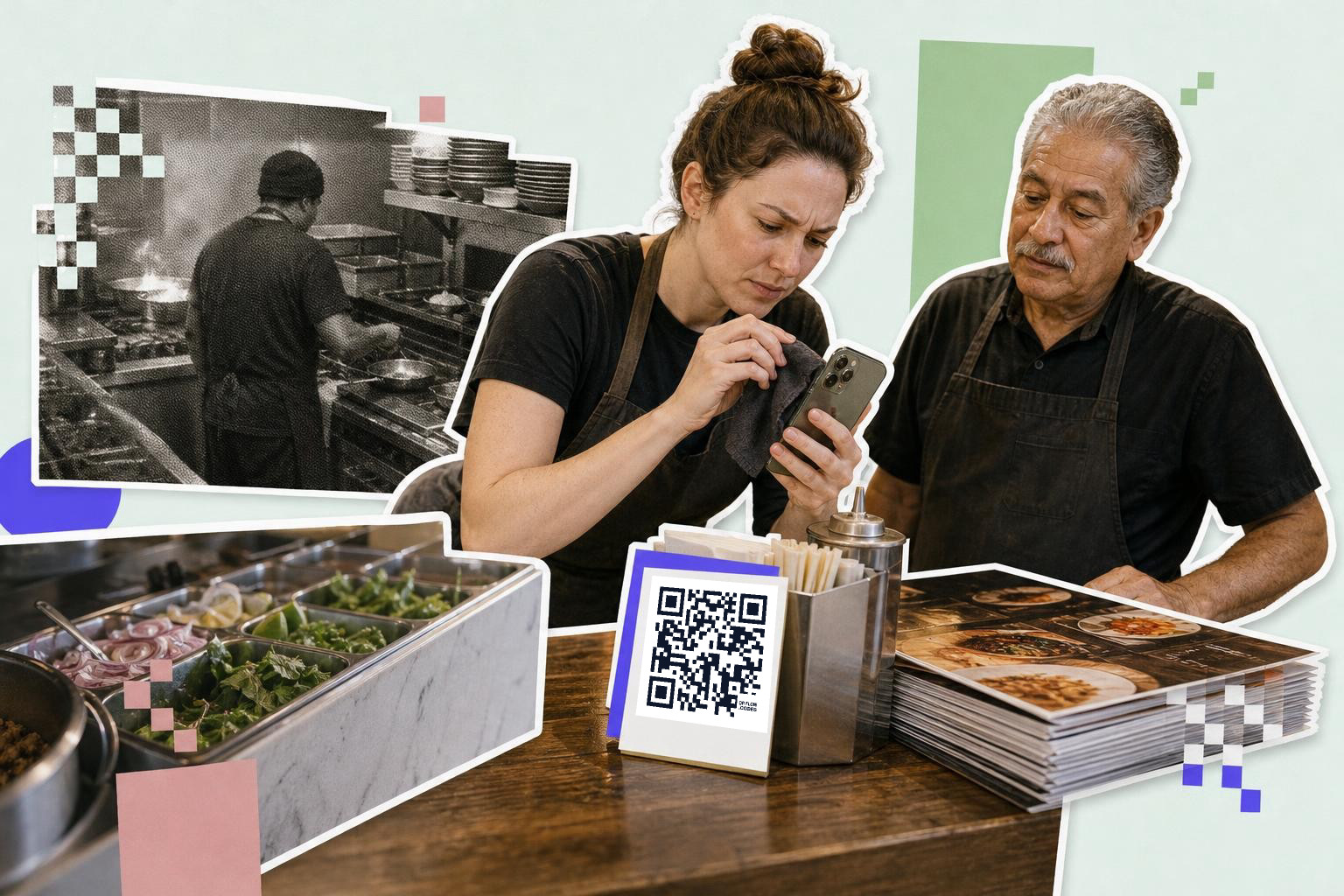
iPhone scan problems usually come from settings, glare, distance, or focus. Most are fixed in under a minute without installing anything.
Start with the settings. Open Settings, tap Camera, and make sure Scan QR Codes is on. If that switch is off, the iPhone camera QR code feature will not show the banner at all.
Next, check the view. Good light matters more than people expect. If you are in a dim hallway, under a tinted counter, or outside at dusk, move to brighter light before assuming the code is broken.
Distance is another common one. If you are trying to scan a QR code on your phone by putting the camera 1 inch (2.5 cm) away, the camera may never focus. Pull back, let the square sit clearly in frame, and hold still for a second.
Glare is a big deal on acrylic signs and laminated menus. If the code is behind glass, shift left or right until the white reflection moves off the square. A tiny angle change often fixes it.
Lens condition matters too. Wipe the lens with a soft shirt hem or cloth, especially if the image looks cloudy. If your camera glass is cracked right over the lens, scanning can fail even when photos still seem mostly fine.
If the code is very small, physically get closer instead of zooming right away. Digital zoom can make the picture softer. As a rough rule, a printed code should look crisp on screen, with a clear white border around it.
If you make or print QR codes yourself, QRFLOW.codes lets you generate one in a few seconds and download it right away. A clear, high contrast code is easier for any iPhone to read.
Where is the Control Center QR reader on iPhone?#

The Control Center QR reader is Apple’s built-in scanner shortcut. It can catch stubborn codes when the regular Camera app does nothing.
Open Control Center by swiping down from the top right corner on Face ID models, or up from the bottom on older Home button iPhones. Look for Code Scanner or Scan QR Code, then tap it and point at the code.
If you do not see it, add it once and it stays there. Go to Settings, then Control Center, then add Code Scanner. After that, it is one swipe away.
This tool is useful when the regular camera keeps focusing on the background, especially on busy counters or glossy menus. The dedicated reader is more direct, which is why it is a good fallback for the classic “why won't my iPhone scan a QR code” moment.
iOS version differences are simple here. The no app route starts at iOS 11. If an older iPhone cannot scan in Camera, it is usually running an old iOS version that predates built in QR support.
What should you do before blaming the code?#

A real world QR code usually scans if it is well lit, flat, and large enough to see clearly on screen. Check those three things before assuming the code is bad.
Look at the code itself. If part of the square is ripped, folded, smudged, or hidden by a finger, the iPhone may not read it. Menus with crease lines across the code can be harder than the same code on a flat card.
Check size and placement. A tiny sticker at the bottom of a stand can be harder to catch than the same code printed at 1 inch (2.5 cm) or larger. If the code is across the room, walk closer instead of trying to zoom from 6 feet (1.8 m) away.
Try a calmer background. Some printed layouts crowd the code with dark patterns, photos, or reflections. If you are making your own, a simple black on white code works best. If you want more style later, our guide to a custom QR code generator shows what you can change without hurting scans.
If you still cannot get it to open, ask someone else to try one scan on another phone. That separates an iPhone issue from a damaged print in about 10 seconds. If the code opens on another phone, your next stop is Apple settings, light, focus, or the Control Center QR reader.
Which iPhones can scan a QR code?#
Every iPhone running iOS 11 or later, which is every model Apple has sold since late 2017 and most older ones that kept taking updates. On an iPhone 6 or earlier that stopped at iOS 10, the Camera app will not read codes at all and you do need a scanner app.
To check yours, open Settings, tap General, then About, and read the iOS version at the top. Anything starting with 11 or higher and you are set.
What happens after you tap the banner#
The banner hands you to whatever the code holds, and that is not always a web page. A link opens Safari. A Wi-Fi code offers to join the network. A contact card offers to save the number. A payment code opens the app it belongs to.
Read the address on the banner before you tap it, the same way you would check a link in an email. A sticker in a public place is the one spot worth a second look, because anyone can stick a new square over an old one.
Scanning a code off someone else's screen#
Codes on a phone or a laptop screen scan fine, with two adjustments. Turn the brightness on the other screen up, because the camera needs contrast more than it needs size. Then pull back further than feels right, around 8 to 12 inches (20 to 30 cm), so the whole square and a margin of white sit in the frame.
If the screen has a matte protector, or you are looking at it on an angle, tilt the phone rather than moving closer. Reflections beat distance almost every time.
Questions people ask about how to scan QR code on iPhone#
Can I scan a QR code from a photo on my iPhone?#
Yes, you can scan a QR code from a photo using the Photos app. Open the photo, tap the share icon, and select 'Scan QR Code' if available. If not, use a third-party app designed to scan codes from images.
Why does my iPhone camera not recognize QR codes?#
If your iPhone camera does not recognize QR codes, check if the 'Scan QR Codes' setting is enabled in the Camera settings. Ensure the code is well-lit, clean the camera lens, and adjust the distance between the camera and the code.
How do I add the QR code scanner to my Control Center?#
To add the QR code scanner to your Control Center, go to Settings, tap Control Center, and add 'Code Scanner' to the included controls. This makes it accessible with a swipe, allowing quick scanning without opening the Camera app.
Do all iPhones have a built-in QR code scanner?#
All iPhones running iOS 11 or later have a built-in QR code scanner in the Camera app. Older models that cannot update past iOS 10 require a third-party app to scan QR codes.
If you end up needing to make a fresh code for a menu, payment page, Wi-Fi sign, or link, the free QR code generator gets you there fast. And if you want to change where a printed code points later, your first dynamic code is free, with more editable codes on the pricing page.