The code is fine, the camera recognized it, and still no page. This is a phone setting nine times out of ten. Here is the checklist we send to customers.
iPhone
- Settings, Camera, Scan QR Codes must be on. It is on by default; some people turn it off.
- Use the Camera app, not the photo viewer. Point, wait a second, tap the yellow banner.
- Control Center has a dedicated Code Scanner if the camera banner does not appear.
Android
- Most Android cameras scan directly. If not, open Google Lens (in the camera or the Google app).
- Samsung: Camera settings, Scan QR codes, on.
- Third-party scanner apps sometimes show the URL as text and wait for a tap. Tap it.
Other causes
- No internet: a dynamic code needs a connection to redirect. Wi-Fi and vCard codes work offline; links do not.
- The destination is slow or down. Open the link from a browser to check.
- The phone opened it in an in-app browser (Instagram, Facebook) that blocked a download or a payment page. Ask people to use the camera app.
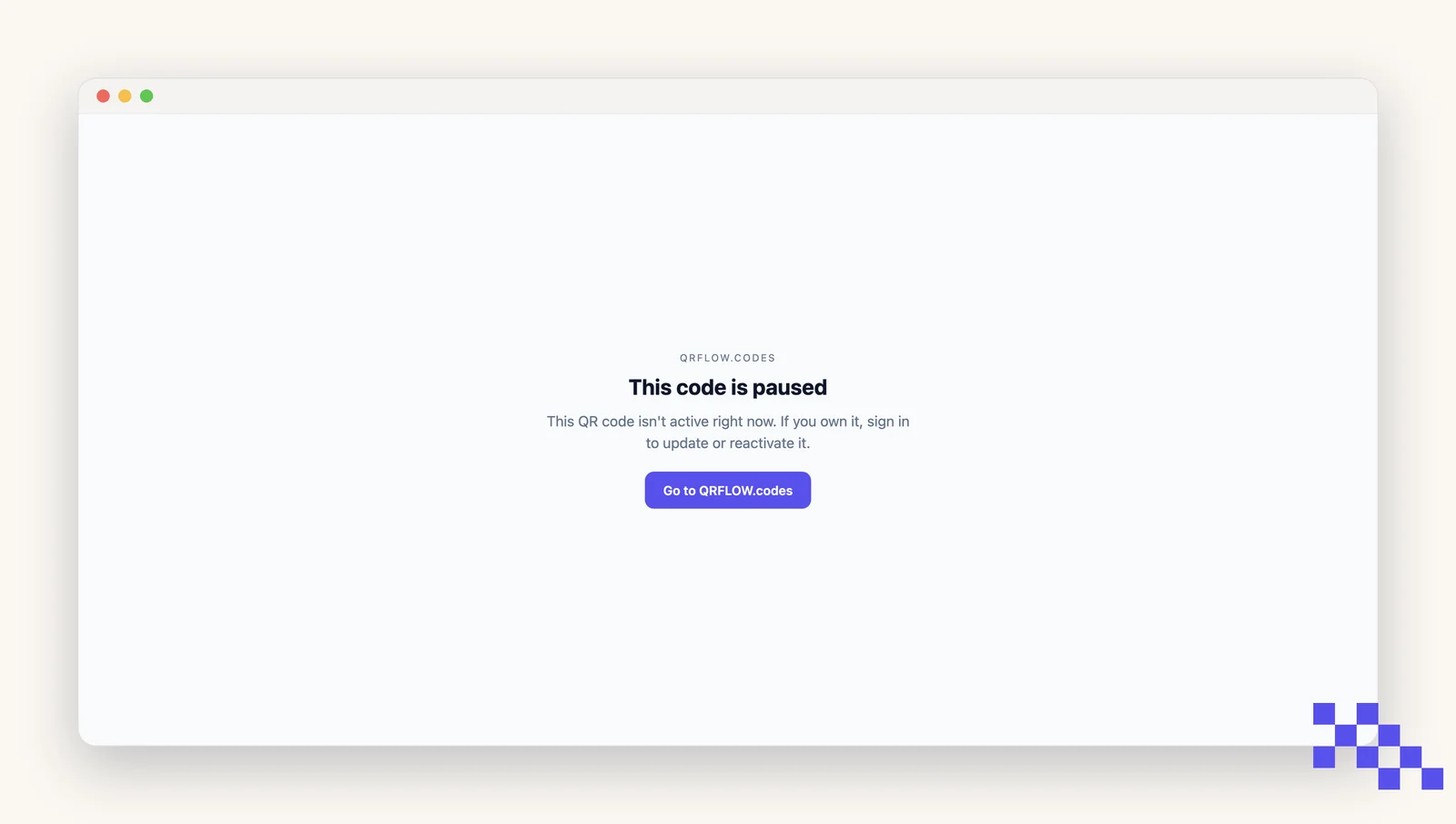
- The code is paused or past its expiry date. The scanner gets the page below instead of the link, and resuming it in your dashboard fixes it on the next scan.
Start clean
Make a fresh code and test it
Codes render as you type, so you can have a new one printed and scanned in a minute. Free, with no signup to try.
Still stuck? Search the help center, or contact support and a person will answer.
/
Try: