
Use one app store QR code that points to a smart link, test it on 1 iPhone, 1 Android phone, and 1 laptop, and print poster versions at least 2.5 inches (6.4 cm) wide.
If you print only your iPhone link, Android users hit a dead end. If you print only your Google Play link, the same thing happens to iPhone users. One printed code has to do the sorting for you.
The fix is a store-smart link, sometimes called an app download link. It checks the device and opens the right store. On a laptop, it should open a plain page with both download buttons and, if it helps, a short line about what the app does.
That matters most when you have one label, one poster, one postcard, or one package insert. The square on the page stays the same, but the destination changes by device.
Why a single App Store link is a problem#

An App Store URL only helps iPhone and iPad users. Everyone else either lands on a page they cannot use or has to hunt for your app manually.
That is the whole reason this article exists. A printed code is one-shot. If half your scanners get the wrong store, the print did not do its job.
A store smart link fixes this by sending each phone to the right place. iPhone goes to the App Store. Android goes to Google Play. Desktop should go to a neutral page with both options.
If the app page changes later, a dynamic code is the safer pick because you can swap the destination after printing. Your first dynamic code is free on QRFLOW.codes, which is handy when the poster is already on the wall.
Where do you copy both app links from?#

App Store and Google Play links should come from the public store listings for your app. Copy the shareable page URL for each store, not an internal dashboard URL.
For Apple, open your app's public App Store listing in a browser and copy that page's address. For Google Play, open your app's public listing and copy its page address too. If your team sends you shortened campaign links instead, test those first before you build the code.
Two small details trip people up here.
First, make sure both links open the exact app, not your developer profile or publisher page. Second, check that both listings are live in the countries where the print piece will be used. A code cannot fix a store page that is unavailable.
If you do not want to build the routing page yourself, use an app download QR code flow that asks for both store links and handles the device split for you.
How do you test an app store QR code before printing?#

App store QR code testing means scanning it on at least one iPhone, one Android phone, and one desktop or laptop camera app. If all three do the right thing, you are ready to print a proof.
Run the test in this order:
- Scan on iPhone and confirm it opens the App Store listing.
- Scan on Android and confirm it opens Google Play.
- Open the same link on a laptop and confirm it shows both store buttons.
- Install from at least one phone to make sure the store page is not region-blocked or broken.
- Print one sample at actual size and scan it under normal room light.
That desktop step gets missed all the time. People scan codes from laptop cameras, messaging apps, or screenshots shared in Slack and email. If your link forces a mobile-only path, those users stall out.
If your test print fails, the code may be too small, too low contrast, or pointing through a bad redirect. How to scan a QR code without a dedicated app helps if someone on your team is not sure how to test with the phone they have.
How big should an app store QR code be on a poster?#
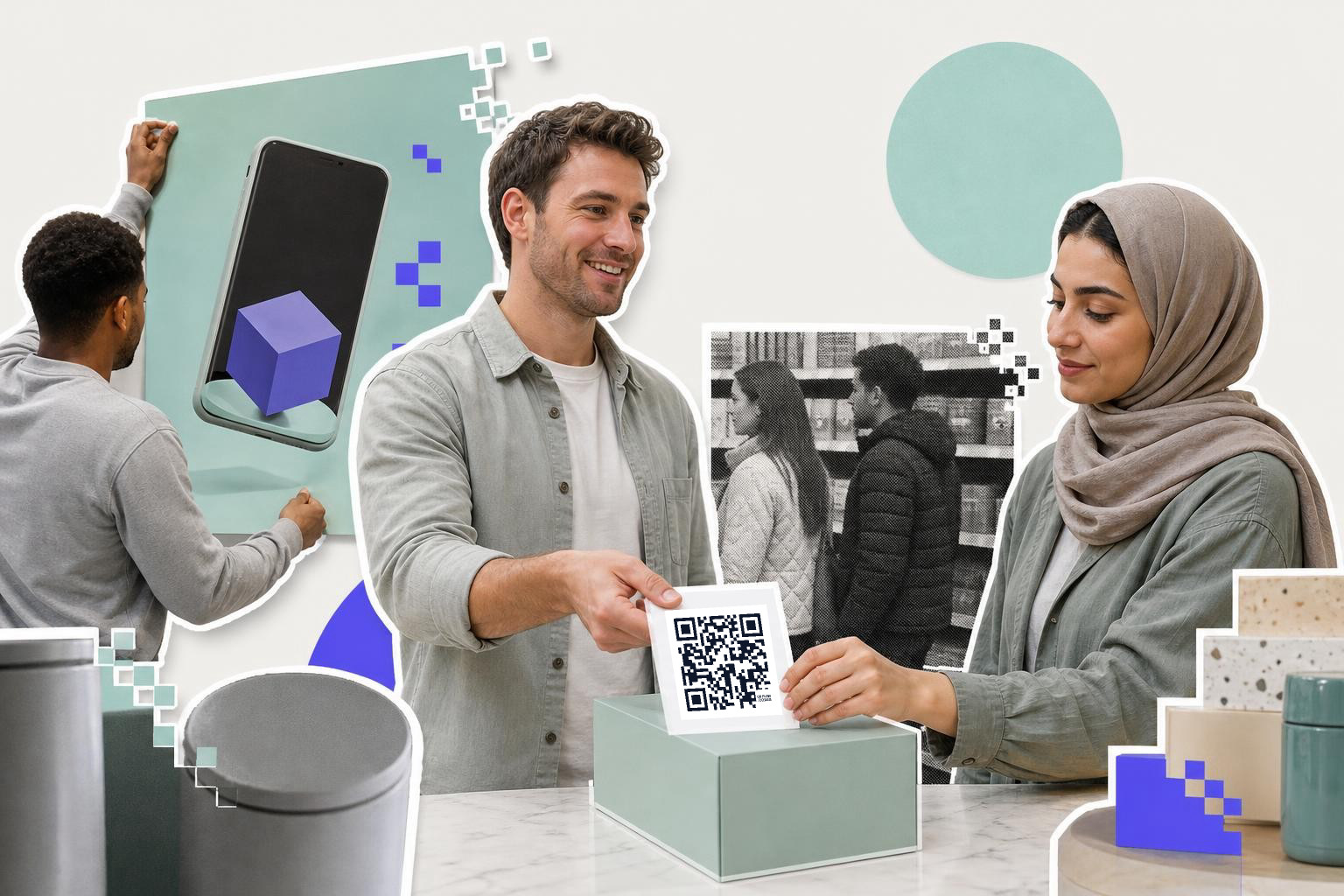
A poster QR code should usually be at least 2.5 inches (6.4 cm) wide. If people will scan from a few steps back, go closer to 3.5 inches (8.9 cm).
The right size depends on scan distance. A rough rule that works in real life is about 1 inch (2.5 cm) of code width for every 1 foot (30 cm) of distance. A handout on a counter can be smaller. A wall poster near a shop window needs more room.
For most posters, this is the safe zone:
- Counter sign or small flyer, 1.2 to 1.5 inches (3 to 3.8 cm)
- Letter or A4 poster held close, 2 to 2.5 inches (5 to 6.4 cm)
- Window or wall poster scanned from 3 to 6 feet (1 to 2 m), 2.5 to 3.5 inches (6.4 to 8.9 cm)
Give the code breathing room too. Leave a plain margin around it, and do not tuck it against a fold, a bottle curve, or the edge of a package.
For app promos on boxes, sleeves, or inserts, a static code can be fine if the routing link will never change. If you might swap the landing page, campaign tags, or fallback page later, make that printed code dynamic and save yourself a reprint.
Need a deeper print guide after you settle the link? How big should a QR code be when printed? covers more sizes and placements.
A single code for both stores is easy to make in the free QR code generator. Paste the smart link, download the PNG or SVG, and print a sample before the full run.
How small can it go on packaging?#
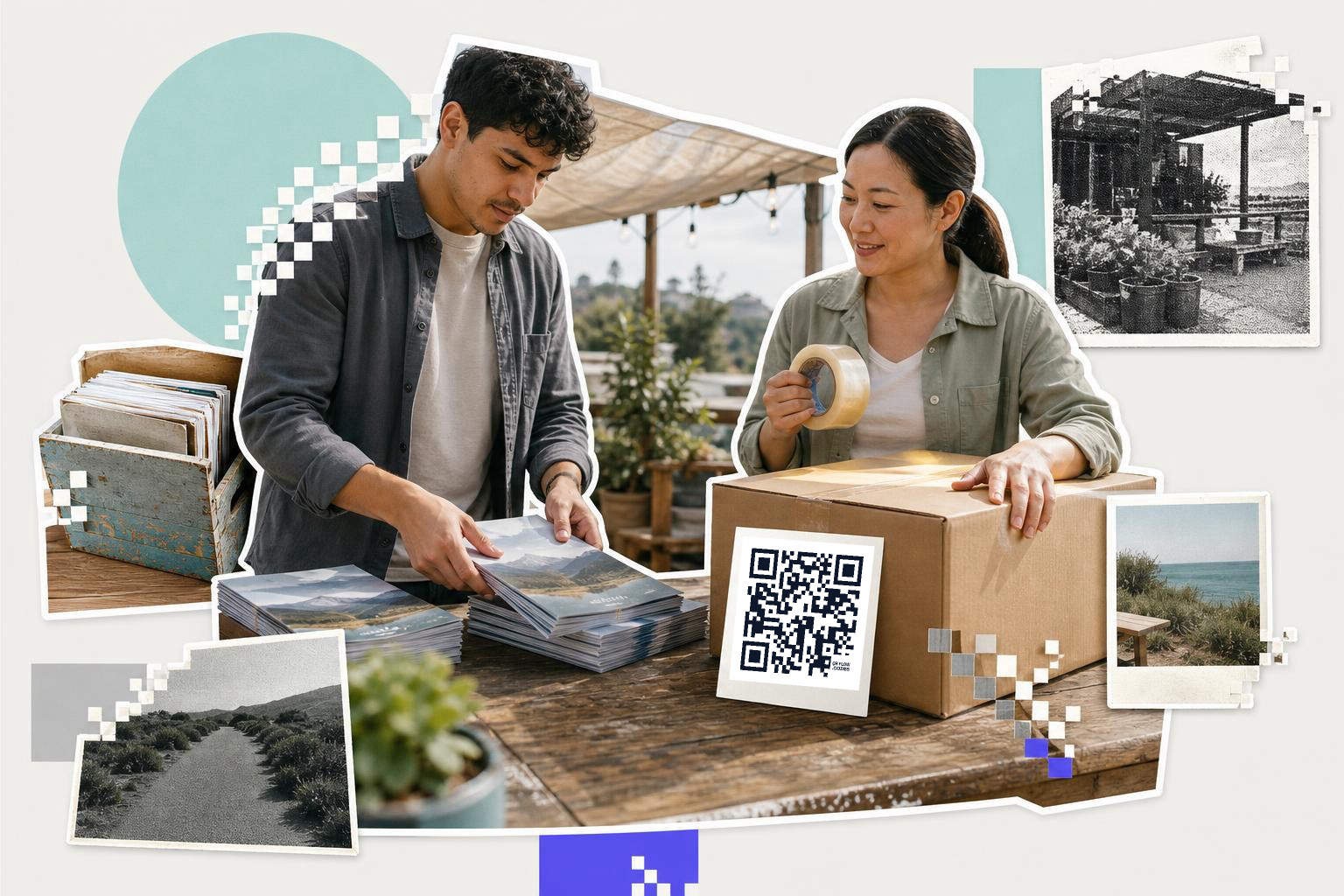
Packaging codes should usually be at least 0.8 inches (2 cm) wide on a flat area. Smaller than that starts getting risky fast, especially on textured boxes, pouches, or curved containers.
If the package is matte cardboard and the code sits on a clean white patch, 0.8 inches (2 cm) can work. If the surface is glossy, dark, crinkled, or curved, move up to 1 inch (2.5 cm) or more. Packaging gets handled under bad light, at odd angles, and with a moving phone.
Placement matters as much as size. Put the code where a hand will not cover it while someone holds the item. Avoid seams, corners, and tear notches. If the pack already has a barcode, do not jam the QR code right beside it.
This is also where a short line of text helps. “Scan to get the app” beats leaving people to guess. If the app is for setup, loyalty, or product instructions, say that right under the code.
If you are working on product boxes, inserts, or labels, the packaging hub at QR codes on packaging shows the common places brands use them.
What should happen when someone scans on a laptop?#
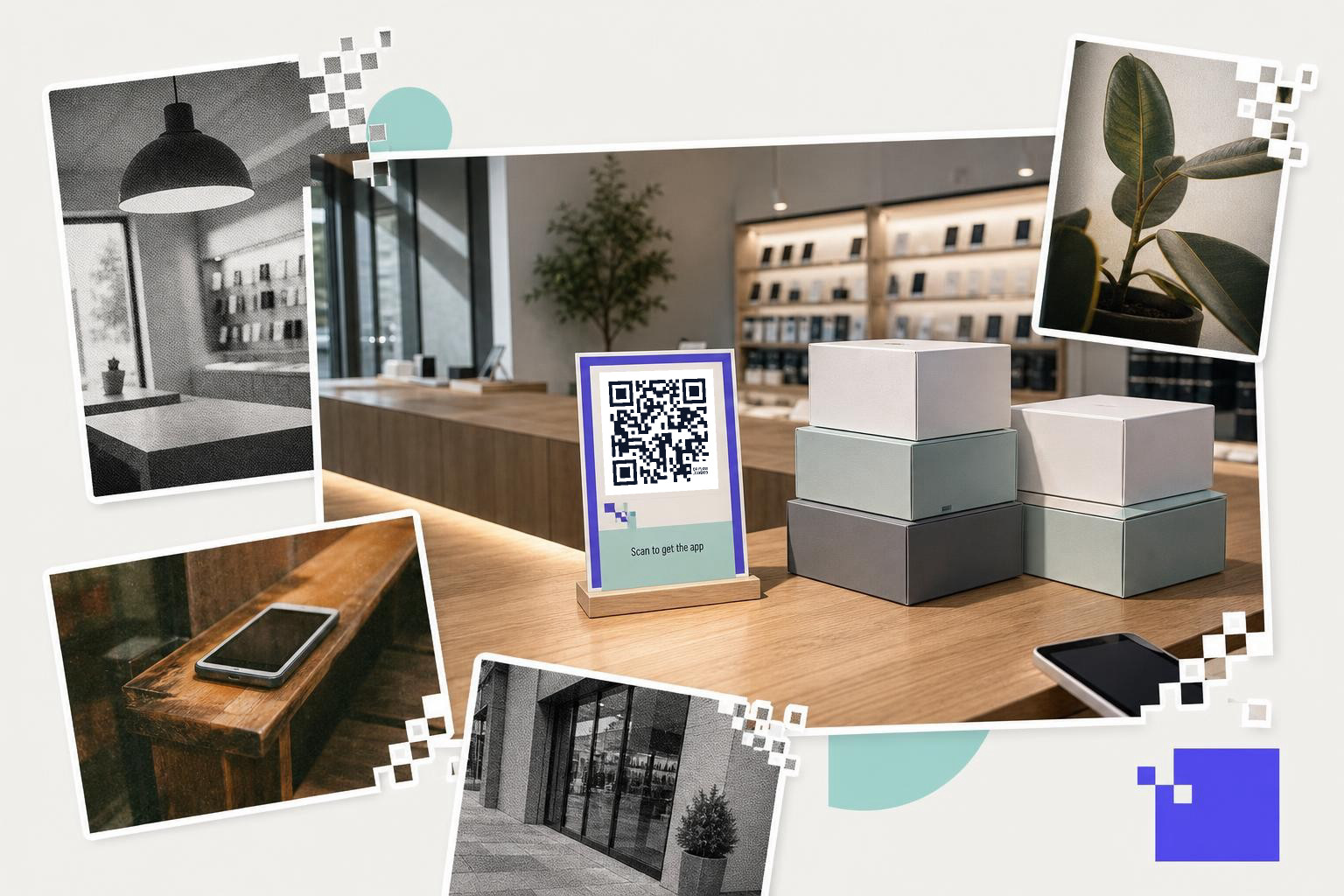
Desktop scanners should land on a simple page with two clear buttons, one for the App Store and one for Google Play. Do not send desktop users straight into a mobile store link and hope for the best.
This matters more than it sounds. People scan from desktop webcam tools, browser extensions, screenshots, and messages they opened on a computer. Some are not trying to install right away. They might just want to email the app to themselves or read what it does first.
Your desktop fallback page can be very plain:
- App name
- One sentence on what it does
- App Store button
- Google Play button
- Optional QR code again for people who want to switch to their phone
If you already have a landing page on your site, use that. If not, even a bare page does the job. The point is choice. Desktop users need somewhere sensible to go.
If you want the printed code to keep working after campaign changes, QRFLOW.codes lets you change where a dynamic code points after printing, and paid plans add full scan analytics if you need to see which devices and places are actually scanning. Pricing is on /pricing.
Common questions about QR codes for app stores#
Can one QR code open the App Store and Google Play?#
Yes, one QR code can open both the App Store and Google Play by using a smart link that detects the device and directs it to the appropriate store.
The QR code itself is just the doorway. The routing happens at the link behind it.
Can I use the same code on posters and packaging?#
Yes, if the linked destination is the same. The only catch is size. A code that works on a 24 inch poster may be too detailed or too tiny when shrunk for packaging, so export for each print use and test both.
What if my app is not live on one store yet?#
Wait to print the shared code, or use a landing page that explains the other version is coming soon. Sending Android users to an iPhone-only destination is a bad scan experience and wastes the print.
Should I use a static or dynamic code for app installs?#
Static is fine if the smart link and fallback page are permanent. Dynamic is better if you may change campaign tags, landing pages, or store destinations after boxes, cards, or posters are already printed.
A single app install code should feel invisible. People scan, land in the right place, and move on. If you want to make one and test it before print, start with the free QR code generator and point it at a smart app download link that handles iPhone, Android, and desktop cleanly.