
Use a LinkedIn QR code generator to turn your public profile link into a scannable code in about 2 minutes, then place it on your business card, badge, or event handout.
A LinkedIn code works best when it opens the exact profile you want new contacts to see, with a photo, headline, and current contact details. If you're printing for an event tomorrow, keep it simple: use one clean profile link, make the code, and put it where someone can scan while talking to you.
How to use a LinkedIn QR code generator#
To use a LinkedIn QR code generator, open a free QR code generator and select the link option. Copy your LinkedIn profile URL and paste it into the generator, ensuring it opens your profile correctly. Download the code as PNG or SVG.
-
Open the free QR code generator and choose the option for a link. A LinkedIn profile QR code is usually just a QR code for linkedin that opens your public profile URL.
-
Copy your LinkedIn profile link from your profile page and paste it into the generator. Use your direct profile URL, not a search result or a long tracking link from a message.
-
Check that the link opens the right version of your profile in a browser where you are not signed in. If your profile is private, people may hit a wall instead of your page.
-
Add simple styling if you want, but keep the code dark on a light background. Black on white is still the safest choice for cards, badges, and table signs.
-
Download the code as PNG for quick use or SVG if a designer is placing it in print. SVG stays sharp when resized, which is handy for business cards and banner stands.
-
Put the code next to your name, title, or a short prompt like “Connect on LinkedIn.” A label matters because people scan faster when they know what they will get.
-
Test the code with an iPhone and an Android phone before you print a batch. One scan should open your profile in the LinkedIn app or the browser with no extra taps.
-
Save the file where you can find it again for future cards, resumes, or event materials. If your LinkedIn URL might change later, your first dynamic code on QRFLOW.codes is free, so you can update the destination after printing.
A small setup choice makes a big difference here. If your custom LinkedIn URL is already set and you do not expect it to change, a static code is fine. If you are job hunting, rebranding, or still cleaning up your profile, an editable code is safer. For a fuller breakdown, see static vs dynamic QR code.
Where should your LinkedIn code go?#

A LinkedIn code belongs on things people already touch during networking, not on random promo items. Business cards, badge backs, resume headers, speaker one sheets, and tabletop signs all make sense.
Business cards are the easiest win. Put the code on the back, or on the front if the layout stays clean. A code that is at least 0.8 inches (2 cm) wide usually fits well on a standard card without taking over the design.
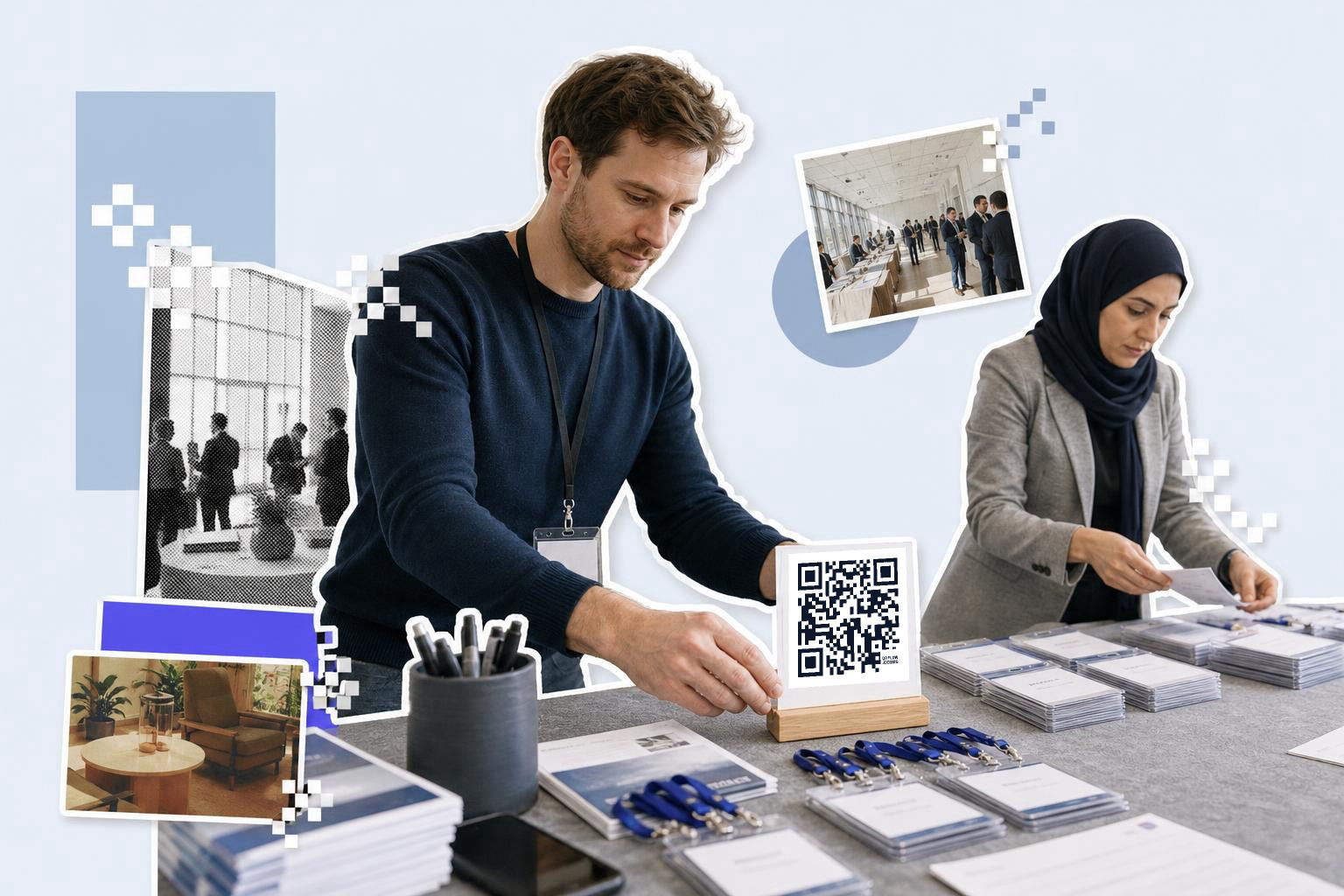
Badges work well at conferences and meetups because people can scan while they are already looking at your name. If you are adding a code to event materials, the guide on business card QR code helps with placement choices that still look polished.
Resumes are a bit different. A recruiter might scan from a printed page or a PDF on a screen, so keep the code near your contact details and use your main profile, not a post or article. If you want one square that saves your details instead of opening LinkedIn, Free vCard QR code generator for digital contacts covers that option.
If you are making several versions for different people on a team, QRFLOW.codes can also bulk generate codes from CSV on paid plans, which is useful for event staff packs or company-wide cards.
Need to make one right now for a card mockup or badge insert? The LinkedIn QR code page gets you straight to the right setup with the link field ready.
Which LinkedIn link should you use?#
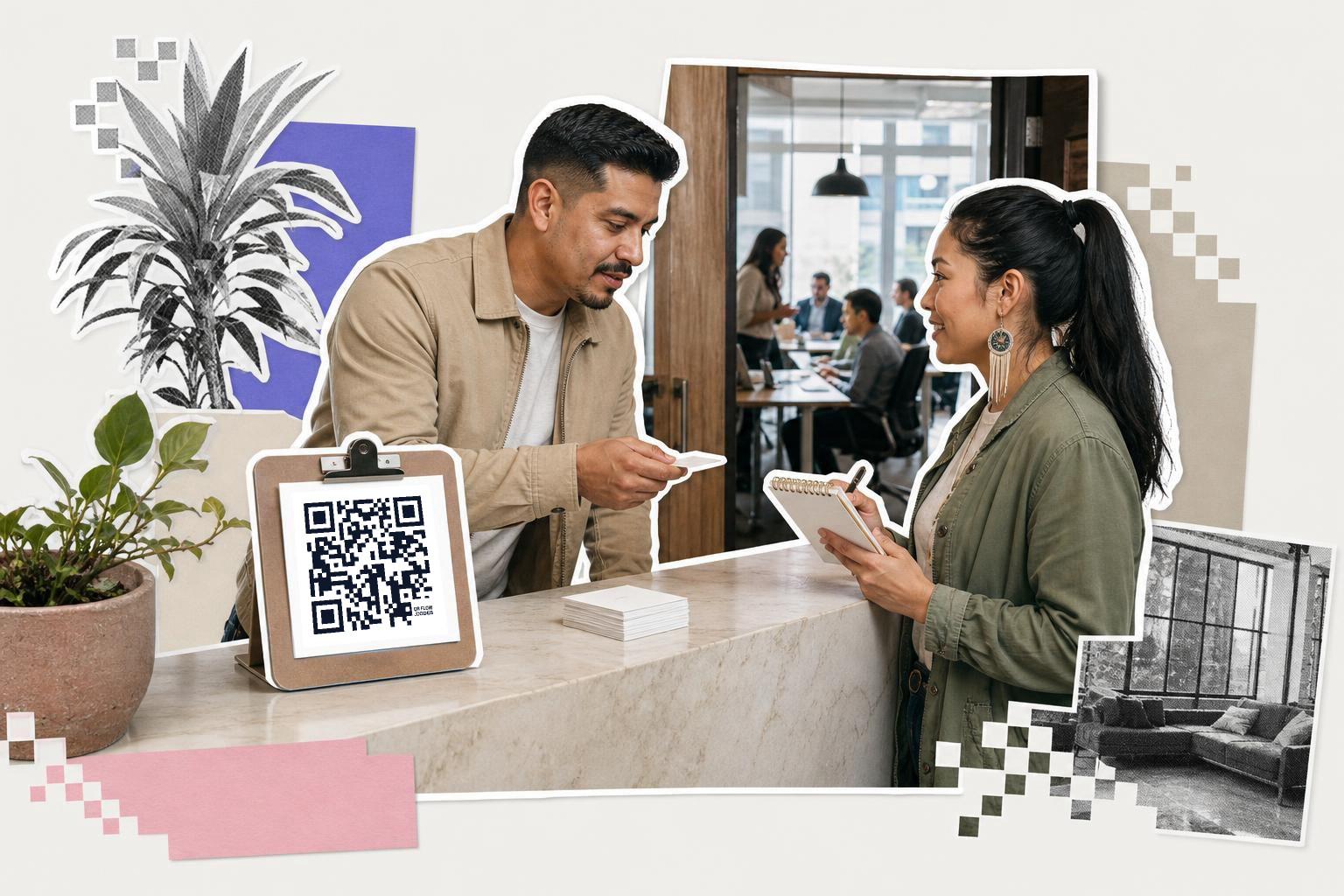
Your LinkedIn QR code link should usually be your public profile URL, not your LinkedIn app code image, a search page, or a post. One scan should land on your profile photo, headline, and Connect button.
The cleanest version is your custom public URL, like linkedin.com/in/yourname. If LinkedIn gave you a messy default URL with extra numbers, change it in LinkedIn first if you can. A shorter URL looks better in your records and is easier to keep consistent across cards and resumes.
Avoid linking to a feed post unless the whole point is that one post. Most people scanning at a networking event want your profile, not a single update. The same goes for company pages unless the code is for a booth or brand handout rather than for you.
If you already printed a code and then changed your custom LinkedIn URL, a static code will not follow the move. An editable code will. The help page on change where a QR code points shows how that works after printing.
A plain profile link also ages better than temporary campaign links. If you want a QR code that keeps working for years, How to create a QR code that doesn't expire explains what actually lasts.
What happens after you print it?#
A printed LinkedIn code does one job well: it removes the awkward “how do I find you?” moment. The best version opens fast, shows a complete profile, and sits on something people were already going to pick up.
Choosing the right QR code size#
Enhancing your QR code with branding#
While a basic black-and-white QR code is functional, adding branding elements can make it more appealing. Consider incorporating your brand colors into the QR code design. Most generators allow you to change the color of the squares and background. However, ensure there is enough contrast for the code to be easily scannable. Adding a small logo in the center of the QR code is another way to personalize it. This can help reinforce your brand identity while maintaining the code's functionality. Always test the scannability after making these changes to ensure it still works effectively.
Tracking engagement with dynamic QR codes#
Using a dynamic QR code for your LinkedIn profile allows you to track engagement metrics. This type of code lets you see how many times it has been scanned, providing insights into how effective your networking materials are. You can also update the destination URL without reprinting the code, which is useful if your LinkedIn profile changes. Dynamic codes are ideal for those who frequently update their profiles or want to measure the success of their networking efforts. Check if your QR code generator offers analytics features and how you can access them to make the most of your networking strategy.
Before your next event, update your LinkedIn photo, headline, and location, then make the code. If you want a clean file for a card, badge, or resume, start with QRFLOW.codes and make one you can use today.
Compare plans on the generator pricing page to pick the tier that fits your workflow.
Questions people ask about LinkedIn QR code generator#
How do I create a QR code for my LinkedIn profile?#
To create a QR code for your LinkedIn profile, use a QR code generator. Copy your LinkedIn profile URL, paste it into the generator, and download the code. Test it to ensure it opens your profile correctly before printing.
Can I customize the appearance of my LinkedIn QR code?#
Yes, you can customize your LinkedIn QR code by changing the color and adding a logo. Ensure there is enough contrast for easy scanning, and always test it after customization.
Best LinkedIn QR code size on card#
The best size for a LinkedIn QR code on a business card is at least 0.8 inches (2 cm) wide. This size ensures the code is easily scannable without overwhelming the card's design. Test it by printing a sample and scanning it.
Why should I use a dynamic QR code for LinkedIn?#
A dynamic QR code for LinkedIn allows you to track scans and update the destination URL without reprinting. This is useful if your profile changes or if you want to measure how effective your networking materials are.
When you are ready to try it, make a free QR code and see how it looks before you print anything.