Every saved code has a Customize tab. Anything you change there is baked into the downloaded PNG or SVG, and the live preview reflects the change in real time.
Colors (free)
- 1Open a saved code
Dashboard, then click any card.
- 2Switch to Customize
It is the second tab, next to Overview.
- 3Set Foreground
Foreground is the dark modules. Click the swatch or paste a hex value like #5850EC.
- 4Set Background
Background is the negative space. White is safest, but any light color works.
Heads up. Keep strong contrast between foreground and background. Light on light or two similar colors will fail to scan. When in doubt, dark on white.
Turn the background off
A transparent background means the file has nothing behind the code at all, so it sits straight on a menu, a label or a photo with no white box to erase.
- 1Open the Background color
In the generator, or the Customize tab of a saved code.
- 2Press Make the background transparent
The swatch switches to a checkerboard, which is how design tools show that nothing is there.
- 3Download PNG or SVG
Both keep the transparency. The dark squares stay dark; only the background goes.
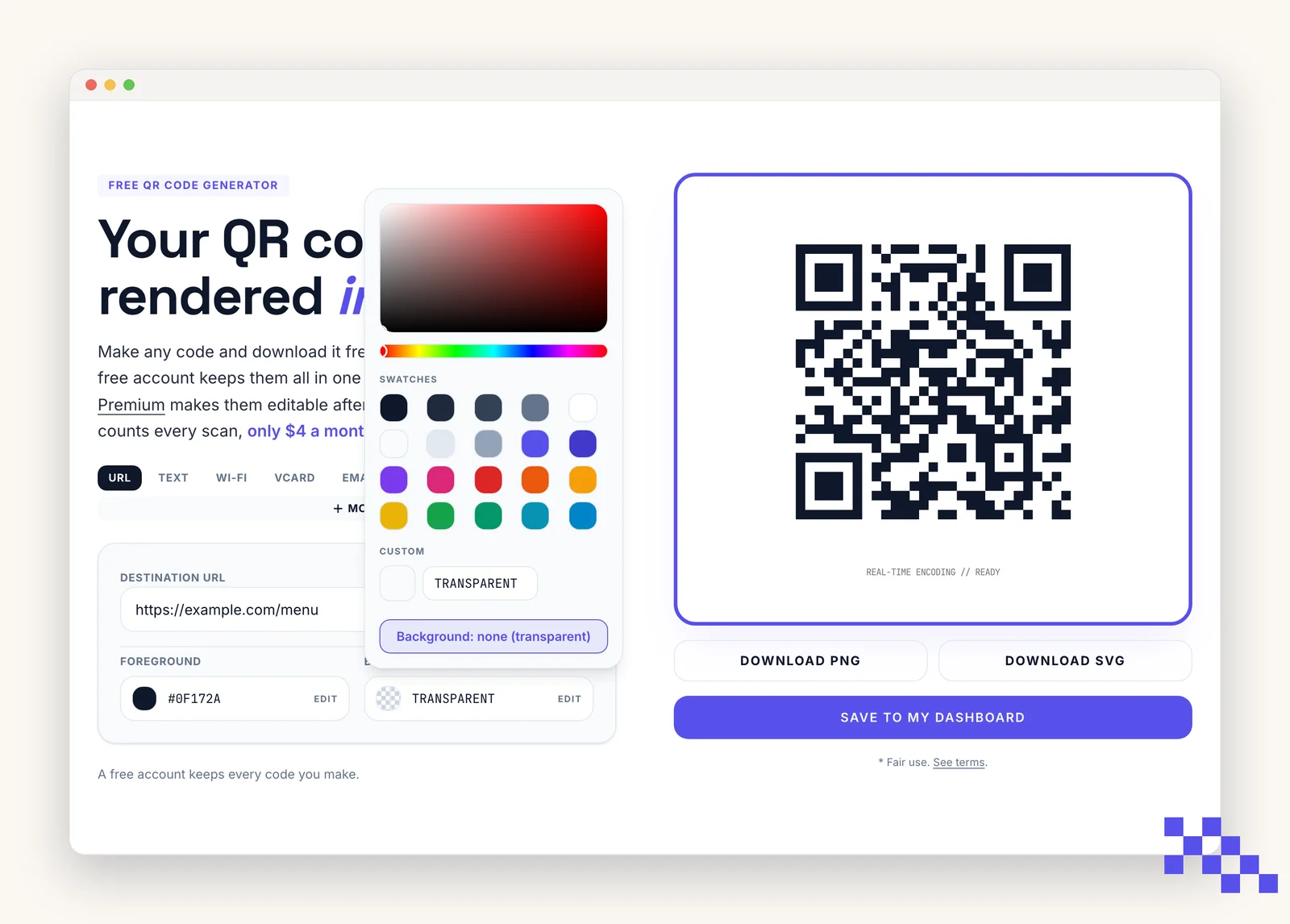
Heads up. Whatever sits behind the code becomes its background, so it still needs light, plain space around it. A transparent code dropped on a photo or a dark panel will not scan.
Converting the file to JPG anywhere else puts the white box back, because JPG cannot store transparency. Keep it as PNG or SVG.
Center logo (Premium)
Upload a square PNG or SVG. QRFLOW.codes places it in the center of the code with a safe amount of padding so the QR still scans.
- Best size: 512 by 512 pixels or larger.
- Best format: SVG (crisp at every size) or PNG with transparency.
- Avoid: photos, gradients edge-to-edge, or logos that fill the whole square.
Tip. After adding a logo, scan the preview with two different phones. If either one misses, shrink the logo slightly or bump the contrast.
Frames (Premium)
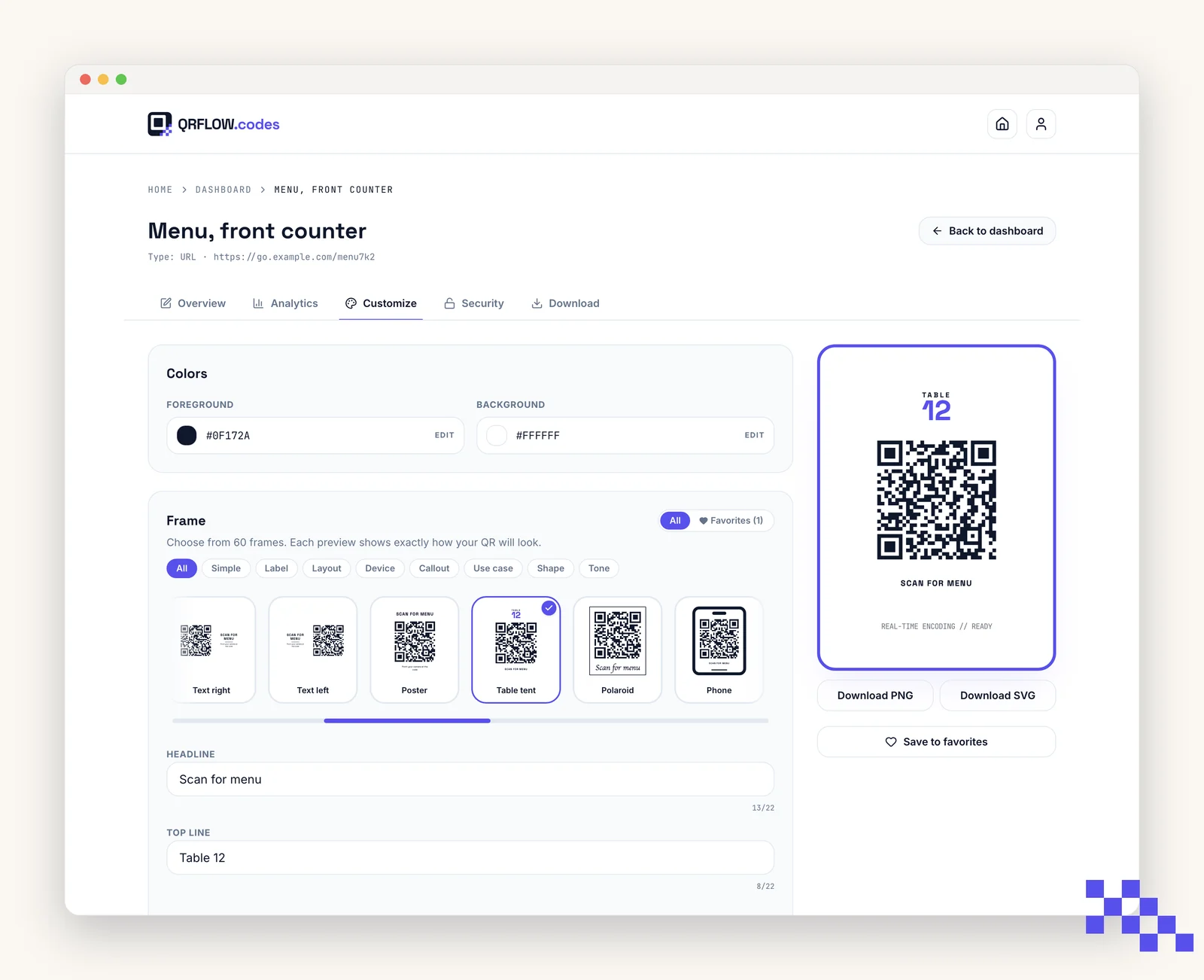
A frame is a labeled border around the QR that tells people what to do (SCAN ME, MENU, ORDER, and so on). QRFLOW.codes ships 60 frame styles in eight groups: simple borders, labels, layouts with text beside or above the code, device mock-ups, callouts, use-case frames (menu, Wi-Fi, pay here, reviews, contact, follow, app, find us, coupon, ticket, shop, video), shapes, and tone frames (wedding, handwritten, receipt).
- 1Pick a frame
In Customize, scroll to FRAME, filter by group with the chips, and click any preset. The preview updates immediately.
- 2Edit the label
Most frames let you replace the default text; layout frames add a second line, and the table tent takes a table number. The counter shows how much fits.
- 3Match your colors
The frame inherits your foreground color by default. Change either to keep the pairing on brand.
Ready to make your own QR code?
Free QR codes rendered as you type, no signup to try. Premium makes them dynamic for $4 a month.
Still stuck? Search the help center, or contact support and a person will answer.