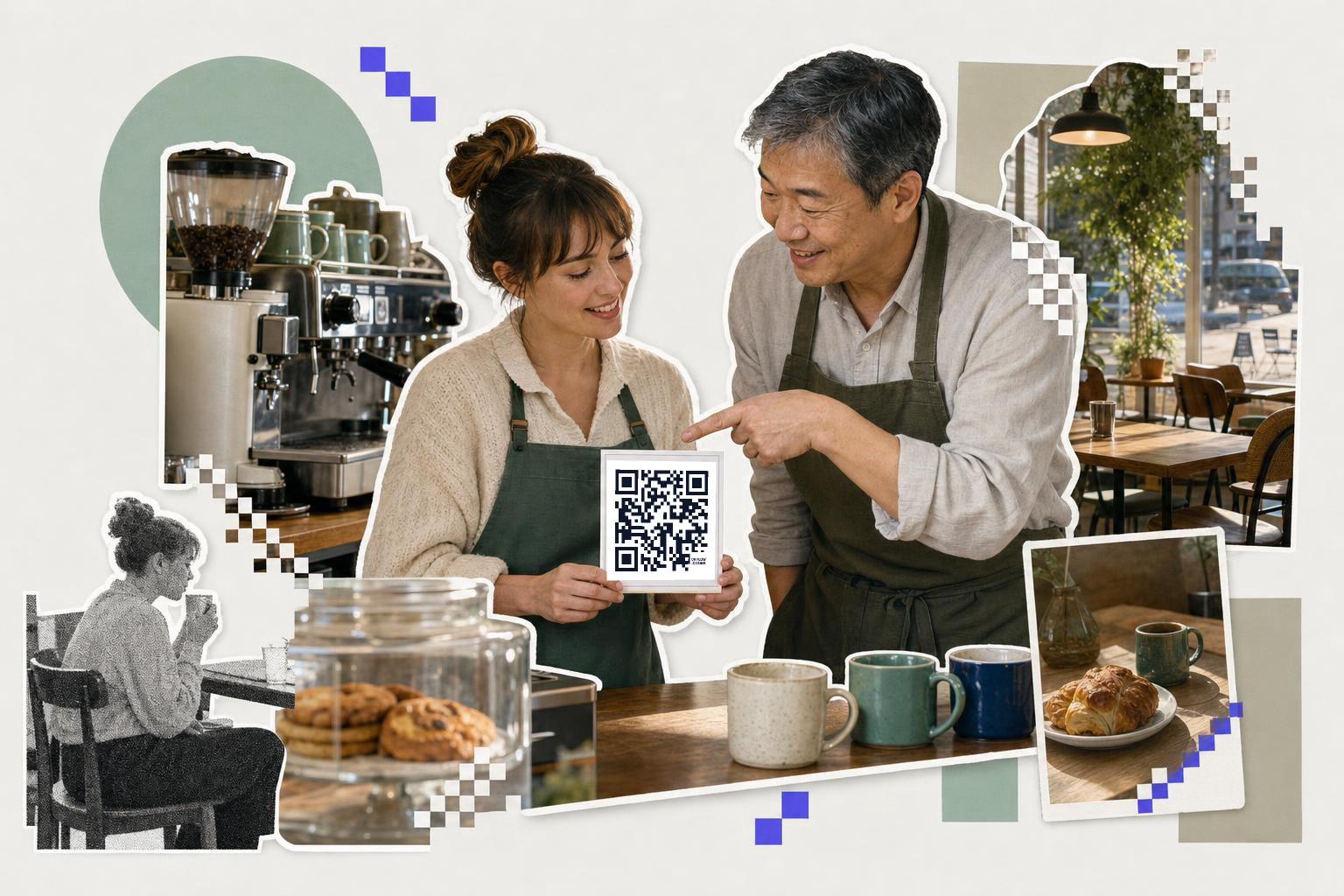
To create wifi QR code that people can actually use, enter your network name exactly, pick the right security type, and print the code at least 1 inch (2.5 cm) wide.
A Wi-Fi code is one of the nicest little fixes in a home or busines. No spelling the password out loud. No sticky notes on the router. No one typing a capital O when you meant a zero.
The part that trips people up is not the square itself. It is knowing what to encode, where to put it, and what happens if the network name or password changes later.
Create wifi QR code for your home guest network#
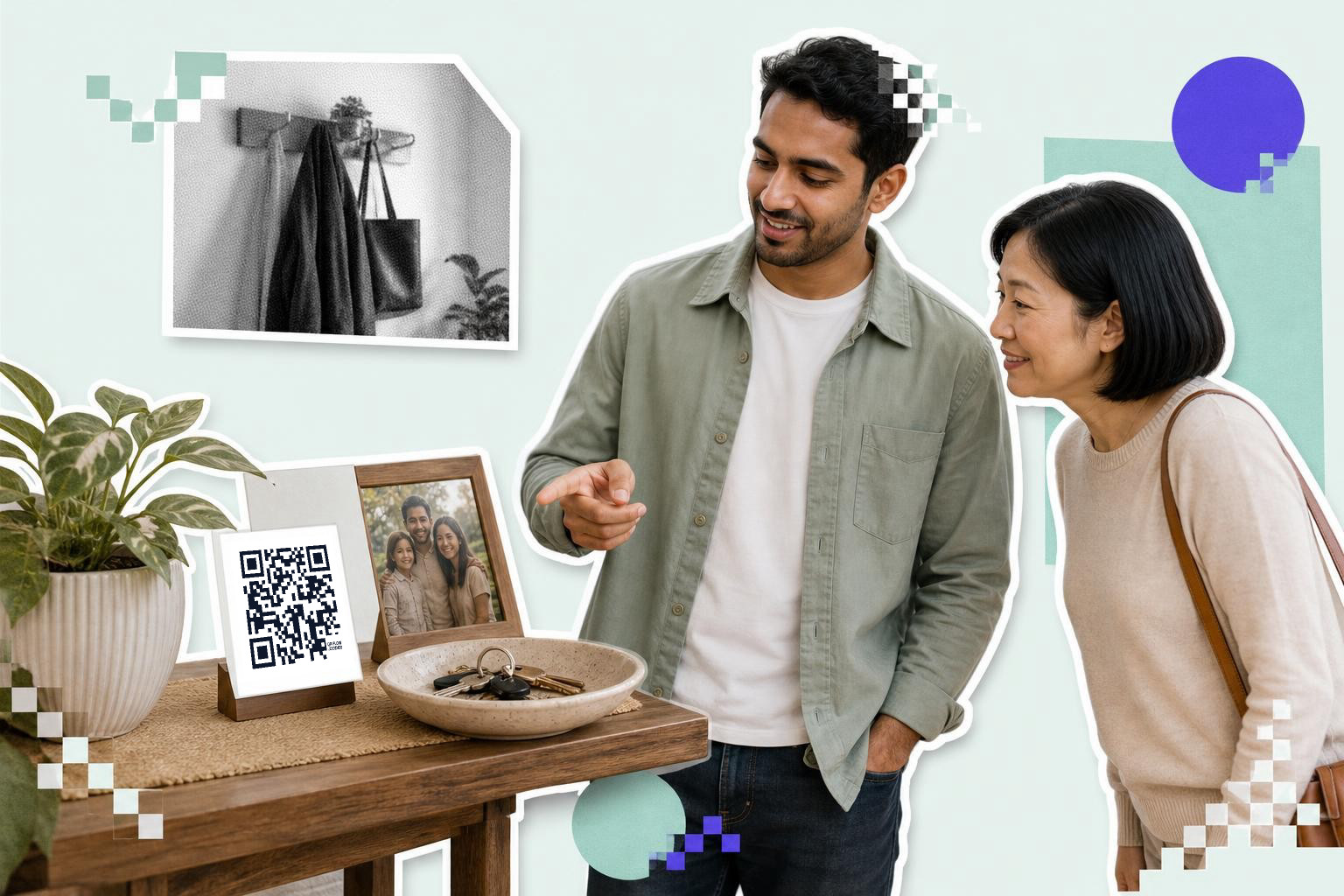
A home Wi-Fi QR code belongs on a small card near the entry, kitchen, or guest room. Use your guest network, not your main one, and keep the print at 1 inch (2.5 cm) or larger so visitors can scan it from arm's length.
Most home setups work best with one simple card in a spot people already pause. An entry table is great. A nightstand in a guest room is great too. The fridge door usually is not, because magnets and clutter make it easy to miss.
Before you make the code, gather three things exactly as the router shows them. You need the network name (SSID), the password, and the security type. That security type is usually WPA or WPA2 on home gear. If your generator asks whether the network is hidden, leave that off unless you know you intentionally hid the SSID.
A small practical detail most people miss: capitalize the network name exactly. Wi-Fi names are case sensitive in many setups. If the router says GuestHouse_5G, do not type guesthouse_5g and hope for the best.
If you want a deeper walkthrough of the fields, this guide on QR code to connect to Wi-Fi covers the setup itself.
How should a cafe or shop share guest Wi-Fi?#

A cafe or shop should put the Wi-Fi code where customers ask for it anyway, usually at the register and on a table tent. Counter cards should be at least 1.5 inches (4 cm) wide, because people scan them while standing and moving.
One code by the register is rarely enough. The line moves, people are juggling a wallet and a drink, and they miss it. Put a second copy where they settle down, like on table tents, window bars, or a pickup shelf.
This is also the setting where a guest network matters most. Do not print a code for the same network your payment terminal, cameras, or staff devices use. Nearly every modern router lets you create a separate guest Wi-Fi network in a few minutes. Use that.
If your password changes now and then, the code itself must change too. A Wi-Fi QR code stores the network details directly, so changing the password means making a new code and replacing the signs. Dynamic links are great for menus and forms, but not for the actual join-to-network action here because the phone expects Wi-Fi details, not a web page first.
If you want an easy place to make and download the code, the free QR code generator works without a signup wall. If you later want a clean file with no QRFLOW mark saved to your dashboard, that does need an account.
Create Wi-Fi QR code for weddings, pop ups, and one day events#

Event Wi-Fi codes work best in two places, at check in and at the seat or table. Print welcome sign codes at least 2.5 inches (6 cm) wide so they scan from 3 to 6 feet (1 to 2 m) away.
People at events do not stand still for long. They arrive in a line, scan once, and keep moving. That is why the entry sign should be big enough for a quick scan, and why a smaller repeat version on the program, menu, or table card helps later.
This is also where naming matters. If the venue shares a temporary hotspot like LoftGuestOct12, build the code only after that name and password are final. Event teams often print too early, then the venue tweaks the network the day before. One changed character means the old code is useless.
A good fallback is to keep one plain text line under the code with the network name. Not the full password, just the network name. That way guests can still search for the right network if their camera app is being stubborn.
If you are already making schedules, maps, or check in materials, a code for Wi-Fi often sits beside other event codes. Our page for QR code for events shows where that mix makes sense.
What should an Airbnb or rental Wi-Fi card include?#
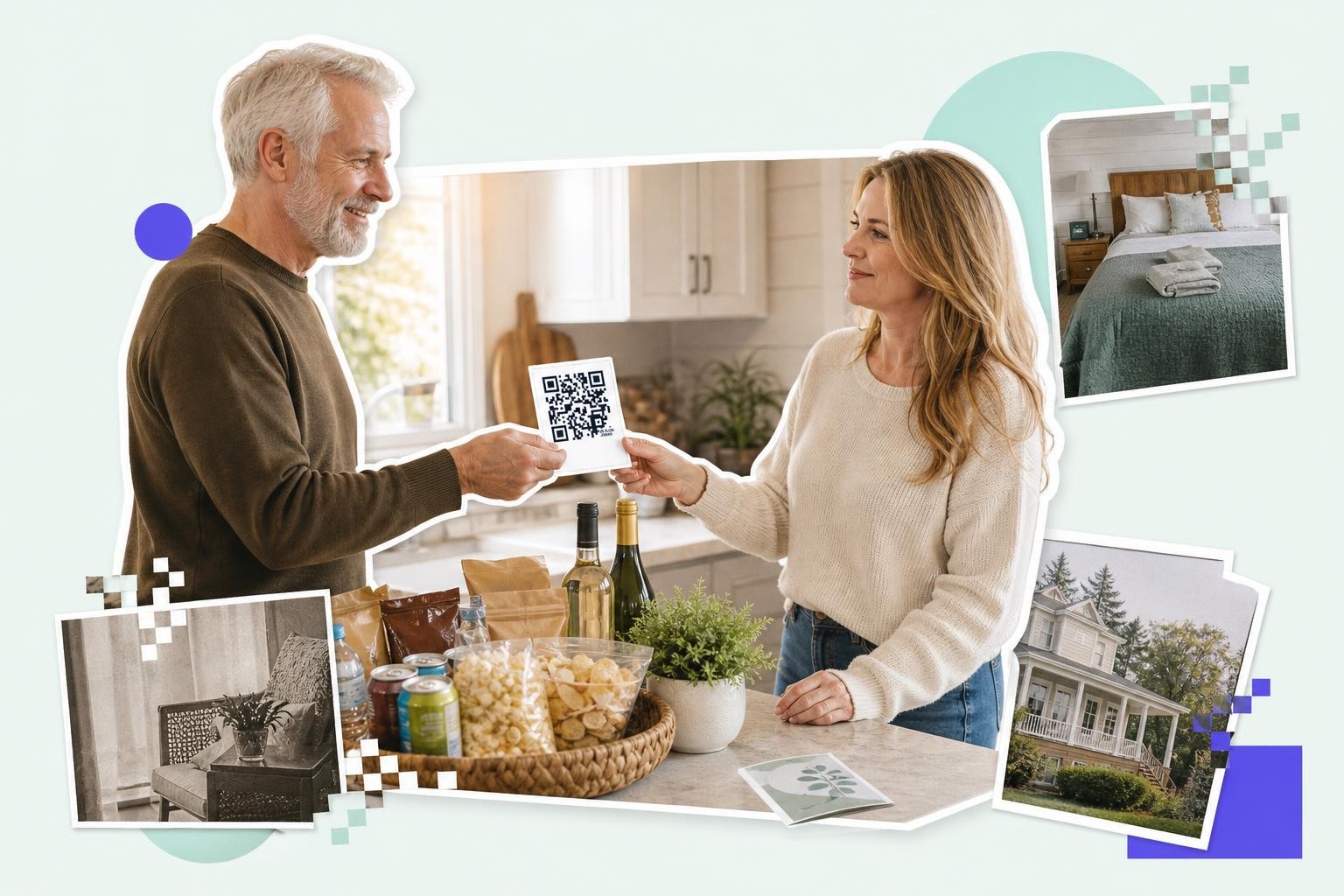
A rental Wi-Fi card should include the QR code, the network name in plain text, and a backup password line. Put one copy in the main room and one in the bedroom, each at least 1.5 inches (4 cm) wide.
Guests do not want to hunt through a booking app message after a long trip. A printed card in the space saves that little moment of friction, and it cuts the midnight message that says, "what's the Wi-Fi again?"
The backup matters more in rentals than at home. Some older phones still do not join perfectly from a scan, and some guests simply trust typed details more. Put the network name first, then the password on a second line in a readable font. Keep the card somewhere obvious, like the kitchen counter, desk, or bedside table.
The big beginner mistake here is laminating one permanent card before you are sure the router is staying. Internet providers, replacement routers, and mesh upgrades often change the default network name. Test the exact printed card in the room before you order nicer holders.
If you also want guests to find house rules, checkout steps, or local tips, keep that as a separate code. One code should do one job. Mixing Wi-Fi access with a long landing page slows people down.
How big should an office or clinic Wi-Fi QR code be?#
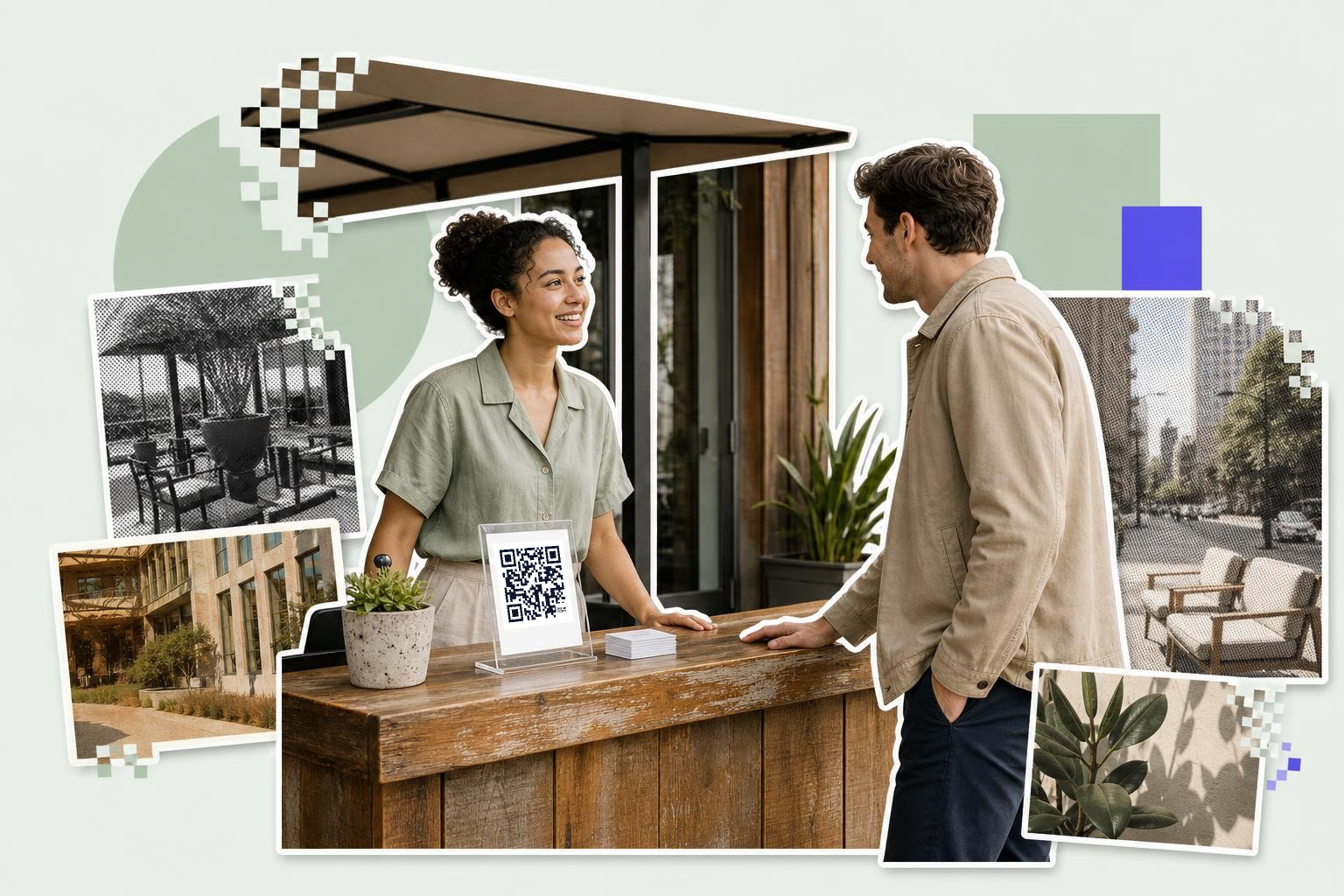
An office or clinic guest Wi-Fi code should usually be 1.5 to 2 inches (4 to 5 cm) wide on a desk sign or acrylic stand. Reception is the right place, because visitors already stop there and have a free hand.
Front desks are calmer than cafe counters, so you can keep the sign smaller than an event board. What matters more is clarity. Label it plainly as guest Wi-Fi, and avoid placing it behind glossy plastic that catches ceiling lights.
This is also one of the few places where you may want to rotate the password on a schedule. If you do, plan the sign so it is easy to swap. A paper insert in a stand is better than a thick mounted sign you will throw away every few months.
For clinics, schools, and any place with lots of visitors, it helps to keep the QR card separate from forms and consent paperwork. People should not have to guess which square opens the guest network and which one opens a form.
If you need more size guidance before you print, create a QR code covers the basics that apply to desk signs and handouts too.
Why a Wi-Fi code stops working after you change the router#
A Wi-Fi QR code stops working when the stored network details no longer match the real network. The usual reasons are a new router, a renamed SSID, a changed password, or the wrong security type entered at setup.
This catches people because the square still looks fine. Unlike a web link, there is nothing online to edit after the fact. The code contains the join details inside it, so even one changed character breaks the handoff.
A few things to check before you blame the print:
- Confirm the network name matches exactly, including capitals.
- Check whether the network uses WPA, WPA2, WPA3, or no password.
- Make sure you did not mark the network as hidden unless it really is.
- Test with the camera app on both iPhone and Android if you can.
- Try scanning from the printed version, not just the screen preview.
If the network did change, remake the code and replace every printed copy. Keep a simple list of where those copies live, especially for rentals, events, and multiroom spaces. Future you will be very grateful.
Midway through setup is a good time to make the final version and test it on paper. With QRFLOW.codes, you can make the Wi-Fi code, download it, and print a fresh card before guests arrive.
Still stuck on creating a Wi-Fi QR code?#
No, creating a Wi-Fi QR code does not require internet. The phone camera reads the Wi-Fi details from the code without needing an internet connection.
Does a Wi-Fi QR code need the internet to scan?#
No. The phone camera can read the Wi-Fi details from the code without internet. Internet only matters after the phone joins the network and tries to go online.
Can a QR code join both Wi-Fi bands?#
Only if both bands share the exact same network name and password. If your router shows two different names, make a separate code for each one.
Should I print the password under the code?#
For homes and shops, usually no if the code works well. For rentals, offices, and guest rooms, yes, a small backup password line helps when a phone will not join from scan.
Can I make the Wi-Fi code look branded?#
Yes, but keep contrast strong and do not get too fancy. Dark code, light background, and enough quiet space around it matter more than styling.
A Wi-Fi code is a tiny fix, but it saves the awkward conversation over and over. If you want to make one and print it today, start with the free QR code generator, and if you need more file or branding options later, the paid details are on /pricing.