
Watch it: Wi-Fi
Which security type
Almost every home and business network today is WPA2 or WPA3; both use the WPA setting. WEP is 20 years old and only appears on very old routers. "None" is for open networks with no password, like a café that uses a captive portal; the code joins the network and the portal appears as usual.
Type the network name exactly as it appears in the phone's Wi-Fi list, including capitals and spaces. Tick Hidden network only if the router is set not to broadcast it.
Where a Wi-Fi code belongs
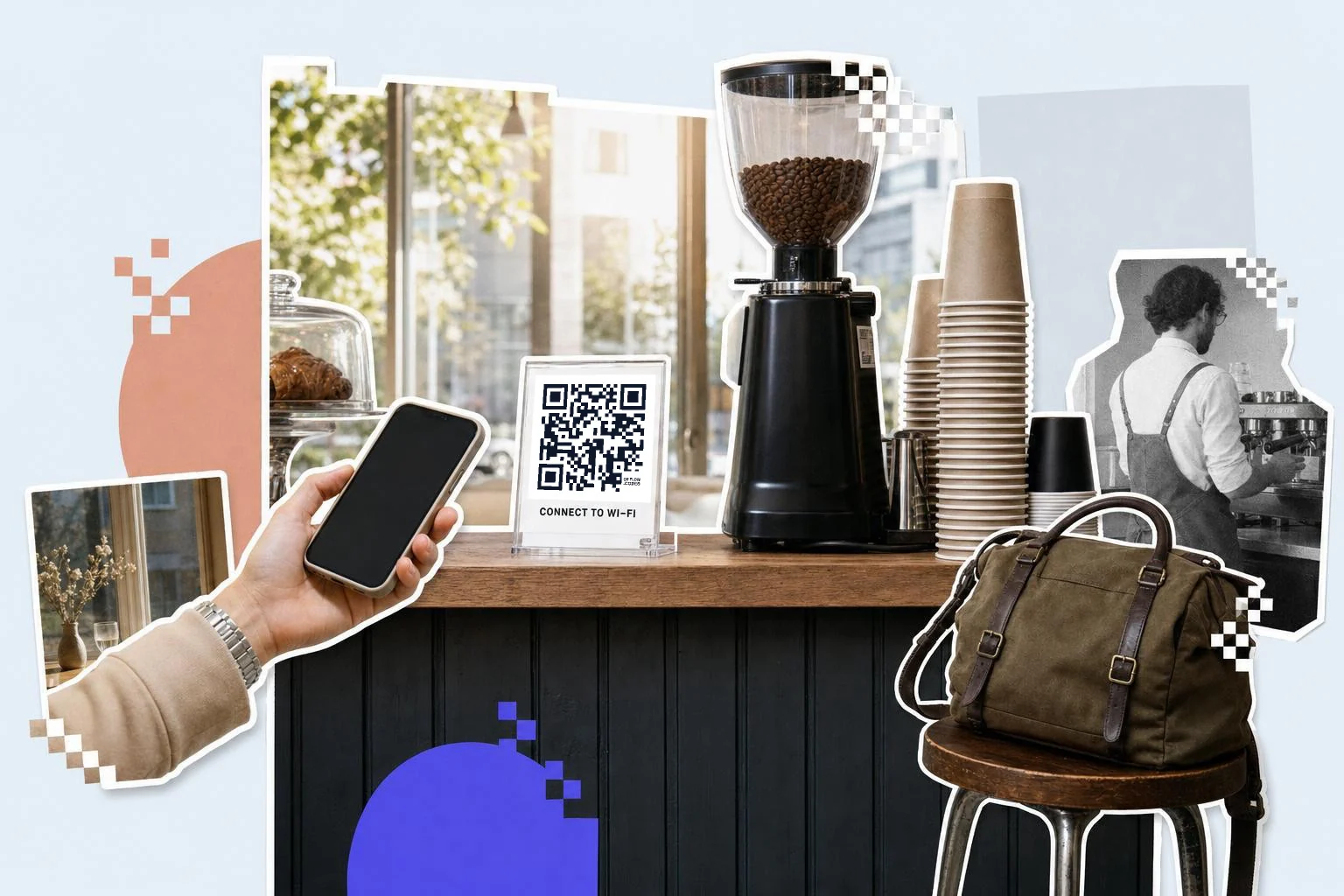
Guest networks, first. A framed card by the door of a rental, a small stand on the café counter, a card in the hotel room, a sticker on the meeting room table. Print the password in text underneath for laptops, which can't scan. Keep the guest network separate from your own; whoever scans can read the password.
- Cafés and restaurants: a counter card and a table tent, 1-1.2 in (2.5-3 cm), with the Wi-Fi frame's icon.
- Rentals and hotels: a framed card by the door and one on the desk.
- Offices: a card in every meeting room for visitors; the guest network only.
- Home: the fridge, for anyone who visits; the printable Wi-Fi frame fits a magnet.
Your phone can make one too
Android has had this since Android 10: Settings, Network & internet, tap the connected network, then Share; a QR code appears on screen for the other person to scan. On iPhone, the Passwords app (iOS 18 and later) lists your Wi-Fi networks and shows a QR code for any of them; older iPhones can share a password to a nearby iPhone but don't draw a code. Both are the right answer for a friend on the sofa.
For anything printed, make it here: you get an SVG that stays crisp on a framed card, the Wi-Fi frame with the icon and "Connect to Wi-Fi", the network name and password set in text underneath for laptops, and a saved design you can regenerate when the password changes. Our post on how to share a Wi-Fi password walks through the phone routes with screenshots, and how to use a Wi-Fi QR code generator covers the printed sign.
Your password stays in your browser
The code on this page is drawn by your browser. The network name and password you type are turned into the QR pattern on your own device and the PNG or SVG is built there too; nothing is sent to us when you generate or download. The details only reach our servers if you click Save to keep the code in your dashboard, where they are stored so you can edit and re-download it later.
When the password changes
Regenerate the code with the new password and reprint. If you saved the code, open it, edit the network fields and download again with the same look. Businesses that change the guest password monthly often keep a small acrylic stand and swap the card; a laminated card makes that a thirty-second job.
How big to print it
Rule of thumb: the code should be at least one tenth of the distance it is scanned from. These are the sizes that work in practice for this job.
| Where | Scan distance | Minimum width |
|---|---|---|
| Table tent or counter card | 12-20 in (30-50 cm) | 1 in (2.5 cm) |
| Framed card by a door | 20-32 in (50-80 cm) | 1.5 in (4 cm) |
| Fridge magnet | 12 in (30 cm) | 1 in (2.5 cm) |
| Meeting room wall | 3-7 ft (1-2 m) | 3 in (8 cm) |
Why make it dynamic
Wi-Fi codes are the one type that should stay static: the phone reads the network details directly from the pattern and joins without opening anything, which is exactly what you want at a front door with no signal. The trade is that the password lives in the print. Save the code in your dashboard anyway, so when the password changes you regenerate in one click with the same frame and colors instead of rebuilding it from scratch.
Dynamic codes are part of Premium, $4 a month. Static vs dynamic, explained.
Step by step
- 1
Enter the network name and password
Exactly as the router shows them. Security is WPA for nearly everyone.
- 2
Test it
Scan the preview with a phone that isn't on the network yet; it should offer to join.
- 3
Frame and print
The Wi-Fi frame carries the icon and "Connect to Wi-Fi"; add the password in text for laptops.
- 4
Keep it saved
Save the code so a password change is one edit and one download, same look.
Questions people ask
- How do I make a Wi-Fi QR code?
- Choose Wi-Fi in the generator, type the network name and password, pick WPA (the standard for WPA2 and WPA3 networks), and download the code. Scanning it offers to join the network.
- Does it work on iPhone and Android?
- Yes. The built-in camera on both shows a Join network prompt when it sees a Wi-Fi code; no app is needed.
- Can people see the password?
- Yes, any QR scanner can read it, which is fine for a guest network. Don't make a code for a network you wouldn't hand the password to.
- What if I change the password?
- The old code stops working; regenerate with the new password and reprint. Saving the code means you keep the design and only edit the fields.
- WPA, WEP or None?
- WPA covers WPA2 and WPA3, which is nearly every network. WEP is obsolete. None is for open networks without a password.
- Can the code connect laptops too?
- Most laptops can't scan a code from their own screen. Print the network name and password in text under the code for them.
- Is my Wi-Fi password sent to your server?
- Not when you generate or download: the code is drawn in your browser and the file is built there. The details are stored with us only if you click Save to keep the code in your dashboard.
- Can't my phone just share the Wi-Fi as a QR code?
- Yes. Android: Settings, Network & internet, tap the network, Share. iPhone with iOS 18: the Passwords app, Wi-Fi, tap the network, Show Network QR Code. Those are for showing a guest on the spot; make the code here when it goes on a printed card or sign.
Make the code now, change the link later
Free to make and print. Premium ($4/mo) keeps it editable and counts every scan.