On iPhone, hold the two phones near each other and tap Share Password, on Android open your connected network and tap Share, and for any guest setup print a Wi-Fi QR sign at least 1.2 inches wide, all in about 10 minutes.
Knowing how to share wi-fi passwords can save you time and frustration. Someone stays the night. A friend comes for dinner. The new babysitter needs the network for the tablet. Every time, the same thing: you read a sixteen-character password out loud, they type it, it fails, you read it again. On iPhone, hold the two phones next to each other and tap Share Password when it pops up. On Android, open the network's settings and tap Share to show a QR code. For everyone else, print a Wi-Fi code by the door, at least 1.2 inches wide, and guests join with one scan and no typing.
How to share Wi-Fi password on iPhone or Android#
To share a Wi-Fi password on an iPhone, hold the two phones near each other and tap Share Password when the card appears. Ensure both phones have Wi-Fi and Bluetooth on, are unlocked, and have each other saved in Contacts if the share card doesn't appear.
- On iPhone, hold the two phones near each other and tap Share Password, on Android open your connected network and tap Share, and for any guest setup print a Wi-Fi QR sign at least 1.2 inches wide, all in about 10 minutes.
- Turn on Wi-Fi and Bluetooth on iPhone, or open Settings on Android, and make sure the phone doing the sharing is already connected to the network.
- Ask your guest to open Wi-Fi settings and tap your network name on iPhone, or get their camera ready to scan on Android or from a printed Wi-Fi QR code.
- Hold your iPhone near the other Apple device and tap Share Password when the card appears, or on Android open the gear next to your network and tap Share.
- Enter your network name, password, and security type exactly as your router uses them if you are making a Wi-Fi code to print.
- Download the QR code, print it in black on white, and place it where people naturally stop, like the front door, fridge, guest room, or check in table.
- Test the printed code with both an iPhone and an Android from the actual spot where guests will stand.
- Save the file so you can make a fresh print if the Wi-Fi password changes later.
If the Apple share card never appears, both phones need Bluetooth on, both need to be unlocked, and each person usually needs the other saved in Contacts.
How big should a Wi-Fi QR code sign be?#
The same thinking applies to a schedule people keep asking about: how to share a Google calendar and put it on the wall instead of emailing the link every week.
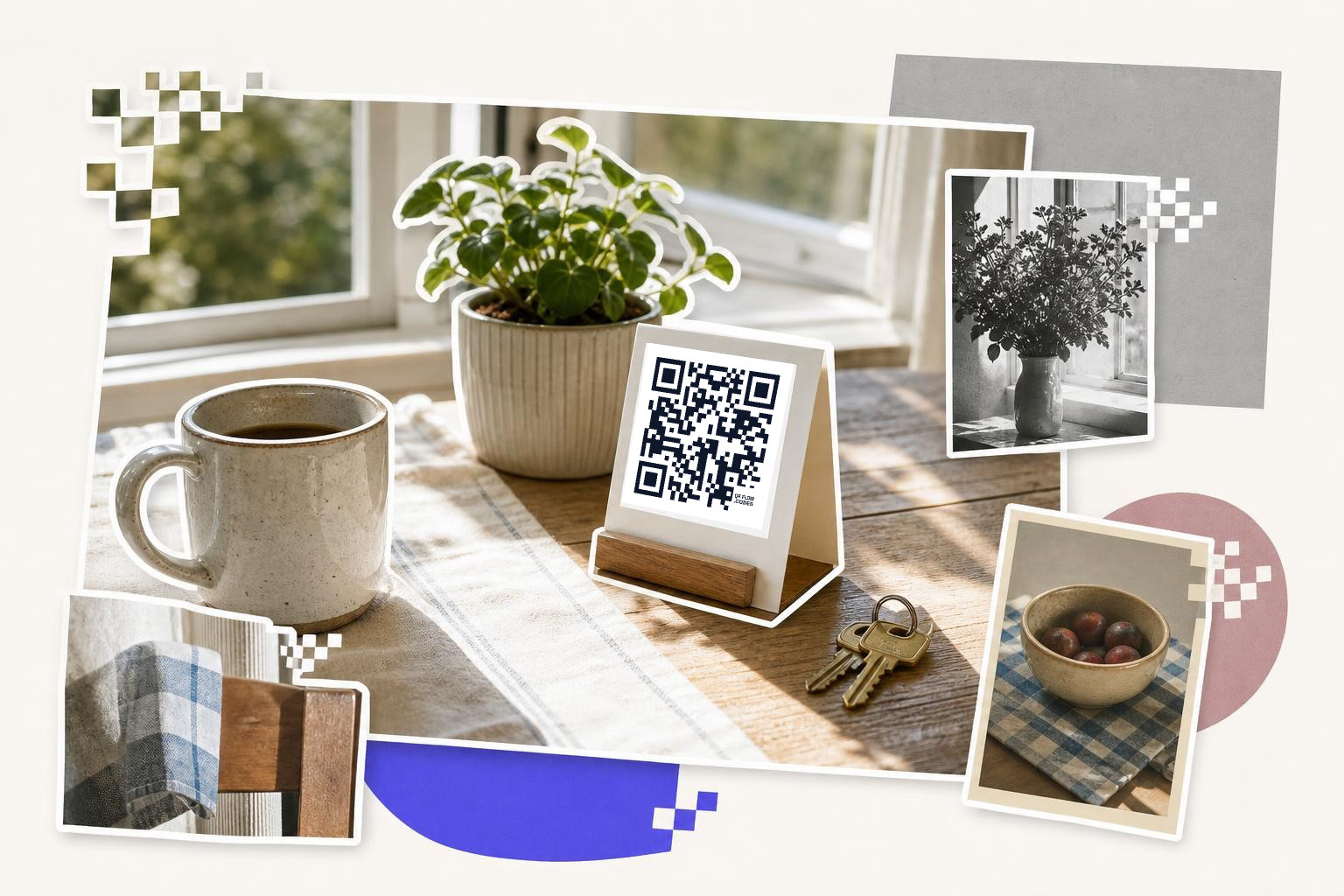
Print a Wi-Fi QR code sign 1.2 to 1.5 inches wide for a counter or nightstand, and 2 inches or more for a wall by the door. The size depends on where it is placed, with larger sizes needed for areas where people scan from a distance.
How big to print it depends on where it lives. On a card at a counter or a nightstand, 1.2 to 1.5 inches wide is enough, because people scan from arm's length. On a wall by the door, go to 2 inches or more, because people scan from a step back. Keep it black on white with a little white space around it. Our print sizes guide has the full table.
How to test, update, and place your Wi-Fi sign#
Put it where guests stop, not where you think it looks nicest. Good spots include the front door, the fridge, a guest room, a welcome binder, or the check in area at an event, and you should avoid glare, dark hallways, or frames that cover the edges.
Test with more than one phone before you tape it up and forget about it. Scan it from the exact spot where guests will stand, make sure the join prompt appears quickly, and if it does not, recheck the network name, password, security type, contrast, and print size.
Usually, an iPhone camera can read a standard Wi-Fi QR code from Android and offer to join the network. If it does not, check that the network name, password, and security type were entered exactly right.
A Wi-Fi QR code is static, so the network details are baked into the pattern. If the password or network name changes, generate a new code and replace the old print, which is why it helps to save the file and keep the sign simple to reprint.
For most visitors, a guest network is the better choice. It gives people internet access without putting your main devices on the same network, so if your router offers one, make a separate Wi-Fi code for guests and only display that version.
What paper and ink work for a Wi-Fi sign?#
When printing a Wi-Fi QR code sign, the choice of paper and ink can impact its effectiveness. Using high-quality paper ensures durability, especially if the sign is placed in high-traffic areas or exposed to sunlight. Opt for a thicker paper stock, like card stock, to prevent curling or tearing.
Ink choice is equally important. Use a printer with good quality black ink to maintain contrast, as QR codes rely on clear differentiation between the black squares and the white background. Avoid colored inks or backgrounds, as they can interfere with scanning.
Consider these tips:
- Paper type: Use card stock or a durable material.
- Ink quality: Ensure the printer has fresh black ink.
- Avoid colors: Stick to black on white for best results.
For outdoor placements, consider laminating the sign to protect it from weather. This step can prevent fading and keep the QR code readable over time. These choices help ensure that your Wi-Fi QR code remains functional and easy to scan, providing a smooth experience for your guests.
Do NFC tags work instead of a Wi-Fi QR code?#
NFC (Near Field Communication) tags offer another way to share your Wi-Fi password without revealing it. These small, programmable tags can store your Wi-Fi credentials and allow guests to connect by simply tapping their NFC-enabled device against the tag. To set this up, you will need an NFC tag and a smartphone with NFC capabilities.
First, download an NFC writing app, such as NFC Tools, on your smartphone. Open the app and select the option to write a new tag. Enter your Wi-Fi network name and password, and then write the information to the NFC tag. Place the tag in a convenient location for guests, such as near the entrance or in a common area.
NFC tags are discreet and can be easily hidden or incorporated into your decor. They are a great option for tech-savvy households or businesses looking for an alternative to QR codes.
Should the Wi-Fi code open a guest guide?#
A digital guest guide can be a helpful resource for visitors, providing them with Wi-Fi access details and other useful information about your home or venue. You can create a simple document or webpage that includes your Wi-Fi QR code, network name, and password, along with any other relevant details like house rules or local recommendations.
To make a digital guest guide, start by compiling all the necessary information. Use a word processor or website builder to design the guide, ensuring it's easy to read and navigate. Once your guide is complete, share it with guests via email or a messaging app before they arrive.
How do you share Wi-Fi at an event?#
For events, managing Wi-Fi access efficiently can make a big difference in guest satisfaction. Start by setting up a dedicated guest network on your router. This keeps your main network secure while providing internet access to attendees.
Print multiple Wi-Fi QR code signs and place them strategically around the venue, such as at the entrance, near seating areas, and by the refreshment table. Ensure the signs are easy to spot and scan, with clear instructions if needed.
Consider using a captive portal, which is a web page that guests must view and interact with before accessing the internet. This can be used to display event information or collect guest details. Captive portals are often used in larger venues and can be set up through certain routers or third-party services.
These strategies help ensure smooth Wi-Fi access, allowing guests to stay connected without hassle.
Questions people ask after they share Wi-Fi password#
Why won't Share Password appear on iPhone?#
Usually, one of the basics is missing. Both devices should have Wi-Fi and Bluetooth on, both should be unlocked, and the person sharing should already be connected to the network. It also helps if each person is saved in the other's Contacts and both devices are close together.
Can you print the same Wi-Fi QR code in several places?#
Yes, and it often makes things easier. If guests enter through one door but spend time in the kitchen or guest room, use the same code in each spot so they do not have to go back and hunt for it later.
Do guests need a special app to scan a Wi-Fi QR code?#
Usually not. Most phones can scan a Wi-Fi QR code with the default camera and show a prompt to join the network. If nothing happens, try better lighting, hold the phone steadier, or open the camera a little farther back.
Should I use my main network or guest Wi-Fi on the sign?#
If your router has a guest network, put that on the sign. It keeps visitor access separate from your personal devices and makes it easier to change guest access later without touching your main setup.
- If you want the easiest version of how to share wi-fi passwords, make the code once and leave it where guests can scan it. You can create it in about a minute with the free QRFLOW.codes generator, then print it and stop spelling passwords across the room. If you want another simple sharing example, see Venmo QR code, how it works and how to share it.
Compare plans on the QRFLOW.codes pricing page to pick the tier that fits your workflow.
How can I make sure my Wi-Fi QR code is secure?#
To ensure security, use a guest network for the QR code. This keeps your main network private. Regularly update the guest network password and generate a new QR code when changes occur.
Why can't an Android phone scan the code?#
If your Android phone can't scan a QR code, check that the camera app has permission to use the camera. Ensure good lighting and hold the phone steady. If it still doesn't work, try a QR code scanning app.
Can I share my Wi-Fi password with someone who's not nearby?#
Yes, you can share your Wi-Fi password by sending the network name and password directly via text or email. For added security, use a messaging app with end-to-end encryption.
Is there a way to share Wi-Fi without revealing the password?#
On iPhone, you can share Wi-Fi without revealing the password by using the Share Password feature. On Android, use the QR code sharing option, which allows others to connect without seeing the password.
When you are ready to try it, make a free QR code and see how it looks before you print anything.
Can you share Wi-Fi passwords between different phone brands?#
Yes, you can share Wi-Fi passwords between different phone brands. iPhones can share with other Apple devices using the Share Password feature, and Android phones can generate a QR code that iPhones can scan to join the network.
How do I update a Wi-Fi QR code if my password changes?#
To update a Wi-Fi QR code if your password changes, generate a new QR code with the updated network details. Print the new code and replace the old one. It's helpful to save the QR code file for easy reprinting in the future.
If you want a fast setup that covers iPhone, Android, and printed sharing, make your Wi-Fi sign, test it once, and keep the file handy for updates. You can make one with QRFLOW.codes and keep guests from asking for the password every time.