
Use a Wi-Fi QR code generator to turn your network name and password into one scannable code, then print it at least 1 inch (2.5 cm) wide and test it on two phones before guests arrive.
You can set this up in about five minutes. The result is simple, guests scan once and join your network without typing a long password.
How to use a wifi QR code generator#
-
Open QRFLOW.codes and choose the Wi-Fi QR type if it appears, or a text setup if you need to enter the format manually.
-
Enter your network name exactly as your router shows it, because Wi-Fi names are case sensitive on many devices.
-
Pick the right security type, usually WPA or WPA2, and use None only if the network truly has no password.
-
Type the password carefully, including capitals, spaces, and symbols, because one wrong character stops the connection.
-
Turn on the hidden network option only if your Wi-Fi name is hidden in router settings.
-
Generate the code and download a PNG for free, which is enough for most home signs and counter cards.
-
Print a test copy at 1 inch (2.5 cm) or larger, then scan it from about 8 to 18 inches (20 to 45 cm) away.
-
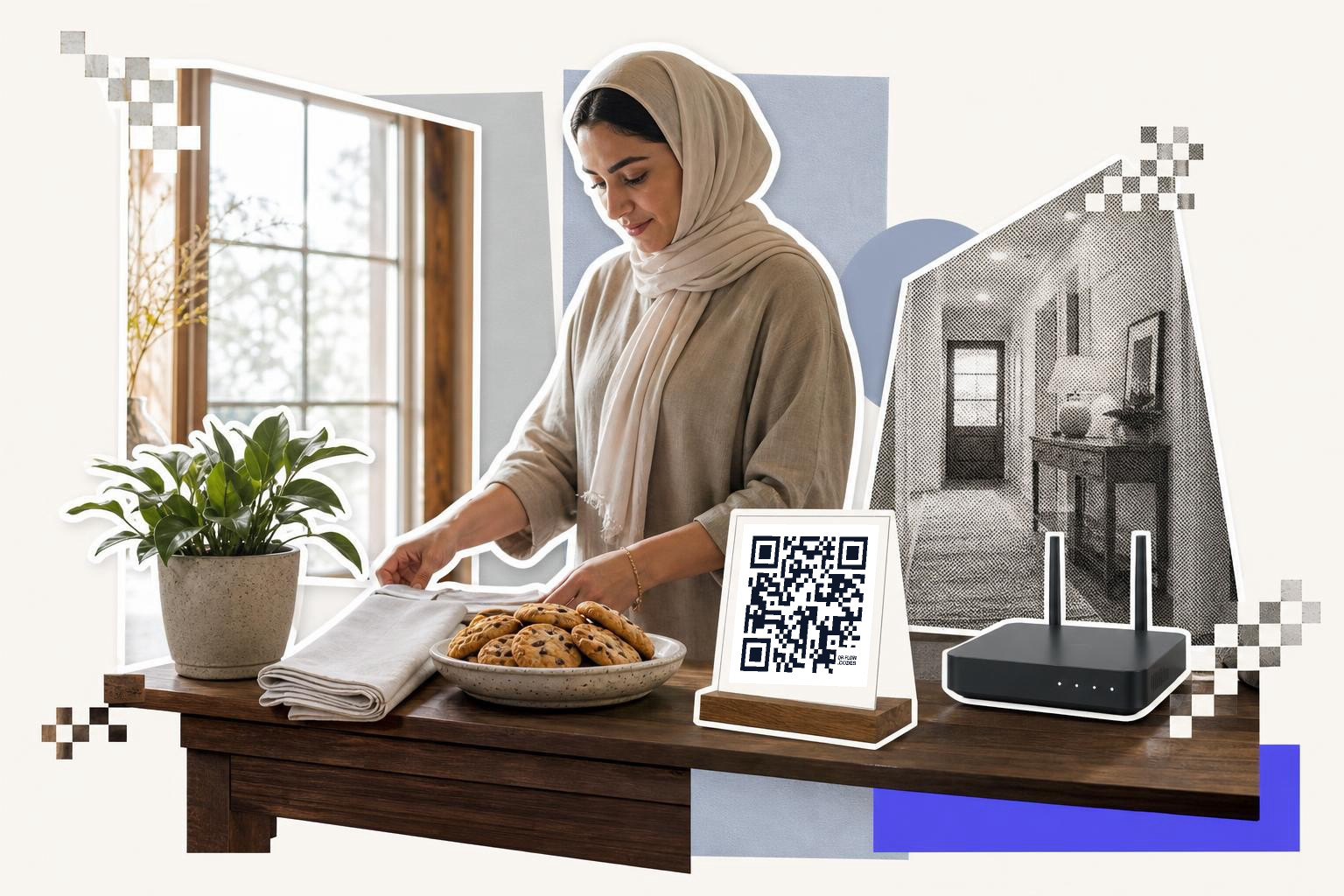
Place the sign where people pause naturally, like a front desk, entry table, checkout counter, or guest room nightstand.
A Wi-Fi QR code only works well if the network details are exact. If your router says GuestNet 5G, do not shorten it to GuestNet.
The usual manual format is straightforward: WIFI:T:WPA;S:YourNetwork;P:YourPassword;;. If your generator has dedicated Wi-Fi fields, use those instead of building the string yourself.
If you also want a printable design, how to create a QR code in Canva for clear prints shows how to place the code on a card without making it too small.
A guest network is the safest choice for most homes and shops. It keeps your main devices separate, and you can change that guest password any time.
Use a free QR code generator when you just need one code on a counter or by the door. If you are setting up signs for several rooms, locations, or networks, make the files first and print once.
Where should you put a Wi-Fi QR code?#

A Wi-Fi QR code works best where guests stop for a second and have good light. A counter card near the register or a small frame by the entry beats a code taped to a dark wall.
For a home, good spots are the entry table, kitchen counter, guest room, or near the TV. For a business, place it where people already wait, like reception, a host stand, or a pickup shelf. Eye level helps, but table height is fine if the sign faces up clearly.
Leave quiet space around the code. A margin of about 0.16 inches (4 mm) or more keeps the camera from mixing the code into nearby text or patterns.
Bigger matters when people scan from farther away. A sign on a table can be 1 to 1.5 inches (2.5 to 4 cm) wide, but a wall sign seen from 3 to 6 feet (1 to 2 m) away should usually be 2.5 inches (6 cm) or more.
If you are making a guest welcome sheet, a Wi-Fi code can sit next to other useful links. For example, how to make a QR code for a PDF helps if you also want to share house rules or a menu.
How secure is a Wi-Fi QR code?#

A Wi-Fi network QR code is only as secure as the network it joins. The code does not add protection by itself, but it can keep guests off your main network if you point it to a guest Wi-Fi instead.
For most people, the smart setup is simple. Create a guest network, use WPA2 or WPA3 if your router offers it, and print the code for that guest network only.
A guest network helps in two ways. First, you do not say the password out loud all day. Second, you can change the guest password without touching your personal laptops, cameras, or smart home gear.
If the password changes later, a static Wi-Fi code will no longer work. Static QR codes are free and do not expire, but the encoded network details stay fixed.
That is where dynamic codes are different, but only sometimes useful here. A dynamic code from QRFLOW.codes can redirect to a web page you can edit after printing, but a phone cannot join Wi-Fi directly from a changed destination page the same way it can from native Wi-Fi data, so for pure join-the-network use, a static Wi-Fi code is usually the better pick.
If you run a hotel, clinic, or shared workspace and need to swap signs often, pricing covers editable dynamic options, SVG downloads, and bulk CSV tools. For one home or one counter sign, the free static code is usually enough.
Will every phone scan a Wi-Fi QR code?#
Most current iPhone and Android phones can scan a Wi-Fi code from the camera app and show a Join prompt. Very old phones may scan the code but not offer one-tap connection.
Test with at least two devices before you print ten copies. One iPhone and one Android phone are the safest check.
If a phone scans but does not join, the problem is usually one of four things. The password is wrong, the security type is wrong, the network name was typed differently, or the network is hidden and that setting was not marked.
Network names with special characters can work, but they are less forgiving. If you are setting up a new guest network, a simple name with letters and numbers is easier for both signs and backups.
Some visitors will still ask for the password, and that is normal. Keep a plain text backup nearby, especially in a rental, office, or café.
If your goal is not Wi-Fi access but a site link, use a normal URL code instead. How to create a QR code for a website covers that setup.
Choosing the right print materials#
Selecting the right material for printing your Wi-Fi QR code can make a difference in durability and visibility. Paper is the most common choice due to its low cost and ease of use. However, if you expect the code to be handled frequently or exposed to elements, consider more durable options.
Acrylic is a popular choice for businesses. It survives wet hands and wiped tables, which paper taped to a counter does not. Laminating a paper print can also add durability and protect it from spills or smudges.
Vinyl stickers are another option, especially useful for outdoor settings or places with high foot traffic. They can stick to various surfaces and are weather-resistant.
Consider these factors when choosing your print material:
- Location: Indoor or outdoor placement affects material choice.
- Traffic: High-traffic areas may require more durable materials.
- Aesthetic: Match the material to your decor or brand style.
Choose a material that balances cost, durability, and appearance to ensure your QR code remains functional and attractive.
Test QR code with devices#
Scan the code from various distances to see how it performs. The recommended scanning distance is between 8 and 18 inches (20 to 45 cm). If the code doesn't work consistently, consider increasing its size or adjusting the contrast between the code and its background.
Additionally, test the code in different lighting conditions. Poor lighting can affect scanning, so ensure the code is visible under both bright and dim conditions.
Key steps for testing:
- Device variety: Test with both iPhone and Android devices.
- Distance checks: Ensure it scans well from 8 to 18 inches (20 to 45 cm).
- Lighting conditions: Test in various lighting scenarios.
These tests help identify any potential issues before your guests use the code.
Updating and maintaining your QR code#
Once your Wi-Fi QR code is set up, keeping it current and functional is important. If you change your network name or password, you'll need a new QR code. For static codes, this means generating a new one and reprinting it.
Regularly check the physical condition of your printed code. If it's on paper, look for signs of wear or fading. For acrylic or laminated prints, ensure they haven't been scratched or damaged.
If you frequently update your network details, consider using dynamic QR codes. These allow you to change the encoded information without reprinting the code. However, remember that dynamic codes often require a subscription or service fee.
To maintain your QR code:
- Monitor updates: Change the code if network details change.
- Inspect condition: Check for wear or damage regularly.
- Consider dynamic options: Use dynamic codes for frequent updates.
By keeping your QR code updated and in good condition, you ensure a smooth connection experience for your guests.
Questions people ask about Wi-Fi QR code generator#
Can I make a Wi-Fi QR code for free?#
Yes. You can generate and download a static Wi-Fi code for free with no sign-up, and for this use case that is usually all you need.
Does a Wi-Fi QR code expire?#
A static Wi-Fi code does not expire on its own. It stops working only if the network name, password, or security settings change.
Should I print the code on paper or acrylic?#
Paper is fine for most homes and short-term use. Acrylic, thick card, or a small frame holds up better on a busy counter where spills and fingerprints happen.
One code for 2.4 and 5 GHz?#
One code points to one network name. If your router uses different names for 2.4 GHz and 5 GHz, make one code for each name.
A good Wi-Fi sign saves everyone a little friction. Make your code, test it once, and print it where guests naturally pause with QRFLOW.codes.