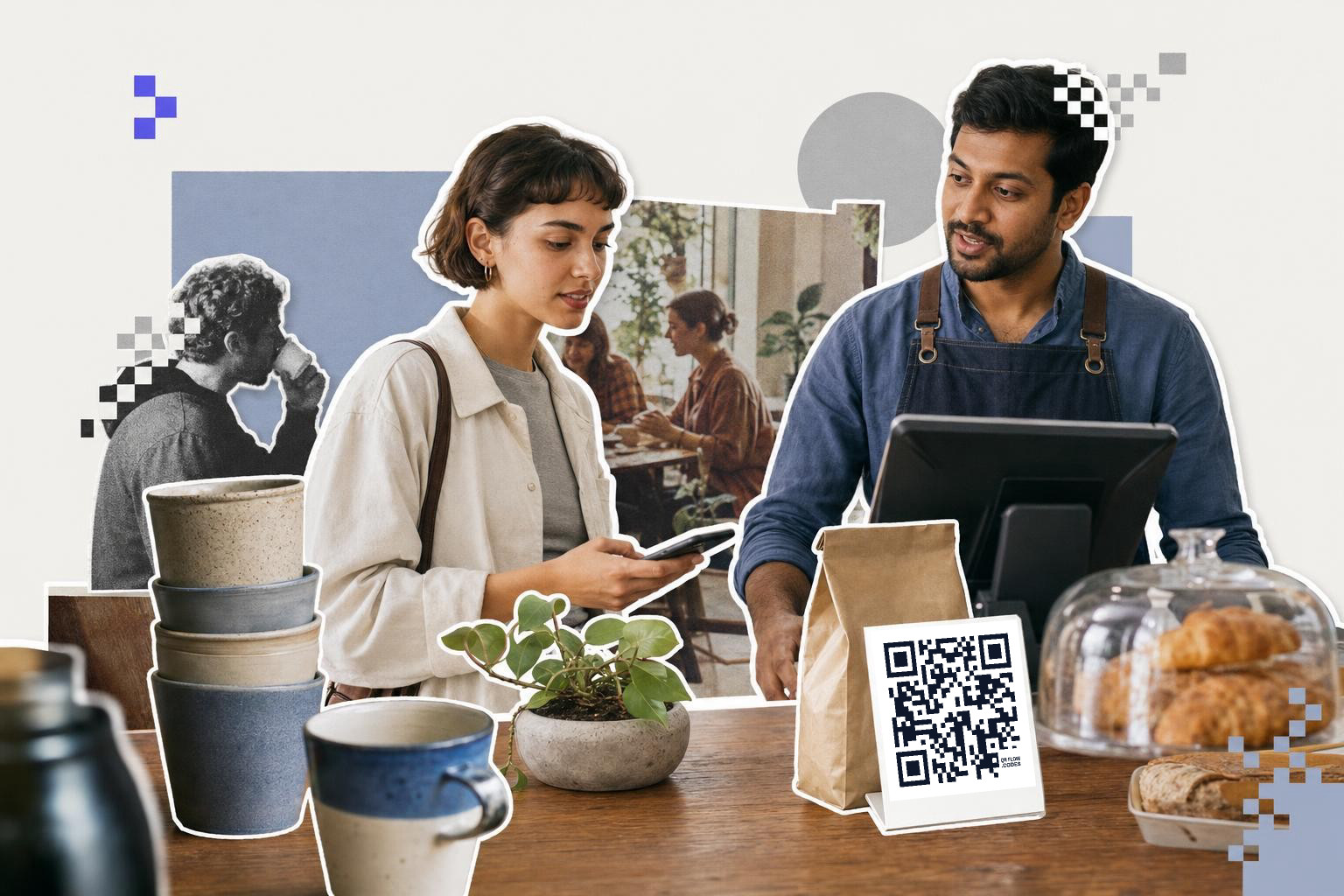
For a Google Pay QR code payment setup that works on print, start with the exact payment link or app code, print it at least 1 inch (2.5 cm) wide, and test one real payment before customers see it.
You can get this done in about 10 minutes. By the end, you'll have a payment code people can scan without guesswork, plus a backup plan if Google Pay itself is not part of making the QR.
How to set up Google Pay QR code payment#
-
Open the payment app or service you actually use with Google Pay, and look for its QR, payment link, or share option. Google Pay can be part of the payment flow, but the scannable code often come from your bank, payment processor, or checkout tool.
-
Confirm what the scan should do before you make anything printable. A good payment code has one job: open your payment page, your pay link, or your app's pay screen.
-
Copy the payment link if your provider gives you one, then open QRFLOW.codes and paste that link into the generator. A link-based code is usually easier to print well than taking a screenshot from an app.
-
Pick PNG if you need a quick sign, or SVG if you want a sharp file for design and print. SVG stays crisp when you scale it up for a counter sign or market placard.
-
Keep the design simple, black on white if possible, with a quiet margin around the code. Fancy colors are fine only if contrast stays strong and the background stays plain.
-
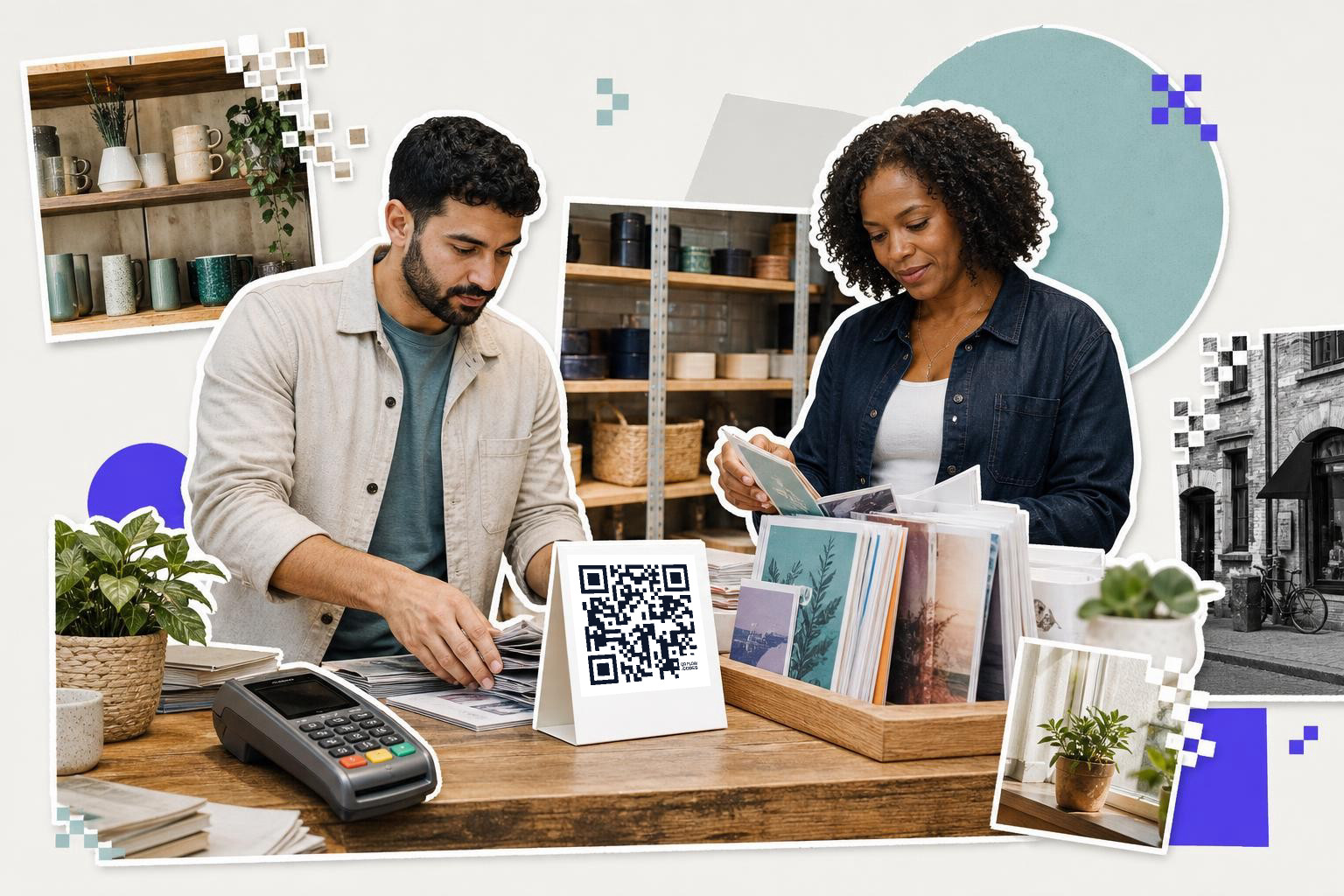
Print a test at the real size you plan to use, starting at 1 inch (2.5 cm) for hand-to-hand use and 2.5 inches (6 cm) for a counter sign. Small wallet cards and table tents need less size than a sign people scan while standing back
-
Scan the code with two phones, one on Wi-Fi and one on mobile data, then finish one small payment. A real payment test catches the broken bits, wrong link, extra login step, or confusing checkout page.
-
Put the code where the customer already reaches for payment, next to the register, tip jar, menu stand, or pickup shelf. Payment signs work best at arm's length, not buried in a window full of stickers.
Google Pay QR setup goes smoother when you treat the code like a payment button, not a decoration. If the person scanning has to ask what happens next, the sign needs work.
If you want a clean printable file instead of an app screenshot, the free QR code generator lets you turn a payment link into a sharp PNG or SVG with no signup wall.
How does QR code payment work?#
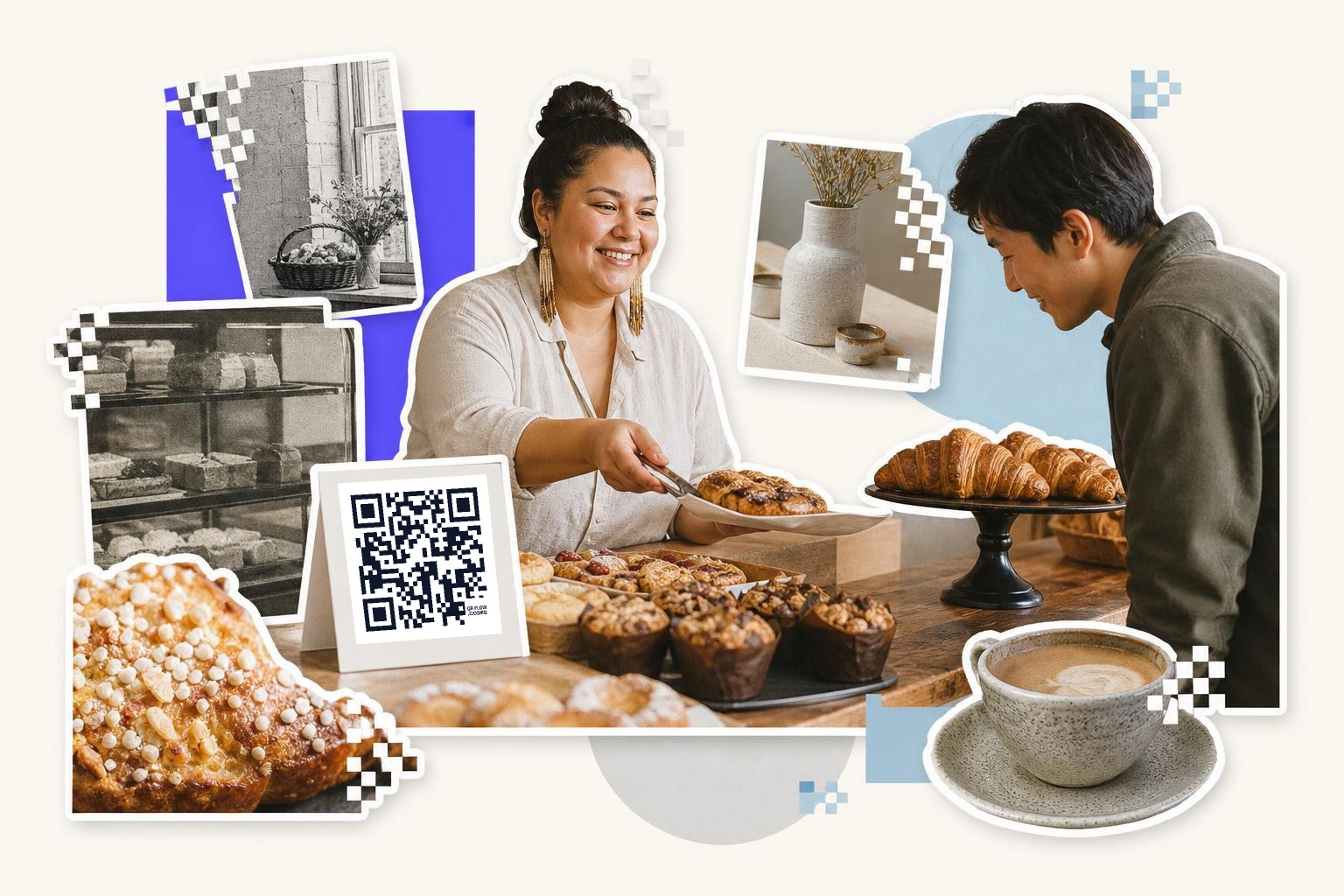
QR code payment works by sending the customer to a payment destination after the scan. That destination might open Google Pay, a checkout page that offers Google Pay, or a processor page where Google Pay appears as one payment option.
That part matters because many people search for QR payments with Google Pay when they really mean one of two things. First, they want a code that opens a payment page where Google Pay is accepted. Second, they want their own personal or business pay code from a wallet or processor app.
If your app gives you a native payment QR, use it as provided. If your provider gives you a payment link instead, turning that link into a custom code is often the better print choice, because you can size it, export it cleanly, and match it to your sign.
This is also where static versus dynamic matters. If the payment link could change later, use a dynamic code so you can edit the destination after printing, which is a Premium feature on pricing. If the destination is permanent, a static code is fine. For the plain-language difference, see static vs dynamic QR code.
A coffee cart, a craft stall, or a front desk usually needs the same thing, one scan, one payment page, no extra maze. If you need the basics for printed files, how to create a QR code for a link fast covers the cleanest setup.
How big should a Google Pay payment QR code be?#

A Google Pay payment QR code should be at least 1 inch (2.5 cm) wide for close scanning, and 2.5 inches (6 cm) wide is safer for countertop signs. Bigger is better when people scan from 3 to 6 feet (1 to 2 m) away.
Size depends on distance and how busy the code is. A short payment link makes a simpler code, which can scan at smaller sizes. A dense code with lots of encoded data usually needs more space and a cleaner print.
Here are safe starting points:
- Wallet insert or small card, 1 inch (2.5 cm)
- Table tent or counter card, 2 to 2.5 inches (5 to 6 cm)
- Window sign, 3 inches (7.6 cm) or more
- Poster people scan from a few steps back, 4 inches (10 cm) or more
Leave some blank space around the edges. Do not crop the quiet zone to make the code look larger.
If your code is for a personal payment handle instead of a checkout page, the print advice is the same. The destination changes, but the scanning rules do not. For another payment example, Venmo QR code, how it works and how to share it shows the same print logic in a different app.
What happens if your payment link changes later?#
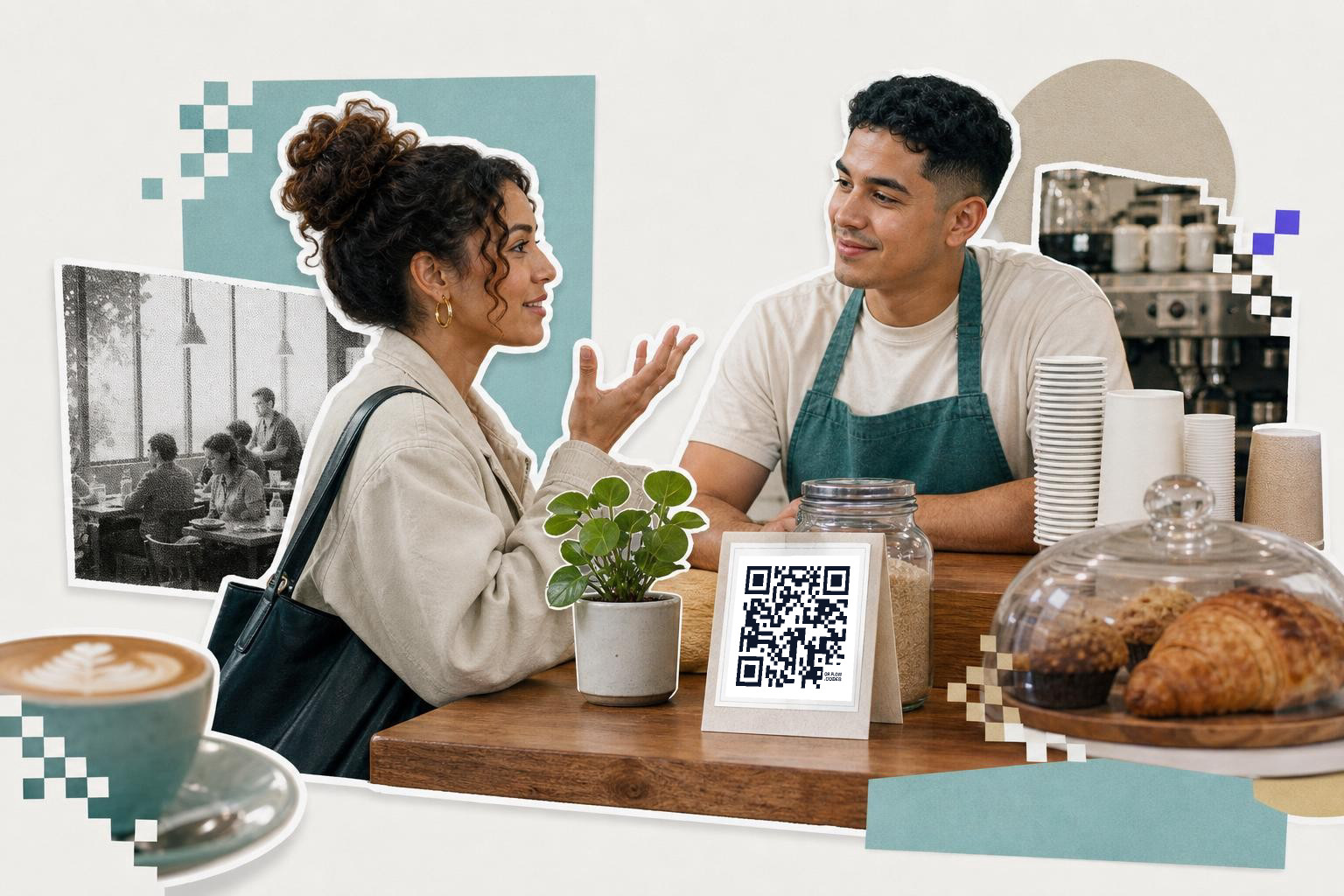
A printed payment code stops being useful the second its destination breaks. If your processor changes the pay link, or you swap to a new checkout page, a static code means reprinting the sign.
That is why editable codes help for payment setups that may change. With QRFLOW.codes, you can keep the printed square and change where it points later, which is handy for seasonal stalls, pop-up menus, or a shop moving to a new payment page. If you want the exact print checked before you commit, test a QR code before you print 500 of them is worth five minutes.
Some sellers also like scan analytics, especially when they place one sign at the counter and another near the door. That shows which spot gets scans, though the payment completion still depends on your payment provider's own records.
Choosing a QR code generator#
Consider the file formats the generator supports. You might need a PNG for quick prints or an SVG for larger signs. Some generators also offer customization options like adding logos or changing colors. However, keep the design simple to ensure easy scanning.
Check if the generator provides analytics. While not essential, analytics can be helpful in understanding how often and where your QR code is being scanned. This can inform future marketing and placement strategies.
Securing your payment QR code#
Security is a major concern when setting up a Google Pay QR code payment system. Ensure the payment link embedded in your QR code is secure. Use HTTPS links to protect the data transmitted during the transaction. This helps prevent interception by malicious parties.
Verify that your payment processor complies with industry standards for security, such as PCI DSS. This ensures that your transactions are handled safely and securely. Regularly update your payment software to protect against vulnerabilities.
Educate your customers about security. Encourage them to check that the payment page is legitimate and secure before completing a transaction. This builds trust and ensures a safer payment experience for everyone involved.
Testing QR codes in various environments#
Before finalizing your Google Pay QR code payment setup, test the QR codes in different environments to ensure they work as expected. Lighting conditions, can affect how well a QR code scans. Test the code under various lighting conditions, such as bright sunlight, dim indoor lighting, and fluorescent lights.
Consider the background where the QR code will be placed. A busy or reflective background can interfere with scanning. Ensure there is enough contrast between the QR code and its background to facilitate easy scanning.
Test the QR code with different devices. Use a range of smartphones with different camera qualities to ensure compatibility. This helps identify any potential issues customers might face when scanning the code.
If you want to make a clean payment sign, print it at the right size, and keep the option to change the link later, try QRFLOW.codes.
Questions people ask about Google Pay QR code payment#
Can I use Google Pay QR code for business payments?#
Yes, you can use Google Pay QR codes for business payments. They provide a convenient way for customers to pay by scanning the code with their smartphones. Ensure the QR code links directly to a secure payment page where Google Pay is accepted.
What should I do if my Google Pay QR code isn't working?#
If your Google Pay QR code isn't working, check the link for errors and ensure it directs to the correct payment page. Test the code with multiple devices and connections. If problems persist, consider regenerating the code or contacting your payment provider.
Is it safe to use Google Pay QR codes?#
Using Google Pay QR codes is generally safe if you ensure the embedded payment link is secure. Always use a reputable QR code generator and verify that the link directs to a trusted payment page. Avoid sharing the code publicly to prevent misuse.
How can I track the usage of my Google Pay QR code?#
To track the usage of your Google Pay QR code, use a generator that offers analytics features. Analytics can show how often and where your code is scanned, helping you understand customer behavior and optimize code placement.
When you are ready to try it, make a free QR code and see how it looks before you print anything.