QRFLOW is a connector for AI assistants. Add one address (it is below, with a Copy button) in the assistant's settings, sign in to QRFLOW once and press Allow. From then on you can say "make a QR code for our menu" or "point the poster code at the new page" and it happens in your account. It works on every plan; what the assistant may make follows your plan like the dashboard does.
Connect an assistant
- 1Claude (claude.ai, Desktop, mobile)
Fastest: open claude.ai/directory/qrflow (or search QRFLOW under Customize › Connectors) and press Connect. Manually: Customize › Connectors › + › Add custom connector, name it QRFLOW, paste the address below, press Add, then Connect. Either way, sign in on the QRFLOW page and press Allow. In a chat, the + button › Connectors turns it on.
- 2ChatGPT (Plus, Pro, Team, Enterprise, Edu)
Settings › Security and login › turn on Developer mode. Then Settings › Plugins (or Apps) › + › name it QRFLOW and paste the address below. Sign in on the QRFLOW page and press Allow. In a new chat, add QRFLOW from the tools menu.
- 3Claude Code
Run the one command below in a terminal, then /mcp inside Claude Code to sign in.
- 4Cursor and other tools
Add an MCP server with the address below in the tool's MCP settings and sign in when it asks.
https://qrflow.codes/mcp
claude mcp add --transport http qrflow https://qrflow.codes/mcp
{ "mcpServers": { "qrflow": { "url": "https://qrflow.codes/mcp" } } }
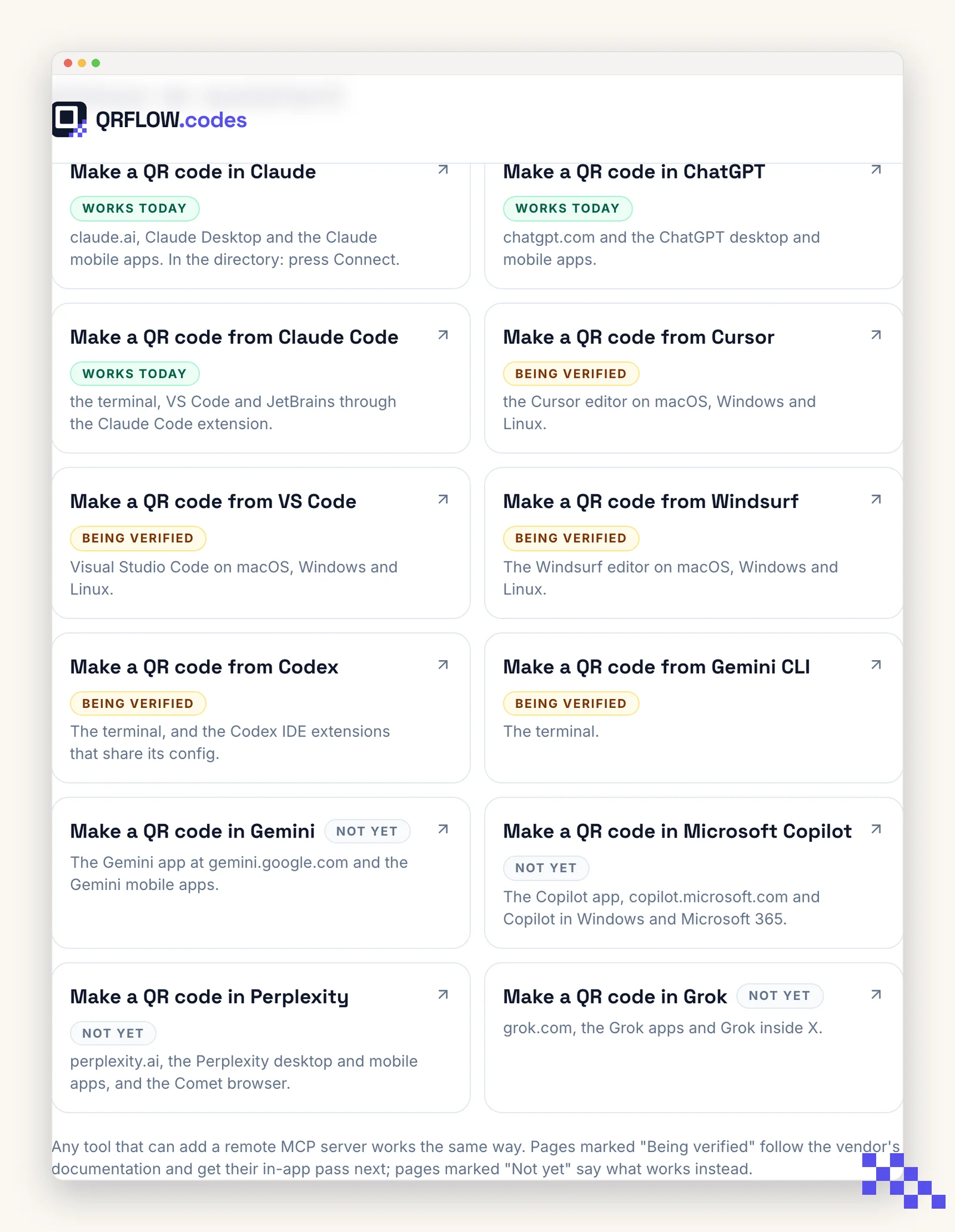
- Make a QR code in ClaudeThe exact clicks, with drawings of each screen, and prompts to paste.
- Make a QR code in ChatGPTDeveloper mode, one address, then ask.
- Every assistantClaude, ChatGPT, Cursor, Claude Code and the ones being verified.
What the assistant can do
- Make a code of any kind: website, Wi-Fi, contact card, email, SMS, phone, location, Google review, Instagram, WhatsApp, PDF, app store and the rest. Ask for the kind by name.
- Change where a dynamic code points, name its link on your domain, pause it, give it an end date, pick which of your domains it prints with.
- Read scan numbers by day, country, city, device, browser or referrer.
- Make many codes at once ("one per table, 1 through 40").
- Show you the PNG, or the link to the print-ready SVG.
Free plan: one dynamic code and unlimited static ones, like the site. Premium makes every code dynamic (changeable after printing) and adds analytics and your own link domain. The assistant tells you when something needs a plan instead of guessing.
Heads up. Deleting a code is permanent and kills its printed link, so the assistant asks before doing it. If a print is out there, ask it to pause the code instead.
Where the codes go
Into your dashboard like any other code, with the assistant's name as a small badge next to the type (the way Canva codes show "Canva"). Download, customize, analytics and security pages work the same. Nothing is different about a code because an assistant made it.
Disconnect, or check what is connected
Account › Connected apps lists every assistant and app with access, when it connected and when it was last used. Disconnect removes its access at once; codes it made stay. You can also remove the connector on the assistant's side (Claude: Customize › Connectors › Remove; ChatGPT: the plugin's settings), which stops it too.
Pick the plan that fits
Free never expires. Premium is $4 a month for dynamic codes and scan analytics. Business is $29 for link domains, a team of five and the API.
Still stuck? Search the help center, or contact support and a person will answer.