The heart appears in two places and does two jobs. On a code's Customize tab it saves the style for reuse; on a blog post it saves the article to your Favorites page.
Style favorites
- 1Style a code
Colors, frame, label, logo. See Customize colors, logo, and frame.
- 2Click Save to favorites
Under the preview on the Customize tab. Give it a name like Menu style.
- 3Apply it to another code
Open any code's Customize tab and click the Favorites chip in the frame picker. Your saved styles are listed; Apply this style copies every setting at once.
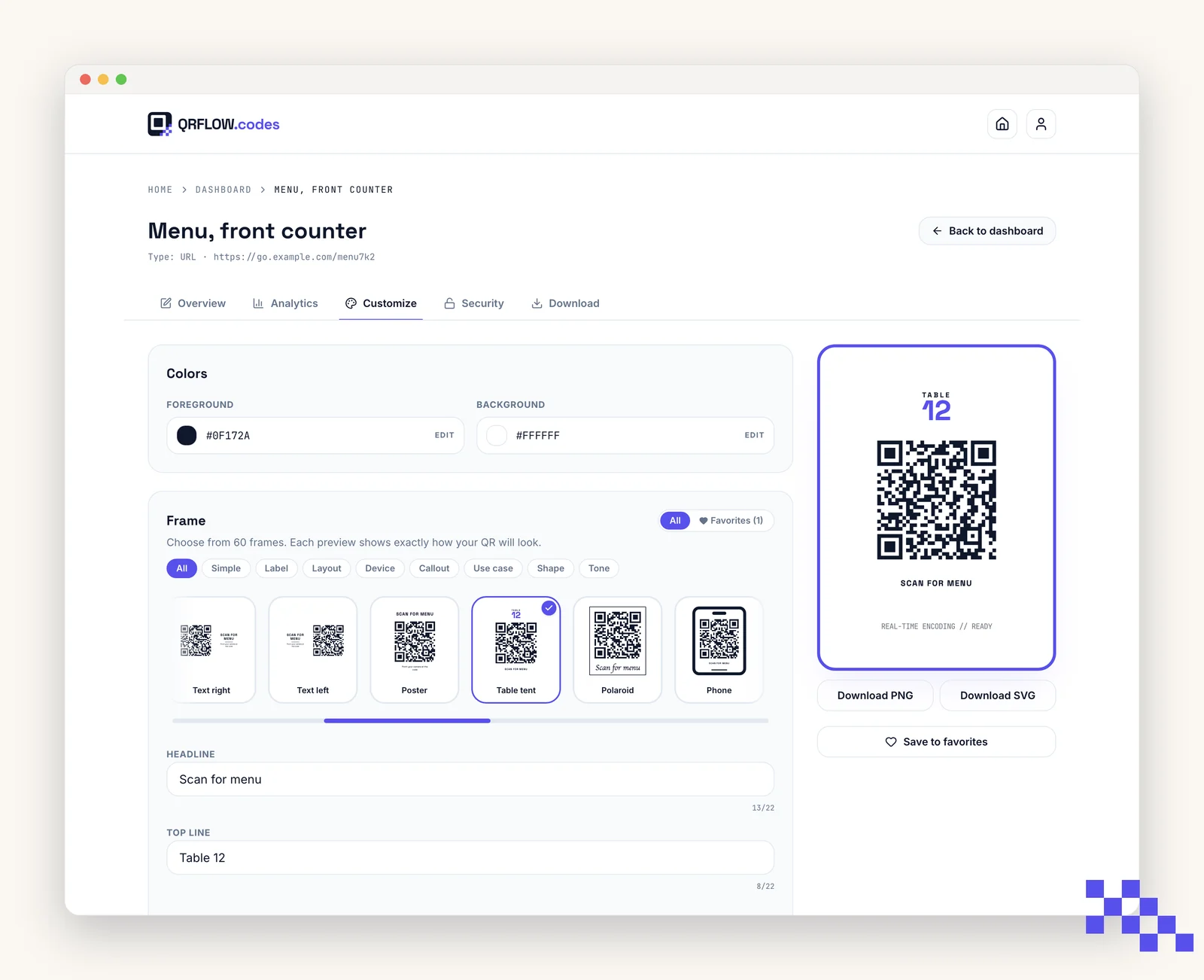
What a saved style does and does not carry
- It carries the look: both colors, the frame style, the frame color and the caption lines.
- It does not carry your logo. A logo is attached to the code itself, so add it on each code's Customize tab after applying a style.
- It does not carry the destination. Applying a style never touches where a code points.
- Styles live on your account, not on a device, so they are there on your laptop and your phone.
- Remove one from the Favorites page. Codes already styled with it keep the look; only the saved shortcut goes.
Saved articles
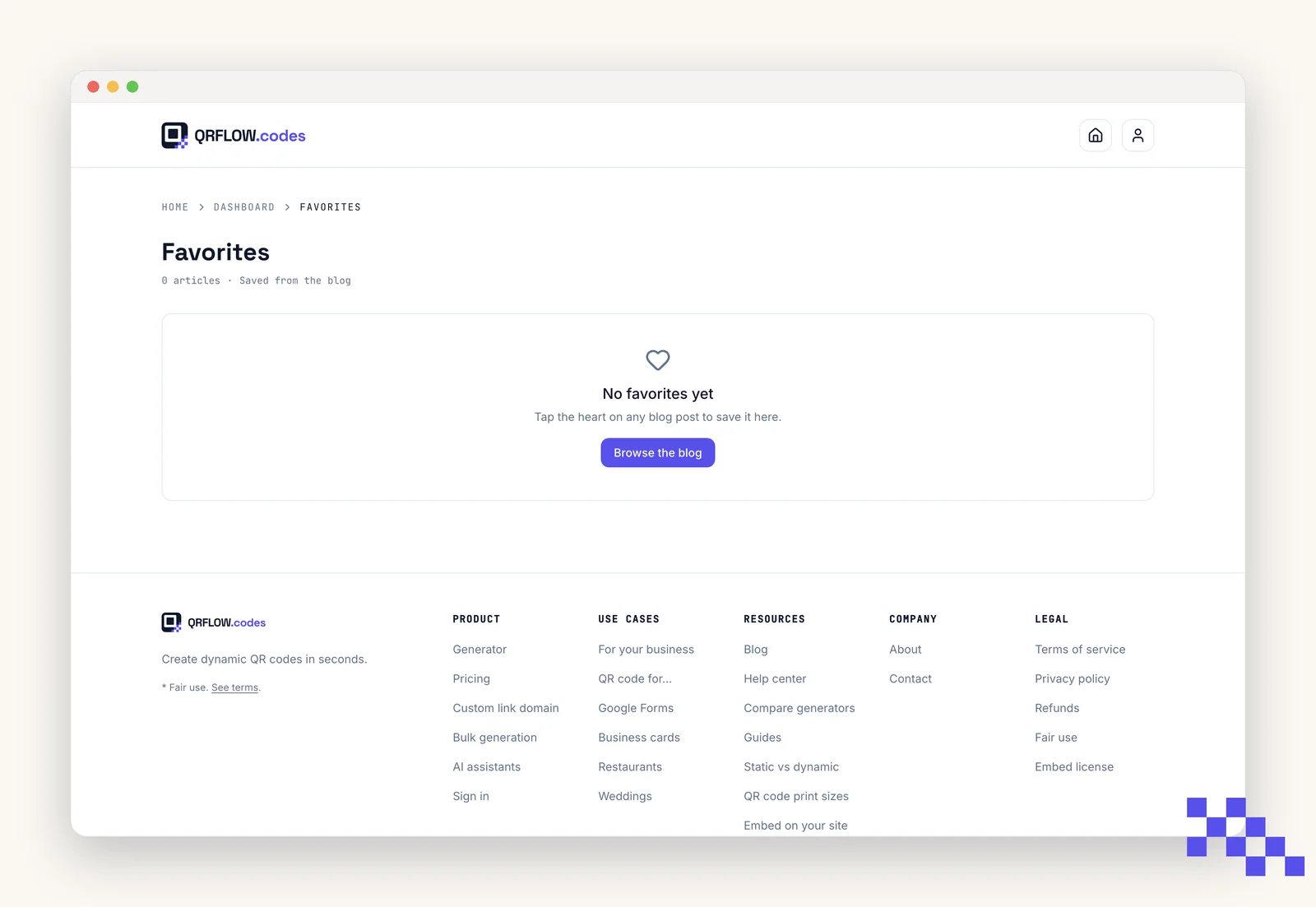
Tap the heart on any blog post (side rail on desktop, floating rail on mobile). Sign in if you are not already. Saved posts are listed on the Favorites page in the account menu.
Pick the plan that fits
Free never expires. Premium is $4 a month for dynamic codes and scan analytics. Business is $29 for link domains, a team of five and the API.
Still stuck? Search the help center, or contact support and a person will answer.