Every dynamic code gets a random short code like x7k2p9a. On Premium and Business, once your own link domain is connected, you can also give a code a name: go.yourbrand.com/menu. The name is what you print and what people see in their camera preview.
Name a code
- 1Connect your domain first
Account page, Your own link domain. Names only work on your domain, not on qrflow.codes. See Use your own domain for QR links.
- 2Open the code
Dashboard, then the card. On Overview, find the Link name panel.
- 3Type a name
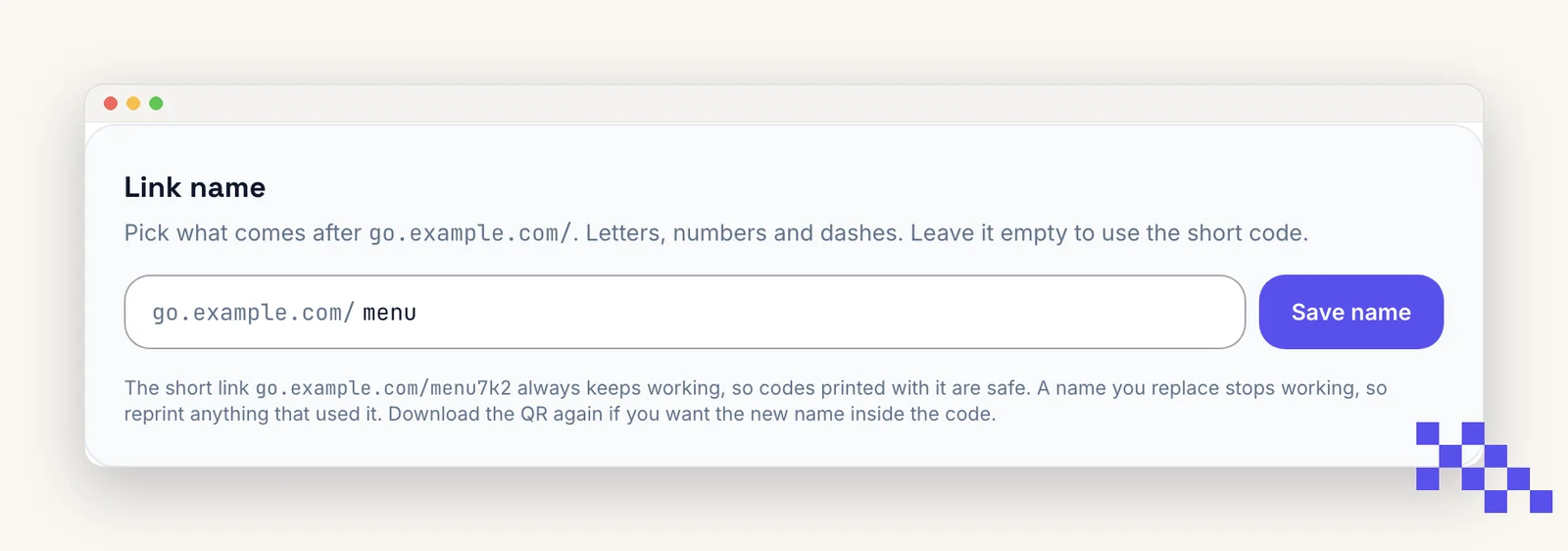
3 to 40 characters: lowercase letters, numbers and dashes. menu, spring-sale, table-12. The panel tells you immediately if the name is taken.
- 4Save and download again
The preview and the downloads now encode go.yourbrand.com/menu. Print that version.
Rules and gotchas
- Names are unique within your account. Two codes cannot both be menu; use menu-lunch and menu-dinner.
- Renaming a code changes the printed link. Anything already printed with the old name stops working, so pick the name before you print. The random code (go.yourbrand.com/x7k2p9a) keeps working forever.
- A few words are reserved (help, pricing, admin and similar). The panel will say so.
- If you disconnect the domain or downgrade, names stop resolving after the 30-day grace period; the qrflow.codes/q/ link still works.
Put this to work on your codes
Save a code to your dashboard and you can re-point it after printing, lock it, and watch every scan. Premium is $4 a month.
Still stuck? Search the help center, or contact support and a person will answer.