
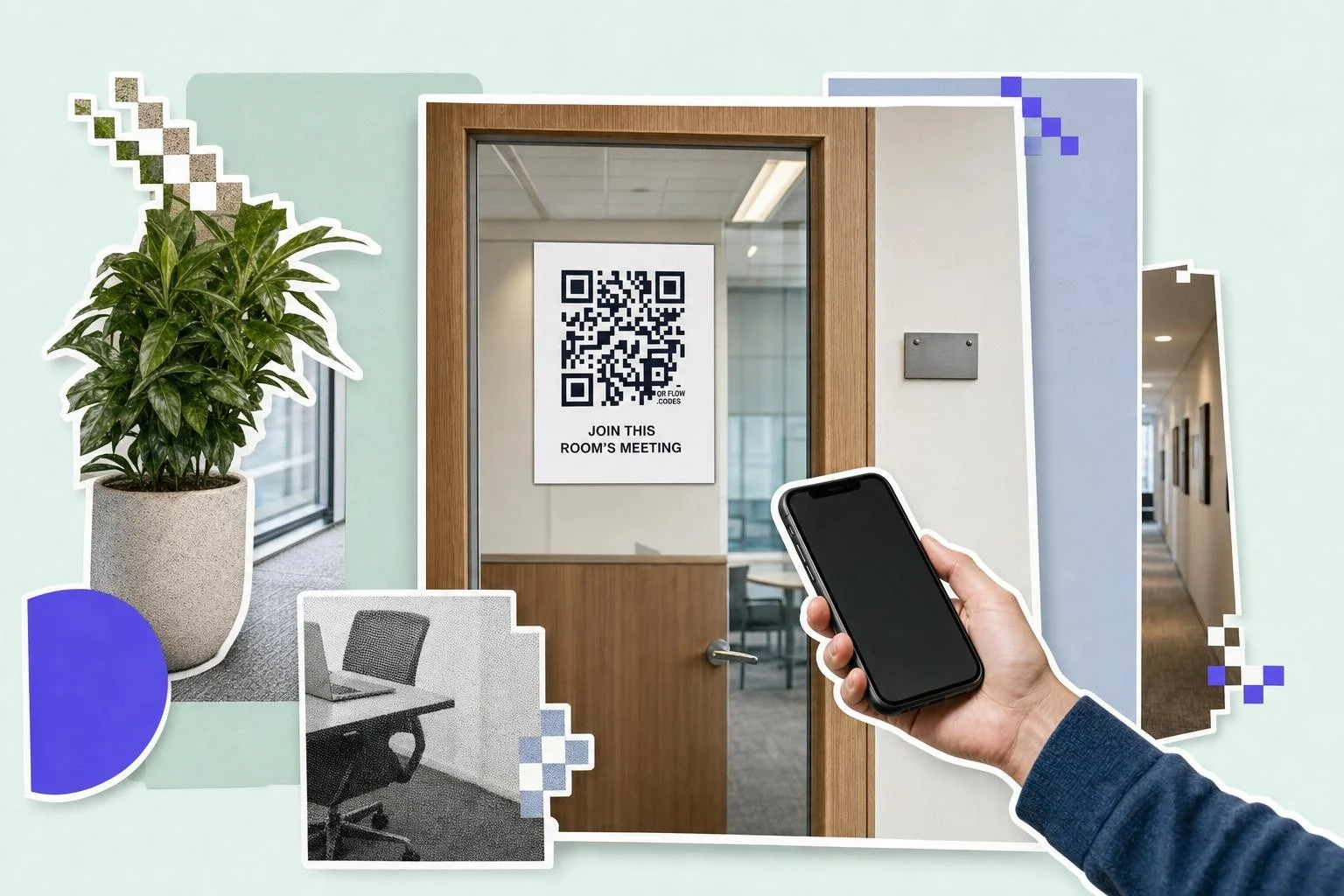
Use the link that does not change
A one-off meeting link is not worth printing; by the time the paper is on the wall the meeting is over. What is worth printing is the link that stays: a recurring team meeting, a Zoom Personal Meeting ID, a standing office-hours session, a support room, or a Google Meet nickname your organization keeps. Copy the invite link from Zoom's Copy Invitation or from the Meet event and paste it above.
Watch the passcode. Zoom links copied from the invitation usually carry an embedded passcode after ?pwd=, which is why they work with one tap; a link without it will ask people to type the passcode instead. Copy the whole address exactly as the invitation gives it to you, and test the code by scanning it from a phone that is not signed in to your account.
A printed meeting link is a public one
This is the part worth being blunt about. Anyone who walks past your sign, or sees a photo of it, has the link. That is fine for a public session and a bad idea for an internal meeting. Turn on the protections in the meeting itself rather than relying on the obscurity of the print: a waiting room so the host admits people, a passcode, and for Zoom the option to lock a meeting once everyone is in. Google Meet asks for the host to admit anyone outside the organization by default, which does most of this work for you.
If the meeting is genuinely private, do not print its link at all. Print a code to a page behind your sign-in, or to a booking form, and send the meeting link to the people who should have it. How to share a Zoom meeting link covers the passcode in the link and the one meeting link never to print.
- Meeting-room door and desk: 2-3 in (5-8 cm), for the room's standing session.
- Hybrid event signage: 3 in (8 cm) or more, so remote guests can join from the room.
- Office hours card on a desk or in a handbook: 1 in (2.5 cm).
- Class or workshop handout: 1 in (2.5 cm), with the time printed next to it.
- Reception or help desk: 2 in (5 cm), pointing at a staffed support room.
What happens when someone scans it
The phone opens the Zoom or Meet app if it is installed, or the browser if not; both platforms offer a browser route, though Zoom often nudges towards the app first. Anyone joining from a phone in a meeting room should mute before they join or the room will squeal, which is worth a line on the sign itself.
Test the whole thing from a phone that is not yours and not signed in to your account, because that is what your visitor is. Scan, join, and see what the waiting room looks like from their side.
Why make it dynamic
Meeting links are exactly the kind of address that gets replaced: a recurring meeting is recreated, the host changes, an account moves from one plan or platform to another, and the sign on the meeting-room door is suddenly pointing at a meeting nobody can join. A dynamic code is repointed in seconds, without taking the sign down, and it can be paused the moment a printed link should stop working. That last part matters more here than anywhere else on the site, because the thing behind this code is a room with your colleagues in it.
Dynamic codes are part of Premium, $4 a month. Static vs dynamic, explained.
Step by step
- 1
Copy the invite link
Zoom's Copy Invitation, or the Meet link from the calendar event. Keep the whole address, passcode included.
- 2
Paste it above
The meeting type is selected; the code appears as you paste.
- 3
Protect the meeting itself
Waiting room or passcode on, because the printed link is public the moment it goes up.
- 4
Keep it repointable
On Premium, edit the destination when the recurring meeting is recreated, or pause the code entirely.
Questions people ask
- How do I make a QR code for a Zoom meeting?
- Copy the meeting's invite link from Zoom (Copy Invitation), paste it into the generator on this page, and download the code. Scanning opens the meeting in the Zoom app or the browser.
- Does it work for Google Meet or Teams?
- Yes. Any meeting link works the same way; paste the Meet or Teams address instead. The generator does not care which platform issued the link.
- Is it safe to print a Zoom link?
- Only if you treat it as public, because it is: anyone who sees the sign or a photo of it can join. Use a waiting room or a passcode on the meeting, lock it once everyone is in, and never print the link to a genuinely private meeting.
- Will the passcode be included?
- If you copy the full invitation link, yes; Zoom embeds the passcode in the address so the tap goes straight through. A trimmed link will prompt for the passcode instead.
- Should I print a one-off meeting link?
- Rarely. Print the links that persist, like a recurring meeting or a Personal Meeting ID. For a one-off, a dynamic code that you repoint before each session is a better use of a printed sign.
- Can I stop the code working after the session?
- With a dynamic code, yes: pause it or repoint it to a page explaining the session has ended. A static code keeps opening that meeting link for as long as the link is live.
Make the code now, change the link later
Free to make and print. Premium ($4/mo) keeps it editable and counts every scan.